> ## Documentation Index
> Fetch the complete documentation index at: https://translations.mintlify.site/llms.txt
> Use this file to discover all available pages before exploring further.
> Configure an update policy form using Forms for Actions
# Use Cases: Configure an update policy form using Forms
1. Create a [Machine-to-Machine Application](/docs/get-started/auth0-overview/create-applications/machine-to-machine-apps) with the following scopes enabled:
* `read:users`
* `update:users`
* `create:users`
* `read:users_app_metadata`
* `update:users_app_metadata`
* `create:users_app_metadata`
2. Add a [Vault connection](/docs/customize/forms/vault) using the M2M application credentials.
Forms for Actions allows you to create custom privacy policies flows and store the consent under the `app_metadata` object.
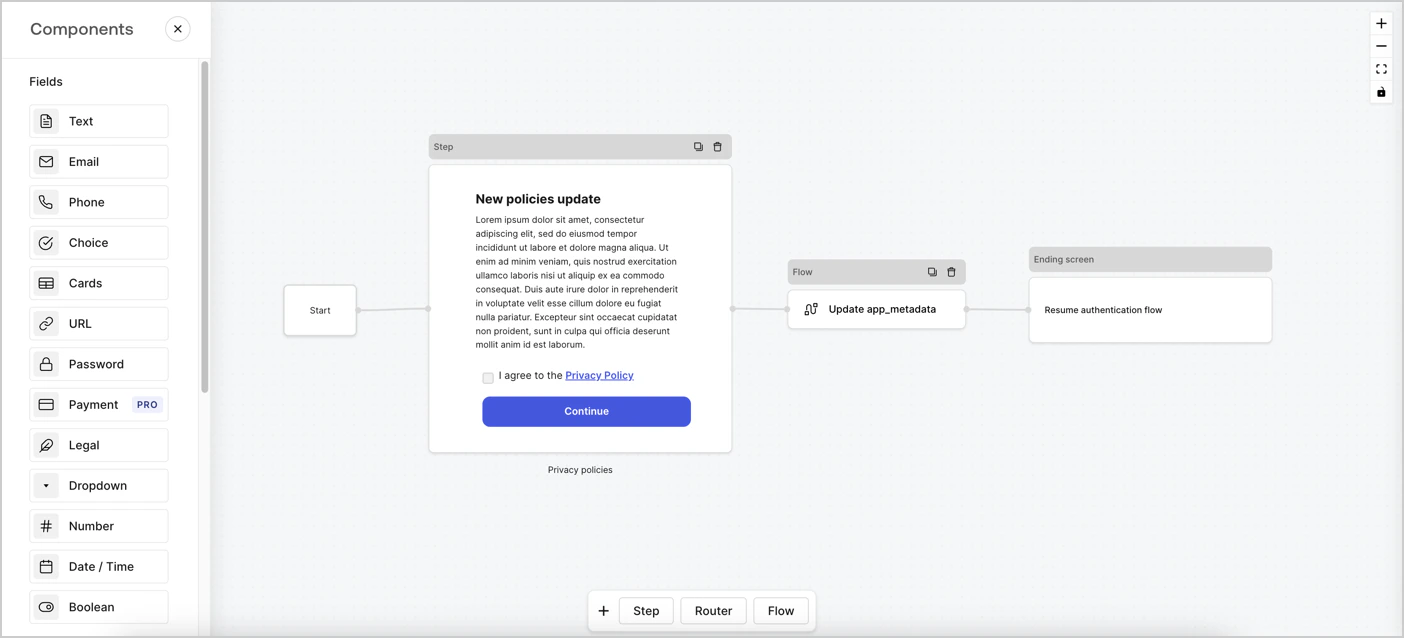 The sections below outline how you can create an Update Policy form using nodes and flows, along with steps for adding your form to a [Post Login](/docs/customize/actions/explore-triggers/signup-and-login-triggers/login-trigger) Action.
## Create a form from scratch
Follow these steps to create a form to gather information:
1. Open the Form editor by selecting **Auth0 Dashboard > Actions > Forms.**
2. Select **Create Form** > **Start from scratch**.
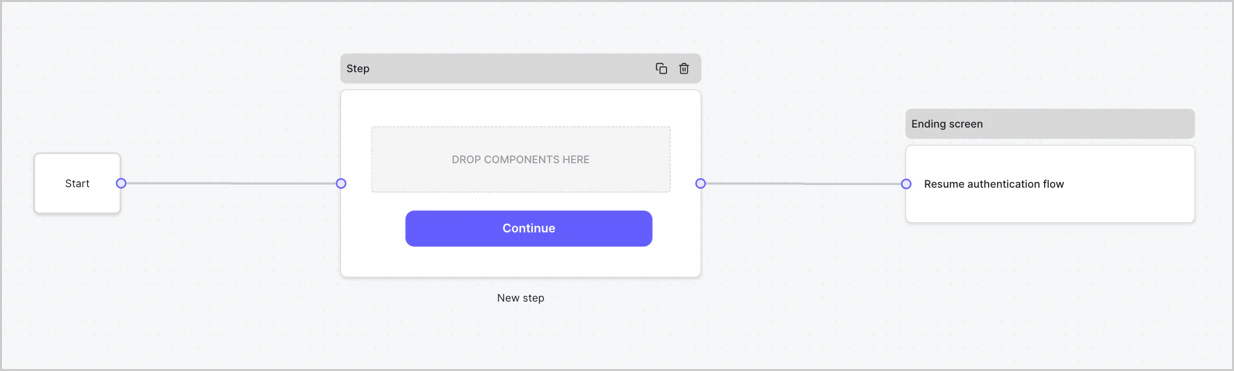
By default, a new form contains a Start node, a Step node, and an Ending screen node.
The sections below outline how you can create an Update Policy form using nodes and flows, along with steps for adding your form to a [Post Login](/docs/customize/actions/explore-triggers/signup-and-login-triggers/login-trigger) Action.
## Create a form from scratch
Follow these steps to create a form to gather information:
1. Open the Form editor by selecting **Auth0 Dashboard > Actions > Forms.**
2. Select **Create Form** > **Start from scratch**.
By default, a new form contains a Start node, a Step node, and an Ending screen node.
 ### Configure the Step node
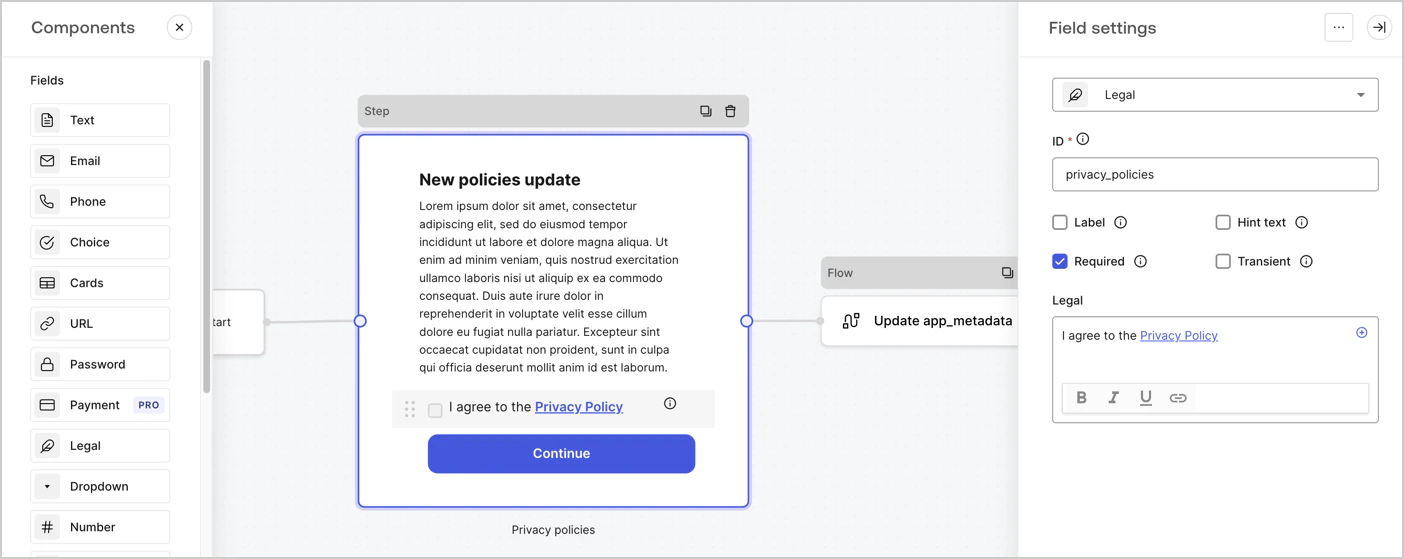
The Step node is the graphical interface visible to users. Add [Fields](/docs/customize/forms/nodes-and-components) to the Step node to collect the new agreement acceptance value by following these steps:
1. Drag a **Rich text** field from the **Components menu** into the **Step** node.
* **Rich text**: Enter a description of your privacy policies updates.
* Select **Save**.
2. Drag a **Legal** field into the **Step** node.
* **ID**: Enter `privacy_policies`.
* **Required**: Enable the checkbox.
* **Legal**: Enter `I agree to the Privacy Policy`.
* Select **Save**.
3. Select **Publish** to save.
### Configure the Step node
The Step node is the graphical interface visible to users. Add [Fields](/docs/customize/forms/nodes-and-components) to the Step node to collect the new agreement acceptance value by following these steps:
1. Drag a **Rich text** field from the **Components menu** into the **Step** node.
* **Rich text**: Enter a description of your privacy policies updates.
* Select **Save**.
2. Drag a **Legal** field into the **Step** node.
* **ID**: Enter `privacy_policies`.
* **Required**: Enable the checkbox.
* **Legal**: Enter `I agree to the Privacy Policy`.
* Select **Save**.
3. Select **Publish** to save.
 ### Configure the Flow node
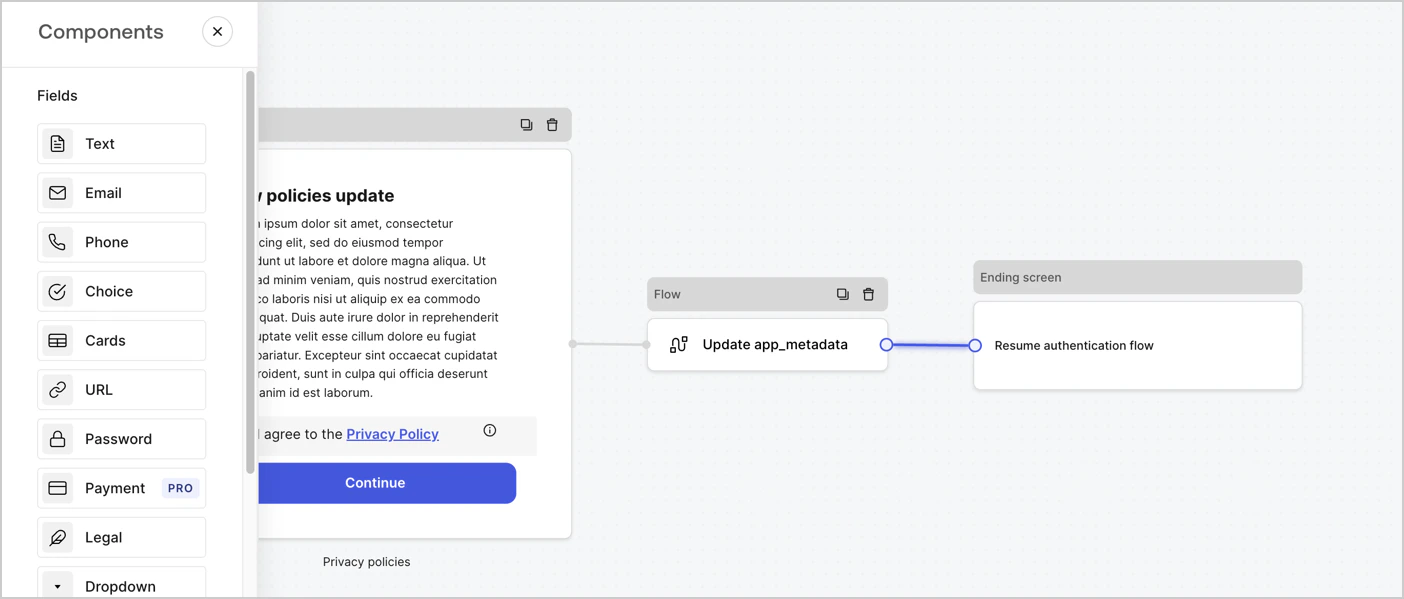
Add a **Flow** node after the **Step** node to update the `app_metadata` and resume the authentication flow by following these steps:
1. Select **Flow** from the bottom of the Form editor.
2. Remove the existing link between the **Step** and **Ending Screen** nodes.
3. Select the new **Flow** > **Click to add a flow** > **Create a new flow.**
* Enter `Update app_metadata` in the **Name** field.
* Select **Create**.
* Select **Save**.
4. Link the **Flow** node to the **Step** and **Ending Screen** nodes as pictured below.
5. Select **Publish** to save.
### Configure the Flow node
Add a **Flow** node after the **Step** node to update the `app_metadata` and resume the authentication flow by following these steps:
1. Select **Flow** from the bottom of the Form editor.
2. Remove the existing link between the **Step** and **Ending Screen** nodes.
3. Select the new **Flow** > **Click to add a flow** > **Create a new flow.**
* Enter `Update app_metadata` in the **Name** field.
* Select **Create**.
* Select **Save**.
4. Link the **Flow** node to the **Step** and **Ending Screen** nodes as pictured below.
5. Select **Publish** to save.
 Add an Auth0 Update user action to the flow by following these steps:
1. Select the **Flow** **Update app\_metadata** > **Edit flow** to open the Flow editor in a new tab.
2. Below the StartAction, select the **+** icon to add an **Update user** action. Complete the fields below, then select **Save** to continue.
* **Connection**: Select from the dropdown the Vault connection to your M2M application.
* **User ID**: Enter `{{context.user.user_id}}`.
* **Body**: Copy and paste the following code to update the app\_metadata with the privacy\_policies and privacy\_policies\_timestamp properties.
```text lines theme={null}
{
"app_metadata": {
"privacy_policies": true,
"privacy_policies_timestamp": "{{ functions.toTimestamp() }}"
}
}
```
* Select **Save**.
3. Select **Publish** to save.
Add an Auth0 Update user action to the flow by following these steps:
1. Select the **Flow** **Update app\_metadata** > **Edit flow** to open the Flow editor in a new tab.
2. Below the StartAction, select the **+** icon to add an **Update user** action. Complete the fields below, then select **Save** to continue.
* **Connection**: Select from the dropdown the Vault connection to your M2M application.
* **User ID**: Enter `{{context.user.user_id}}`.
* **Body**: Copy and paste the following code to update the app\_metadata with the privacy\_policies and privacy\_policies\_timestamp properties.
```text lines theme={null}
{
"app_metadata": {
"privacy_policies": true,
"privacy_policies_timestamp": "{{ functions.toTimestamp() }}"
}
}
```
* Select **Save**.
3. Select **Publish** to save.
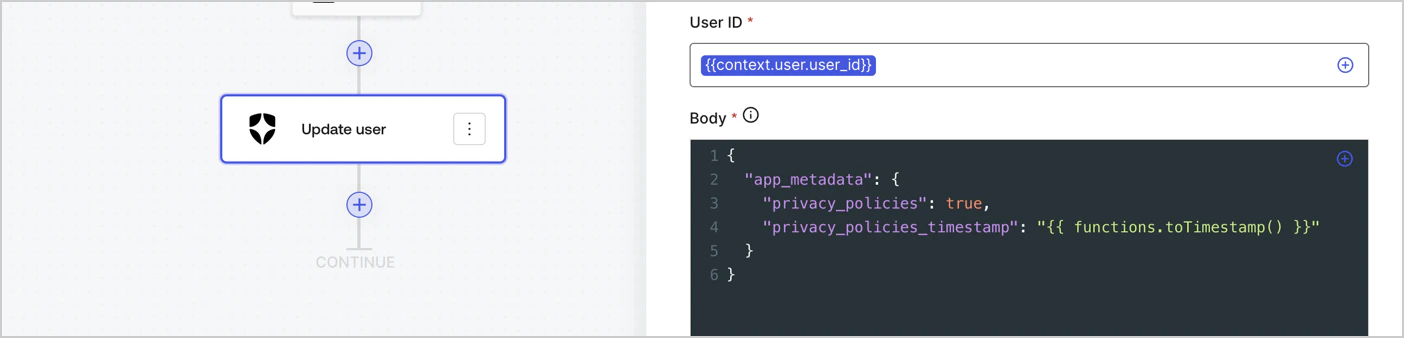 The flow **Update app\_metadata** adds a `privacy_policies true` value to the app`_metadata` object and also generates a timestamp with a [helper function.](/docs/customize/forms/variables)
## Retrieve the form render code
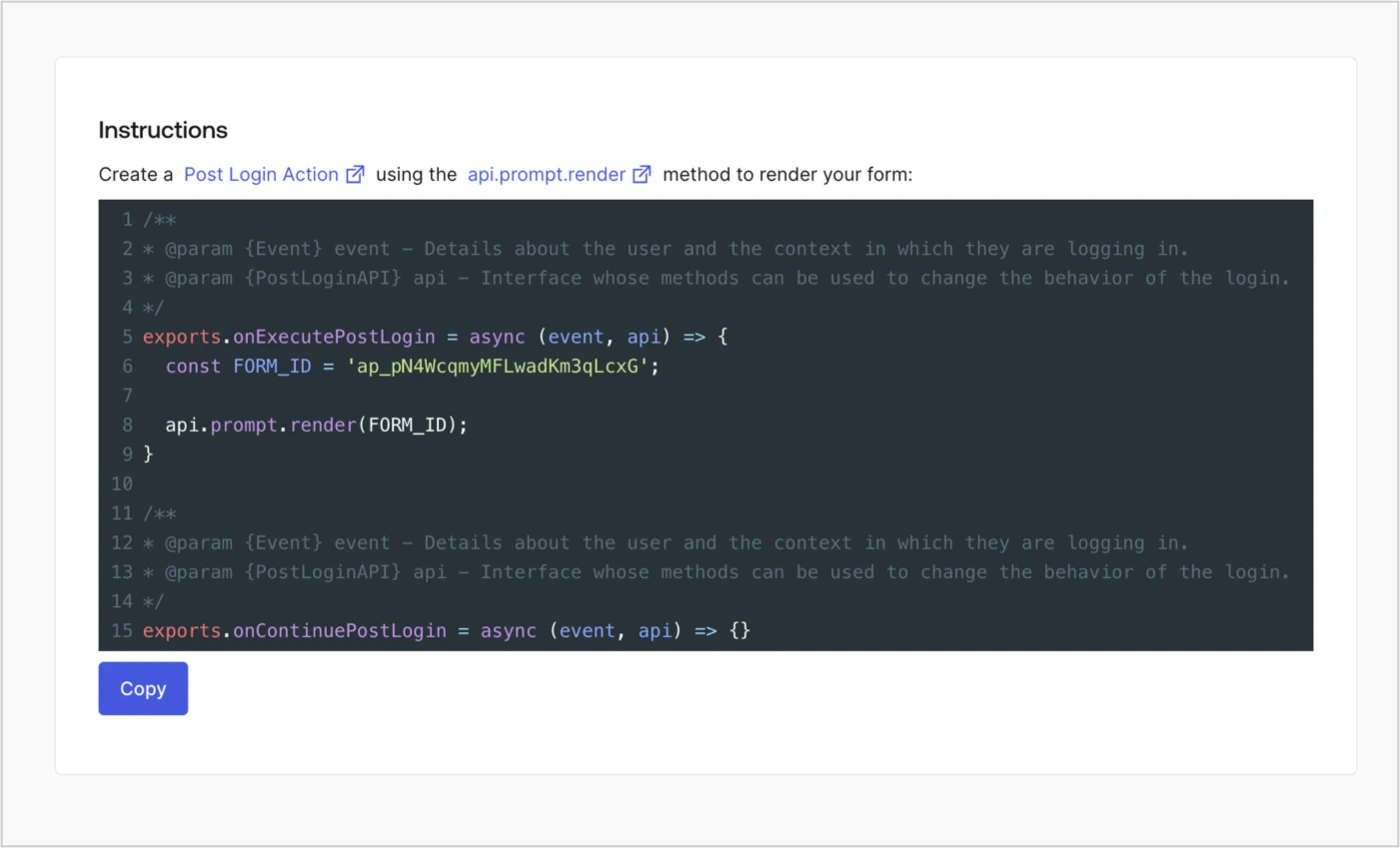
Retrieve your form render code to visually render the form with a custom Post Login Action by following these steps:
* From the Form editor, select **`<> Render`**.
* Select **Copy**.
The flow **Update app\_metadata** adds a `privacy_policies true` value to the app`_metadata` object and also generates a timestamp with a [helper function.](/docs/customize/forms/variables)
## Retrieve the form render code
Retrieve your form render code to visually render the form with a custom Post Login Action by following these steps:
* From the Form editor, select **`<> Render`**.
* Select **Copy**.
 ## Create a Post Login Action
Create a post-login Action to render your form by following these steps:
1. Navigate to **Auth0 Dashboard > Actions > Flows > Login.**
2. Select the **+** icon and Select **Build from scratch**:
* **Name**: Enter `Render Update Policy Form`.
* **Trigger**: Select `Login / Post Login`.
* **Runtime**: Select the recommended version.
3. Select **Create**.
To configure the post-login Action:
1. Delete the existing code from the Code editor.
2. Paste the form render code into the Code editor.
3. Edit the code to define the conditional logic that will render the form.
```javascript lines theme={null}
/**
* @param {Event} event - Details about the user and the context in which they are logging in.
* @param {PostLoginAPI} api - Interface whose methods can be used to change the behavior of the login.
*/
exports.onExecutePostLogin = async (event, api) => {
const FORM_ID = 'REPLACE_WITH_YOUR_FORM_ID';
if (event.user.app_metadata.privacy_policies !== true) {
api.prompt.render(FORM_ID);
}
}
exports.onContinuePostLogin = async (event, api) => { }
```
The example code above will render the form when a user is missing the app metadata `privacy_policies` property.
4. Select **Deploy.**
5. Drag and Drop the **Render Update Policy Form** Action to the **Login** flow.
## Create a Post Login Action
Create a post-login Action to render your form by following these steps:
1. Navigate to **Auth0 Dashboard > Actions > Flows > Login.**
2. Select the **+** icon and Select **Build from scratch**:
* **Name**: Enter `Render Update Policy Form`.
* **Trigger**: Select `Login / Post Login`.
* **Runtime**: Select the recommended version.
3. Select **Create**.
To configure the post-login Action:
1. Delete the existing code from the Code editor.
2. Paste the form render code into the Code editor.
3. Edit the code to define the conditional logic that will render the form.
```javascript lines theme={null}
/**
* @param {Event} event - Details about the user and the context in which they are logging in.
* @param {PostLoginAPI} api - Interface whose methods can be used to change the behavior of the login.
*/
exports.onExecutePostLogin = async (event, api) => {
const FORM_ID = 'REPLACE_WITH_YOUR_FORM_ID';
if (event.user.app_metadata.privacy_policies !== true) {
api.prompt.render(FORM_ID);
}
}
exports.onContinuePostLogin = async (event, api) => { }
```
The example code above will render the form when a user is missing the app metadata `privacy_policies` property.
4. Select **Deploy.**
5. Drag and Drop the **Render Update Policy Form** Action to the **Login** flow.
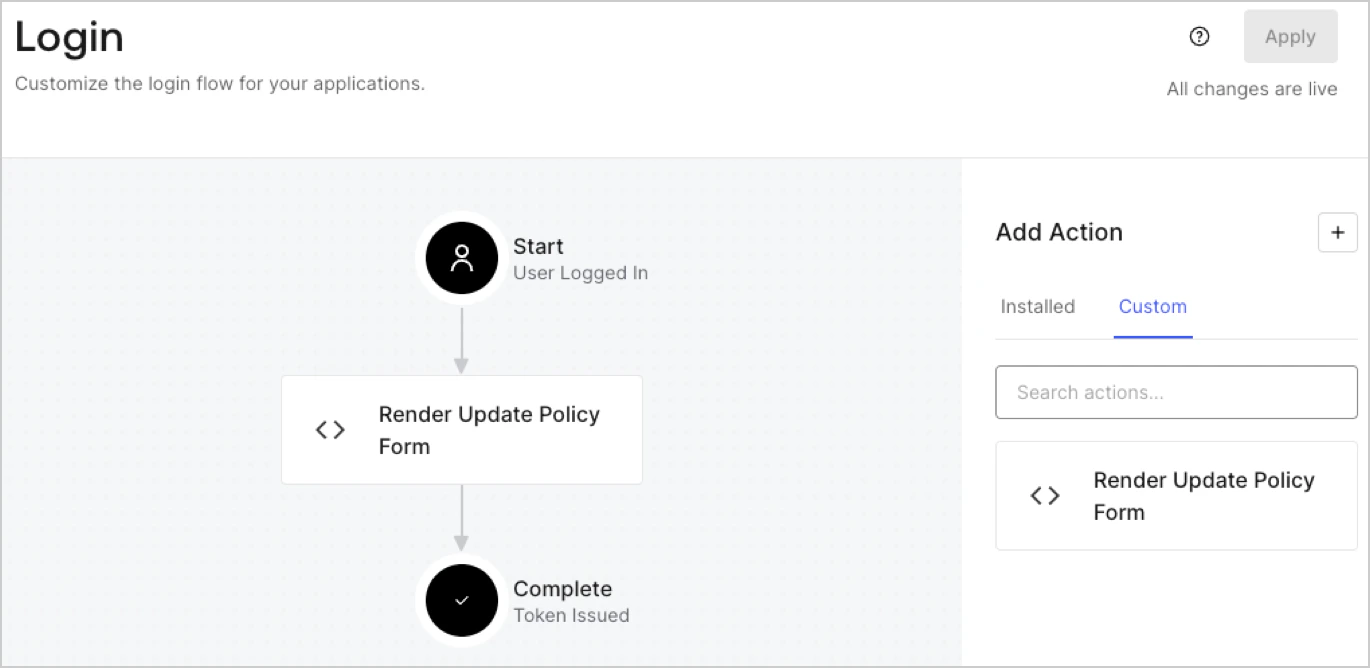 6. Select **Apply.**
### Test implementation
Test the implementation by following these steps:
1. Log in with an existing user whose app`_metadata` attribute `privacy_policies` does not have a value.
2. The post-login Action in the Login flow will render the form and prompt for acceptance.
3. Select **Auth0 Dashboard > User Management > Users,** locate the user and verify that the `app_metadata` attribute `privacy_policies` contains a `true` value and a timestamp.
6. Select **Apply.**
### Test implementation
Test the implementation by following these steps:
1. Log in with an existing user whose app`_metadata` attribute `privacy_policies` does not have a value.
2. The post-login Action in the Login flow will render the form and prompt for acceptance.
3. Select **Auth0 Dashboard > User Management > Users,** locate the user and verify that the `app_metadata` attribute `privacy_policies` contains a `true` value and a timestamp.