> ## Documentation Index
> Fetch the complete documentation index at: https://translations.mintlify.site/llms.txt
> Use this file to discover all available pages before exploring further.

> Auth0 の事前構築済みのフローアクションを設定して、Management API にリクエストを送信したり、カスタム通知を送信したりする方法を学びます。

# Auth0

<div id="configure-your-auth0-vault-connection">
  ## Auth0 Vault 接続を設定する
</div>

Auth0 フローの Actions 用の Vault 接続を設定する方法については、[Auth0 Vault Connection](/docs/ja-jp/customize/forms/vaults/auth0)をご覧ください。

<div id="create-user">
  ## Create user
</div>

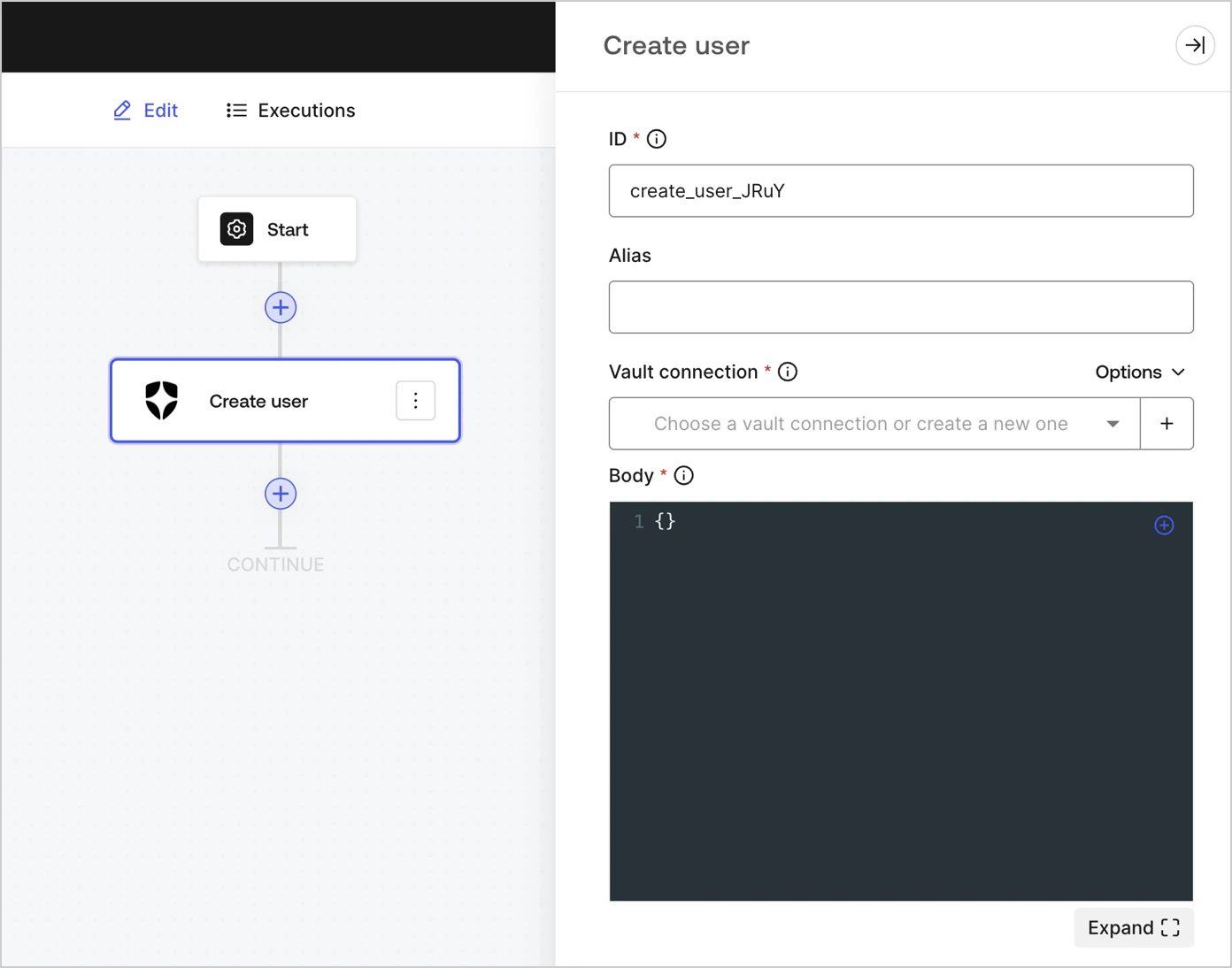
ユーザーを作成します。

<Frame>
  <img src="https://mintcdn.com/translations/6GE5Z24GDCZehiJ9/docs/images/cdy7uua7fh8z/6MQIKf2IpTtI2g7d5Pwn7u/222ec746cf9c0c1003d18ba4c0aa451e/create_user.png?fit=max&auto=format&n=6GE5Z24GDCZehiJ9&q=85&s=82c2178269eed5033bc2c37131e8fbde" alt="" width="1392" height="1094" data-path="docs/images/cdy7uua7fh8z/6MQIKf2IpTtI2g7d5Pwn7u/222ec746cf9c0c1003d18ba4c0aa451e/create_user.png" />
</Frame>

<div id="input-settings">
  ### 入力設定
</div>

| パラメーター | 説明                                                                                                                          |
| ------ | --------------------------------------------------------------------------------------------------------------------------- |
| Body   | 追加する Auth0 ユーザープロパティのペイロードです。詳しくは、[ユーザーの作成](https://auth0.com/docs/api/management/v2/users/post-users) API ドキュメントを参照してください。 |

<div id="output-object">
  ### 出力オブジェクト
</div>

想定されるレスポンスとステータスコードについては、[ユーザーの作成](https://auth0.com/docs/api/management/v2/users/post-users#response-messages)を参照してください。

<div id="get-user">
  ## Get User
</div>

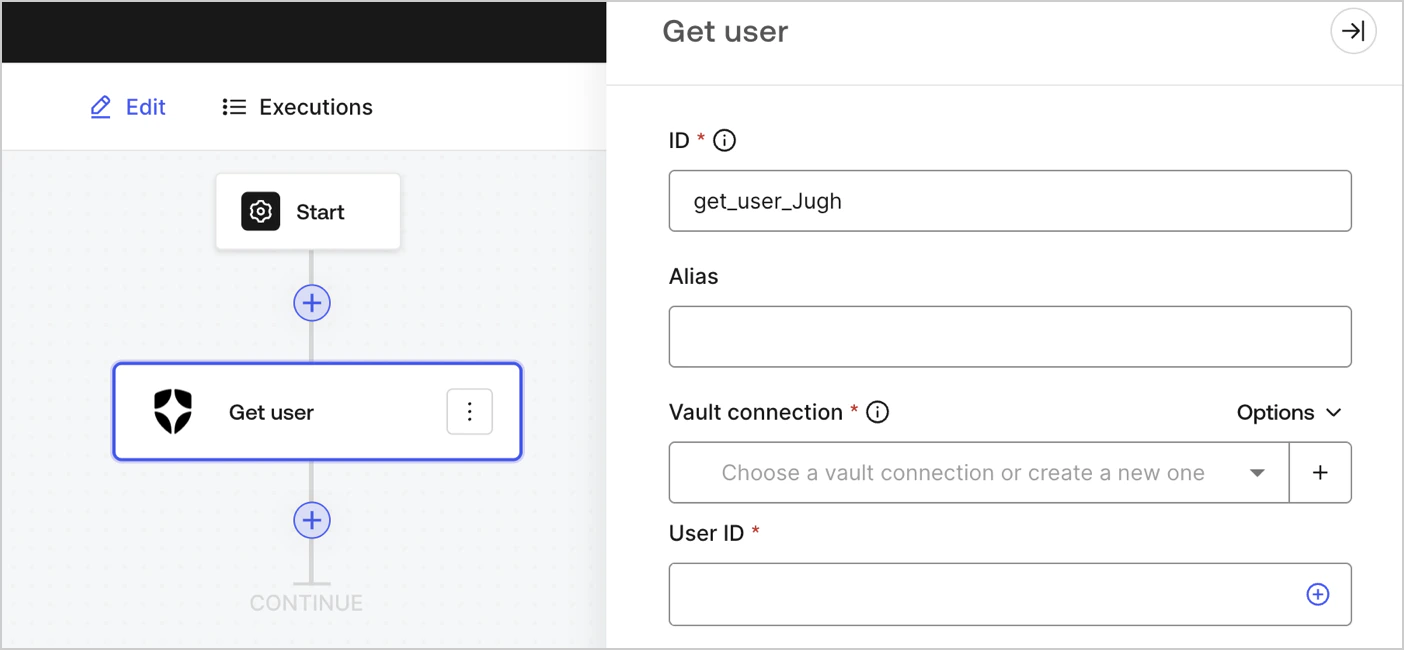
ユーザーの詳細を取得します。

<Frame>
  <img src="https://mintcdn.com/translations/3nS3prIggmJG9TUI/docs/images/cdy7uua7fh8z/3GoNZsXOvMTYRtMQNj00mm/6e92d94cee7b165479c688358a5df242/Screenshot_2024-11-18_at_16.31.49.png?fit=max&auto=format&n=3nS3prIggmJG9TUI&q=85&s=57a854f8d72b431cab682c36789fc2a1" alt="" width="1404" height="650" data-path="docs/images/cdy7uua7fh8z/3GoNZsXOvMTYRtMQNj00mm/6e92d94cee7b165479c688358a5df242/Screenshot_2024-11-18_at_16.31.49.png" />
</Frame>

<div id="input-settings">
  ### 入力設定
</div>

| パラメーター | 説明                                                                                                                   |
| ------ | -------------------------------------------------------------------------------------------------------------------- |
| ユーザーID | 取得するユーザーのIDです。詳しくは、[Get a user](https://auth0.com/docs/api/management/v2/users/get-users-by-id) のAPIドキュメントを参照してください。 |

<div id="output-object">
  ### 出力オブジェクト
</div>

想定されるレスポンスとステータスコードについては、[Get a user](https://auth0.com/docs/api/management/v2/users/get-users-by-id#response-messages)を参照してください。

<div id="update-user">
  ## ユーザーを更新
</div>

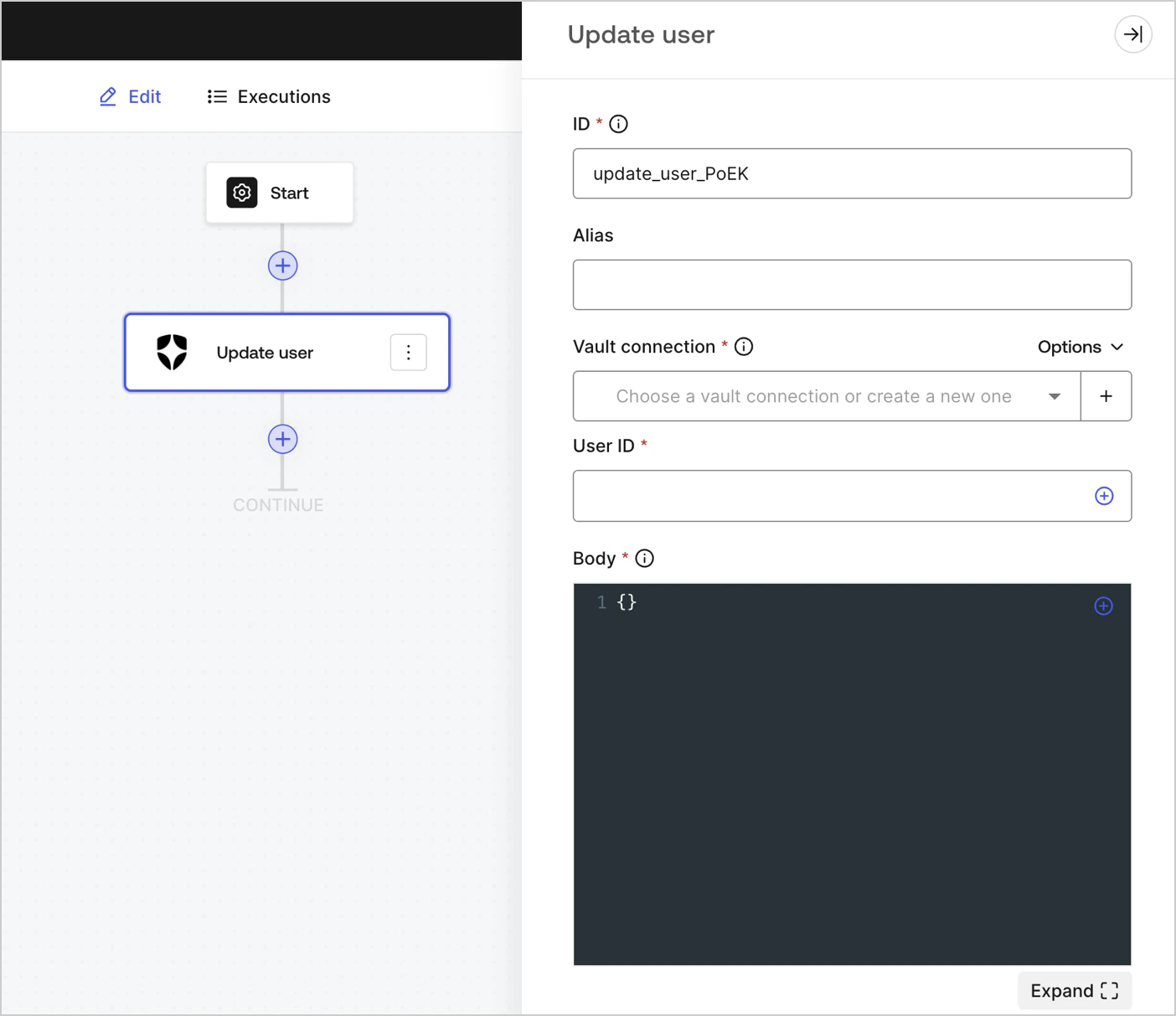
ユーザーを更新します。

<Frame>
  <img src="https://mintcdn.com/translations/3nS3prIggmJG9TUI/docs/images/cdy7uua7fh8z/3tymSpaeod6EksWRJp1sge/1122b244d756d754fe41baac209a132b/Screenshot_2024-11-18_at_16.49.56.png?fit=max&auto=format&n=3nS3prIggmJG9TUI&q=85&s=5d2d8a8224f8161fa5b00d21a38670bb" alt="" width="1404" height="1213" data-path="docs/images/cdy7uua7fh8z/3tymSpaeod6EksWRJp1sge/1122b244d756d754fe41baac209a132b/Screenshot_2024-11-18_at_16.49.56.png" />
</Frame>

<div id="input-settings">
  ### 入力設定
</div>

| パラメータ   | 説明                                                                                                                               |
| ------- | -------------------------------------------------------------------------------------------------------------------------------- |
| User ID | 更新するユーザーの ID。                                                                                                                    |
| Body    | 更新する Auth0 ユーザープロパティのペイロードです。詳しくは、[ユーザーを更新](https://auth0.com/docs/api/management/v2/users/patch-users-by-id) API ドキュメントをご覧ください。 |

<div id="output-object">
  ### 出力オブジェクト
</div>

想定されるレスポンスとステータスコードについては、[ユーザーを更新](https://auth0.com/docs/api/management/v2/users/patch-users-by-id#response-messages) API ドキュメントを参照してください。

<div id="custom-api-request">
  ## カスタム API リクエスト
</div>

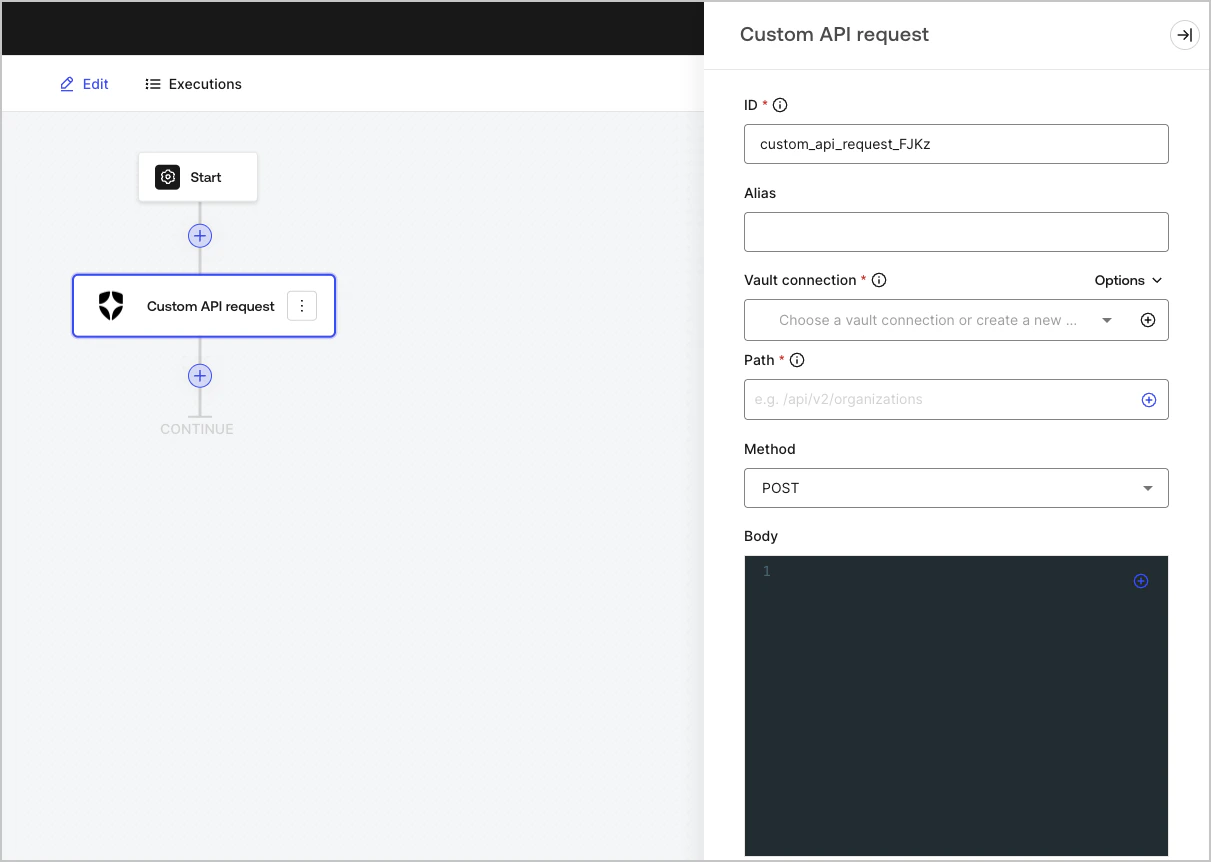
Auth0 API のエンドポイントにカスタム API リクエストを送信します。
<Frame>
  <img src="https://mintcdn.com/translations/6GE5Z24GDCZehiJ9/docs/images/cdy7uua7fh8z/66uV9iuhwfnXUdE1quLOyx/2ae3ff26335acbcd172cbb40618a5a90/Screenshot_2025-01-24_at_18.50.26.png?fit=max&auto=format&n=6GE5Z24GDCZehiJ9&q=85&s=2b488d7b1f4580bdb6ab3de18832a090" alt="Auth0 Dashboard > カスタマイズ > Flows > 連携 > Auth0" data-og-width="1211" width="1211" data-og-height="862" height="862" data-path="docs/images/cdy7uua7fh8z/66uV9iuhwfnXUdE1quLOyx/2ae3ff26335acbcd172cbb40618a5a90/Screenshot_2025-01-24_at_18.50.26.png" data-optimize="true" data-opv="3" srcset="https://mintcdn.com/translations/6GE5Z24GDCZehiJ9/docs/images/cdy7uua7fh8z/66uV9iuhwfnXUdE1quLOyx/2ae3ff26335acbcd172cbb40618a5a90/Screenshot_2025-01-24_at_18.50.26.png?w=280&fit=max&auto=format&n=6GE5Z24GDCZehiJ9&q=85&s=efb8c59d8aa0e1b03cc3a08ce8f1d5ca 280w, https://mintcdn.com/translations/6GE5Z24GDCZehiJ9/docs/images/cdy7uua7fh8z/66uV9iuhwfnXUdE1quLOyx/2ae3ff26335acbcd172cbb40618a5a90/Screenshot_2025-01-24_at_18.50.26.png?w=560&fit=max&auto=format&n=6GE5Z24GDCZehiJ9&q=85&s=070b289561edf2ba868b266a95870be0 560w, https://mintcdn.com/translations/6GE5Z24GDCZehiJ9/docs/images/cdy7uua7fh8z/66uV9iuhwfnXUdE1quLOyx/2ae3ff26335acbcd172cbb40618a5a90/Screenshot_2025-01-24_at_18.50.26.png?w=840&fit=max&auto=format&n=6GE5Z24GDCZehiJ9&q=85&s=2cb1412d8636089adc8102cc325136ab 840w, https://mintcdn.com/translations/6GE5Z24GDCZehiJ9/docs/images/cdy7uua7fh8z/66uV9iuhwfnXUdE1quLOyx/2ae3ff26335acbcd172cbb40618a5a90/Screenshot_2025-01-24_at_18.50.26.png?w=1100&fit=max&auto=format&n=6GE5Z24GDCZehiJ9&q=85&s=afa80b3fff35656da497ba642ecf1fdd 1100w, https://mintcdn.com/translations/6GE5Z24GDCZehiJ9/docs/images/cdy7uua7fh8z/66uV9iuhwfnXUdE1quLOyx/2ae3ff26335acbcd172cbb40618a5a90/Screenshot_2025-01-24_at_18.50.26.png?w=1650&fit=max&auto=format&n=6GE5Z24GDCZehiJ9&q=85&s=dd327bdc93cb2e70141d7732e369b441 1650w, https://mintcdn.com/translations/6GE5Z24GDCZehiJ9/docs/images/cdy7uua7fh8z/66uV9iuhwfnXUdE1quLOyx/2ae3ff26335acbcd172cbb40618a5a90/Screenshot_2025-01-24_at_18.50.26.png?w=2500&fit=max&auto=format&n=6GE5Z24GDCZehiJ9&q=85&s=98bfea471cd8cf3b990f846d7978023e 2500w" />
</Frame>

<div id="input-settings">
  ### 入力設定
</div>

| パラメーター     | 説明                                                                                                                                                                                                                                                                                                                                                                                                           |
| ---------- | ------------------------------------------------------------------------------------------------------------------------------------------------------------------------------------------------------------------------------------------------------------------------------------------------------------------------------------------------------------------------------------------------------------ |
| パス         | APIエンドポイントの絶対パス名。<br />( 例: `/api/v2/organizations` )<br />**注:** 一部のエンドポイントでは、たとえば [ Get a user ](https://auth0.com/docs/api/management/v2/users/get-users-by-id) のように、`-`、`.`、`_`、`~` などの英数字以外の [ 文字 ](https://datatracker.ietf.org/doc/html/rfc3986#section-2.3) を使用する場合、URIエンコードされたパラメーターが必要です。<br />その場合は、encodeURIComponent 関数を使用できます。<br />`{{ functions.encodeURIComponent(context.user.user_id) }}` |
| メソッド       | 使用可能なHTTPメソッドは次のとおりです。 <ul> <li>`GET`</li> <li>`POST`</li> <li>`PUT`</li> <li>`PATCH`</li> <li>`DELETE`</li> </ul>                                                                                                                                                                                                                                                                                           |
| ボディ        | リクエストのボディ。                                                                                                                                                                                                                                                                                                                                                                                                   |
| ヘッダー       | リクエストのヘッダー。                                                                                                                                                                                                                                                                                                                                                                                                  |
| URL Params | URLパラメーター。これらのパラメーターは自動的にURLエンコードされます。                                                                                                                                                                                                                                                                                                                                                                       |

<div id="output-object">
  ### 出力オブジェクト
</div>

想定されるレスポンスとステータスコードについては、[Auth0 Management API](https://auth0.com/docs/api/management/v2/introduction) を参照してください。

<div id="notifications">
  ## 通知
</div>

<div id="send-email">
  ## メールを送信
</div>

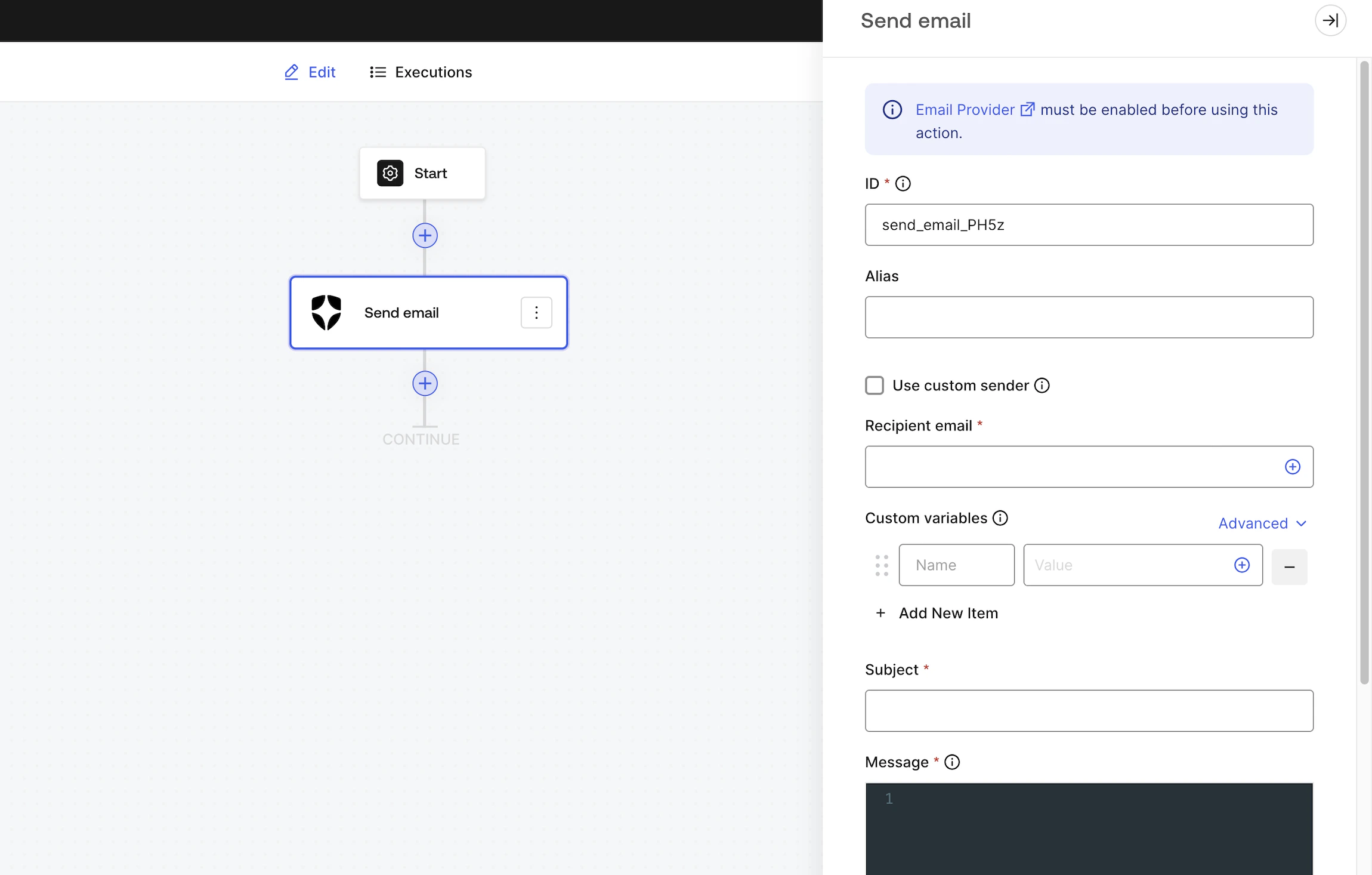
[設定済みのメールプロバイダー](/docs/ja-jp/customize/email)を使用して、カスタムメールを送信します。

<Warning>
  このActionを使用する前に、[メールプロバイダー](/docs/ja-jp/customize/email)を有効にしておく必要があります。
</Warning>

<Frame>
  <img src="https://mintcdn.com/translations/xwVvTWJUElMm5YAK/docs/images/forms/flows/integrations/auth0-notifications-send-email.png?fit=max&auto=format&n=xwVvTWJUElMm5YAK&q=85&s=f51a290317d6c4b49d3aa83b9c0f7fc4" alt="" width="2300" height="1466" data-path="docs/images/forms/flows/integrations/auth0-notifications-send-email.png" />
</Frame>

<div id="input-settings">
  ### 入力設定
</div>

| パラメーター        | 説明                                                                                           |
| ------------- | -------------------------------------------------------------------------------------------- |
| カスタム送信者メールを使用 | デフォルトでは、カスタマイズしたメールプロバイダーの設定で構成した送信者メールを使用します。別の送信者メールアドレスまたは送信者名を使用する場合は、このオプションを有効にしてください。 |
| 受信者メール        | 受信者のメールアドレスです。                                                                               |
| カスタム変数        | メールテンプレートに挿入するカスタム変数を追加します。設定後は、`{{custom_vars.your_variable_key}}` を使用して参照できます。             |
| 件名            | メールの件名です。カスタム変数と Liquid 構文に対応しています。                                                          |
| メッセージ         | メールの本文は HTML 形式で、Liquid 構文を使用でき、カスタム変数にも対応しています。                                             |

<Callout icon="file-lines" color="#0EA5E9" iconType="regular">
  件名とメッセージでは、Liquid 構文を[共通変数](https://auth0.com/docs/customize/email/email-templates/supported-liquid-syntax)や `{{custom_vars.your_variable_key}}` 構文のカスタム変数と組み合わせて使用できます。

  カスタム変数を使用すると、フォーム / Flows のコンテキストと件名およびメッセージの内容の間で情報を受け渡せます。
</Callout>

<div id="output-object">
  ### 出力オブジェクト
</div>

| プロパティ   | 型       | 説明                                             |
| ------- | ------- | ---------------------------------------------- |
| success | Boolean | 配信に成功したかどうかにかかわらず、メール送信が正常にキューに追加されたかどうかを示します。 |

### 出力オブジェクトの例

```json theme={null}
{
  "success": true
}
```

<div id="send-sms">
  ## SMSを送信
</div>

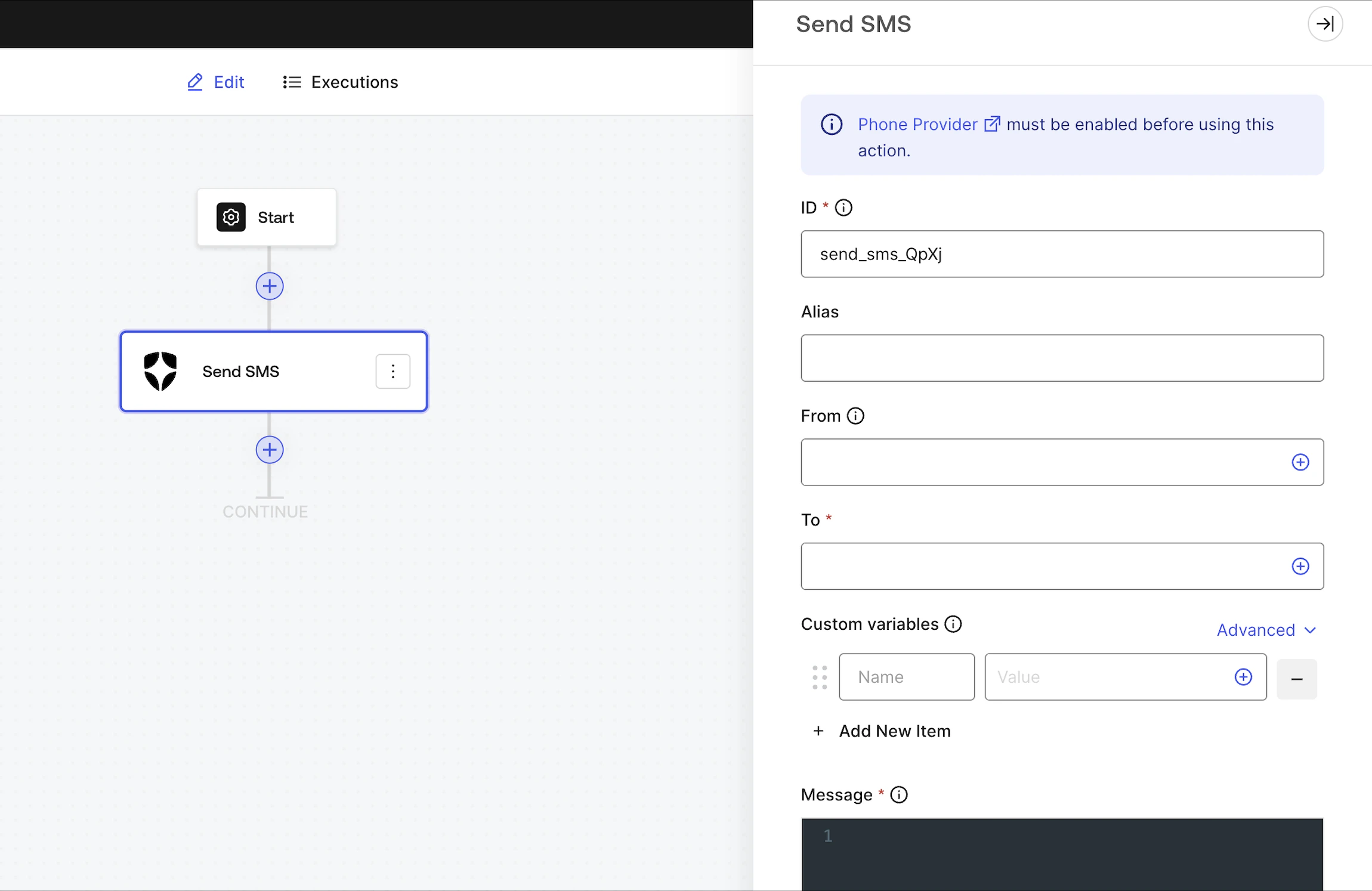
[設定済みの電話プロバイダー](https://auth0.com/docs/customize/phone-messages/configure-phone-messaging-providers)を使用して、カスタムSMSを送信します。

<Warning>
  このActionを使用する前に、テキストメッセージを配信できるように [Phone Provider](https://auth0.com/docs/customize/phone-messages/configure-phone-messaging-providers) を有効にしておく必要があります。
</Warning>

<Frame>
  <img src="https://mintcdn.com/translations/xwVvTWJUElMm5YAK/docs/images/forms/flows/integrations/auth0-notifications-send-sms.png?fit=max&auto=format&n=xwVvTWJUElMm5YAK&q=85&s=1fd86cc862d5c500136ae7fdb0a6a253" alt="" width="2300" height="1494" data-path="docs/images/forms/flows/integrations/auth0-notifications-send-sms.png" />
</Frame>

<div id="input-settings">
  ### 入力設定
</div>

| Parameter | Description                                                                     |
| --------- | ------------------------------------------------------------------------------- |
| From      | デフォルトでは、カスタマイズした電話プロバイダーの設定で構成した送信元の電話番号を使用します。別の送信元電話番号を使う場合は、カスタム値を入力してください。  |
| To        | 受信者の電話番号です。                                                                     |
| カスタム変数    | 電話テンプレートに挿入するカスタム変数を追加します。設定後は、`{{custom_vars.your_variable_key}}` を使用して参照できます。 |
| Message   | 電話メッセージでは Liquid 構文を使用でき、カスタム変数もサポートされています。                                     |

<Callout icon="file-lines" color="#0EA5E9" iconType="regular">
  Message では、[共通変数](https://auth0.com/docs/customize/email/email-templates/supported-liquid-syntax)と Liquid 構文を組み合わせて使用でき、`{{custom_vars.your_variable_key}}` 構文を使ったカスタム変数にも対応しています。

  カスタム変数を使うと、フォーム / Flows のコンテキストと Message の内容の間で情報を受け渡せます。
</Callout>

<div id="output-object">
  ### 出力オブジェクト
</div>

| プロパティ   | 型       | 説明                                             |
| ------- | ------- | ---------------------------------------------- |
| success | Boolean | 配信の成否にかかわらず、電話メッセージが送信待ちキューに正常に追加されたかどうかを示します。 |

<div id="output-object-example">
  ### Output objectの例
</div>

```json theme={null}
{
  "success": true
}
```

<div id="make-call">
  ## 通話をかける
</div>

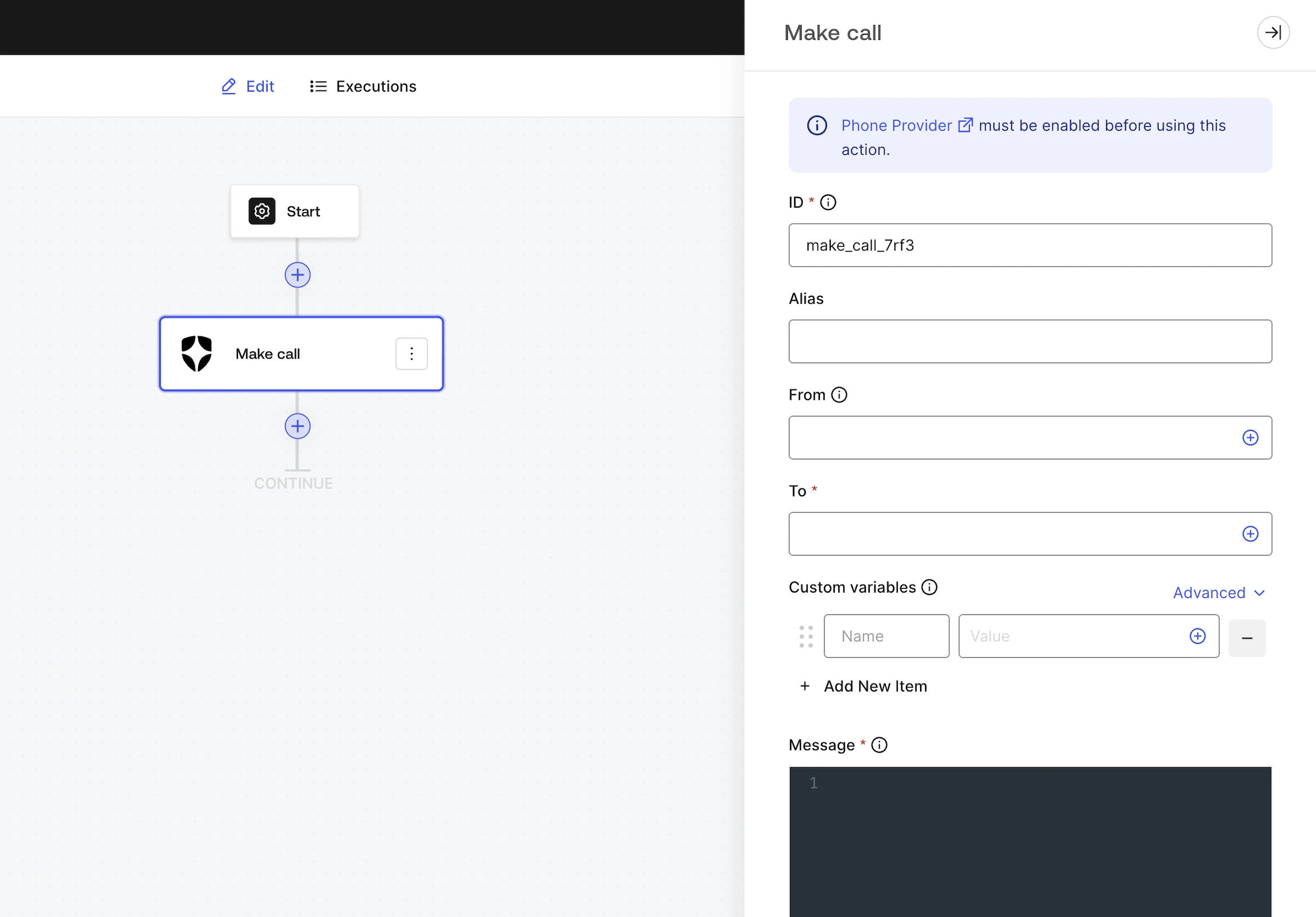
[設定済みの電話プロバイダー](https://auth0.com/docs/customize/phone-messages/configure-phone-messaging-providers)を使用して、カスタム音声メッセージを送信します。

<Warning>
  この Action を使用する前に、音声メッセージ配信用の [Phone Provider](https://auth0.com/docs/customize/phone-messages/configure-phone-messaging-providers) を有効にしておく必要があります。
</Warning>

<Frame>
  <img src="https://mintcdn.com/translations/xwVvTWJUElMm5YAK/docs/images/forms/flows/integrations/auth0-notifications-make-call.png?fit=max&auto=format&n=xwVvTWJUElMm5YAK&q=85&s=a09d2e1bee8a285a5904411ee518355c" alt="" width="2300" height="1603" data-path="docs/images/forms/flows/integrations/auth0-notifications-make-call.png" />
</Frame>

<div id="input-settings">
  ### 入力設定
</div>

| Parameter | Description                                                                      |
| --------- | -------------------------------------------------------------------------------- |
| From      | デフォルトでは、カスタマイズした電話プロバイダーの設定で構成した送信元の電話番号を使用します。別の送信元電話番号を使用する場合は、カスタム値を入力してください。 |
| To        | 受信者の電話番号です。                                                                      |
| カスタム変数    | 電話テンプレートに挿入するカスタム変数を追加します。設定後は、`{{custom_vars.your_variable_key}}` を使って参照できます。   |
| Message   | 電話メッセージでは Liquid 構文を使用でき、カスタム変数もサポートされています。                                      |

<Callout icon="file-lines" color="#0EA5E9" iconType="regular">
  Message では、Liquid 構文を[共通変数](https://auth0.com/docs/customize/email/email-templates/supported-liquid-syntax)と組み合わせて使用できるほか、`{{custom_vars.your_variable_key}}` 構文を使ってカスタム変数を利用することもできます。

  カスタム変数を使用すると、フォーム / Flows のコンテキストと Message の内容の間で情報を受け渡せます。
</Callout>

<div id="output-object">
  ### 出力オブジェクト
</div>

| Property | Type    | Description                                             |
| -------- | ------- | ------------------------------------------------------- |
| success  | Boolean | 電話メッセージが送信待ちキューに正常に追加されたかどうかを示します。実際に配信に失敗したかどうかは問いません。 |

### 出力オブジェクトの例

```json theme={null}
{
  "success": true
}
```