> ## Documentation Index
> Fetch the complete documentation index at: https://translations.mintlify.site/llms.txt
> Use this file to discover all available pages before exploring further.
> Auth0 Dashboard または Management API を使用して、クライアントシークレットと署名鍵を表示する方法について説明します。
# 署名証明書の表示
export const AuthCodeGroup = ({children, dropdown}) => {
const [processedChildren, setProcessedChildren] = useState(children);
useEffect(() => {
let unsubscribe = null;
function init() {
unsubscribe = window.autorun(() => {
const processChildren = node => {
if (typeof node === "string") {
let processedNode = node;
for (const [key, value] of window.rootStore.variableStore.values.entries()) {
const escapedKey = key.replaceAll(/[.*+?^${}()|[\]\\]/g, (String.raw)`\$&`);
processedNode = processedNode.replaceAll(new RegExp(escapedKey, "g"), value);
}
return processedNode;
} else if (Array.isArray(node)) {
return node.map(processChildren);
} else if (node && node.props && node.props.children) {
return {
...node,
props: {
...node.props,
children: processChildren(node.props.children)
}
};
}
return node;
};
setProcessedChildren(processChildren(children));
});
}
if (window.rootStore) {
init();
} else {
window.addEventListener("adu:storeReady", init);
}
return () => {
window.removeEventListener("adu:storeReady", init);
unsubscribe?.();
};
}, [children]);
return {processedChildren};
};
export const AuthCodeBlock = ({filename, icon, language, highlight, children}) => {
const [displayText, setDisplayText] = useState(children);
const [copyText, setCopyText] = useState(children);
const wrapperRef = React.useRef(null);
useEffect(() => {
let unsubscribe = null;
function init() {
if (!window.autorun || !window.rootStore) {
return;
}
unsubscribe = window.autorun(() => {
let processedChildrenForDisplay = children;
let processedChildrenForCopy = children;
for (const [key, value] of window.rootStore.variableStore.values.entries()) {
const escapedKey = key.replaceAll(/[.*+?^${}()|[\]\\]/g, (String.raw)`\$&`);
let displayValue = value;
if (key === "{yourClientSecret}" && value !== "{yourClientSecret}") {
displayValue = value.substring(0, 3) + "*****MASKED*****";
}
processedChildrenForDisplay = processedChildrenForDisplay.replaceAll(new RegExp(escapedKey, "g"), displayValue);
processedChildrenForCopy = processedChildrenForCopy.replaceAll(new RegExp(escapedKey, "g"), value);
}
setDisplayText(processedChildrenForDisplay);
setCopyText(processedChildrenForCopy);
});
}
if (window.rootStore) {
init();
} else {
window.addEventListener("adu:storeReady", init);
}
return () => {
window.removeEventListener("adu:storeReady", init);
unsubscribe?.();
};
}, [children]);
useEffect(() => {
if (!wrapperRef.current) return;
const originalWriteText = navigator.clipboard.writeText.bind(navigator.clipboard);
let isOverriding = false;
const handleClick = e => {
const button = e.target.closest('[data-testid="copy-code-button"]');
if (!button || !wrapperRef.current.contains(button)) return;
isOverriding = true;
navigator.clipboard.writeText = text => {
if (isOverriding) {
isOverriding = false;
navigator.clipboard.writeText = originalWriteText;
return originalWriteText(copyText);
}
return originalWriteText(text);
};
setTimeout(() => {
if (isOverriding) {
isOverriding = false;
navigator.clipboard.writeText = originalWriteText;
}
}, 100);
};
const wrapper = wrapperRef.current;
wrapper.addEventListener('click', handleClick, true);
return () => {
wrapper.removeEventListener('click', handleClick, true);
if (navigator.clipboard.writeText !== originalWriteText) {
navigator.clipboard.writeText = originalWriteText;
}
};
}, [copyText]);
return
{displayText}
;
};
クライアントシークレット と署名鍵は、Auth0 Dashboard または Management API を使用して確認できます。アプリケーションの署名鍵は、アプリケーションに送信される ID トークン、アクセストークン、SAML アサーション、および WS-Fed アサーションへの署名に使用されます。これらのキーは、アイデンティティプロバイダー (IdP) への SAML リクエストへの署名や、IdP からのレスポンスの暗号化など、接続とのやり取りに使用されるキーとは異なります。デフォルトでは、IdP 接続の SAML アサーションには署名されます。これを推奨します。詳しくは、[SAML Identity Provider Configuration Settings](/docs/ja-jp/authenticate/protocols/saml/saml-identity-provider-configuration-settings) をご覧ください。
## Auth0 Dashboardを使用する
### テナント設定
1. [Auth0 Dashboard > Settings > Signing Keys](https://manage.auth0.com/#/tenant/signing_keys) に移動します。
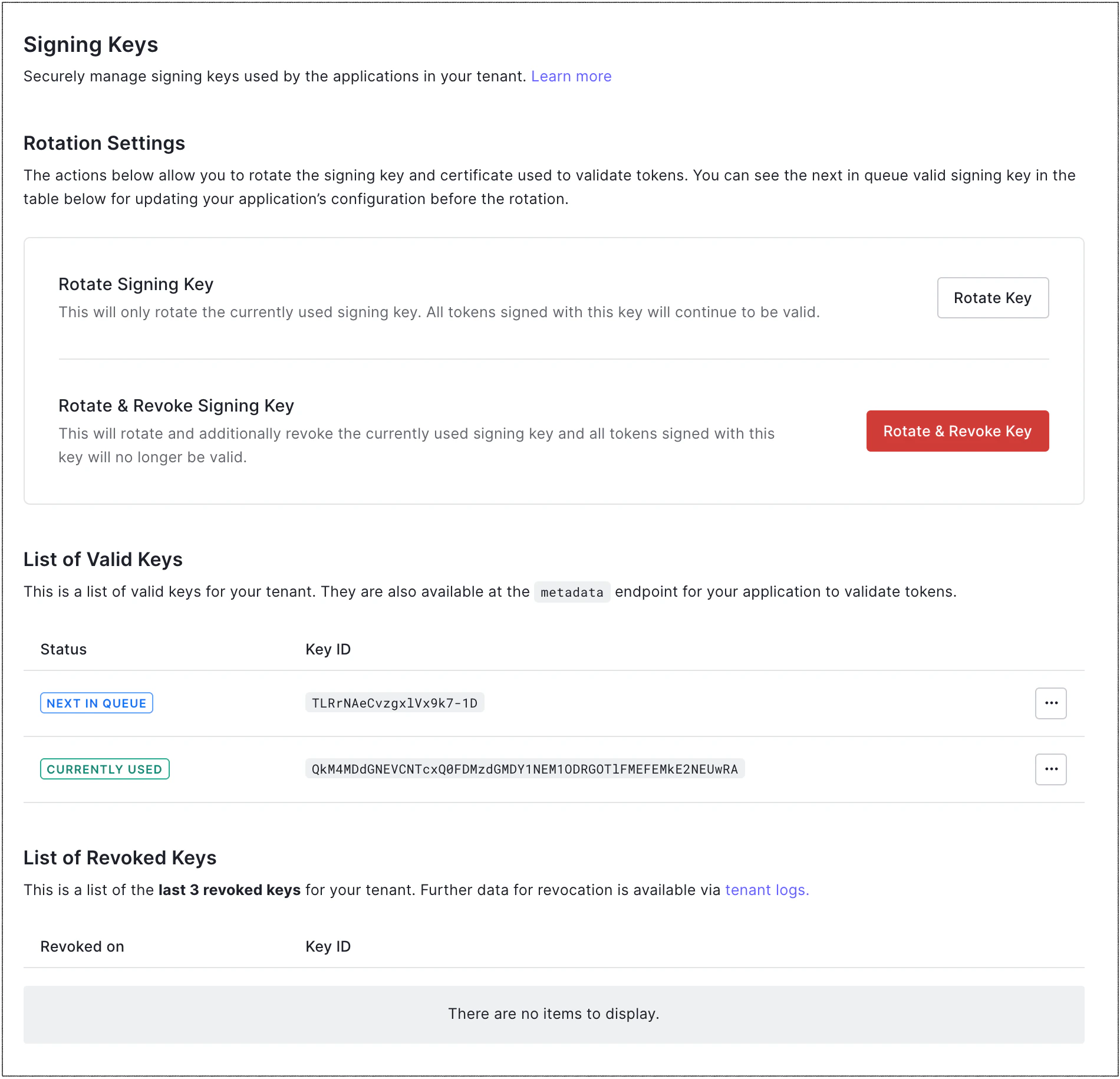 2. **Rotation Settings** セクションで、**List of Valid Keys** と **List of Revoked Keys** を確認します。
1. **List of Valid Keys** セクションには、現在テナントで使用されている署名鍵に加え、署名鍵のローテーションを実行した場合に次に割り当てられる署名鍵が表示されます。以前に署名鍵をローテーションしたことがある場合は、過去に使用されていたキーもこのセクションに表示されます。
2. **List of Revoked Keys** セクションには、テナントで最後に取り消された3つのキーが表示されます。
2. **Rotation Settings** セクションで、**List of Valid Keys** と **List of Revoked Keys** を確認します。
1. **List of Valid Keys** セクションには、現在テナントで使用されている署名鍵に加え、署名鍵のローテーションを実行した場合に次に割り当てられる署名鍵が表示されます。以前に署名鍵をローテーションしたことがある場合は、過去に使用されていたキーもこのセクションに表示されます。
2. **List of Revoked Keys** セクションには、テナントで最後に取り消された3つのキーが表示されます。
### アプリケーション設定
使用している署名アルゴリズムの種類に応じて、アプリケーションの署名鍵、クライアントシークレット、またはその両方を確認できます。
#### RS256署名アルゴリズムを使用している場合
1. [Auth0 Dashboard > アプリケーション](https://manage.auth0.com/#/applications)に移動し、対象のアプリケーション名を選択します。
2. **Settings** タブの一番下までスクロールし、**Advanced Settings** を選択します。
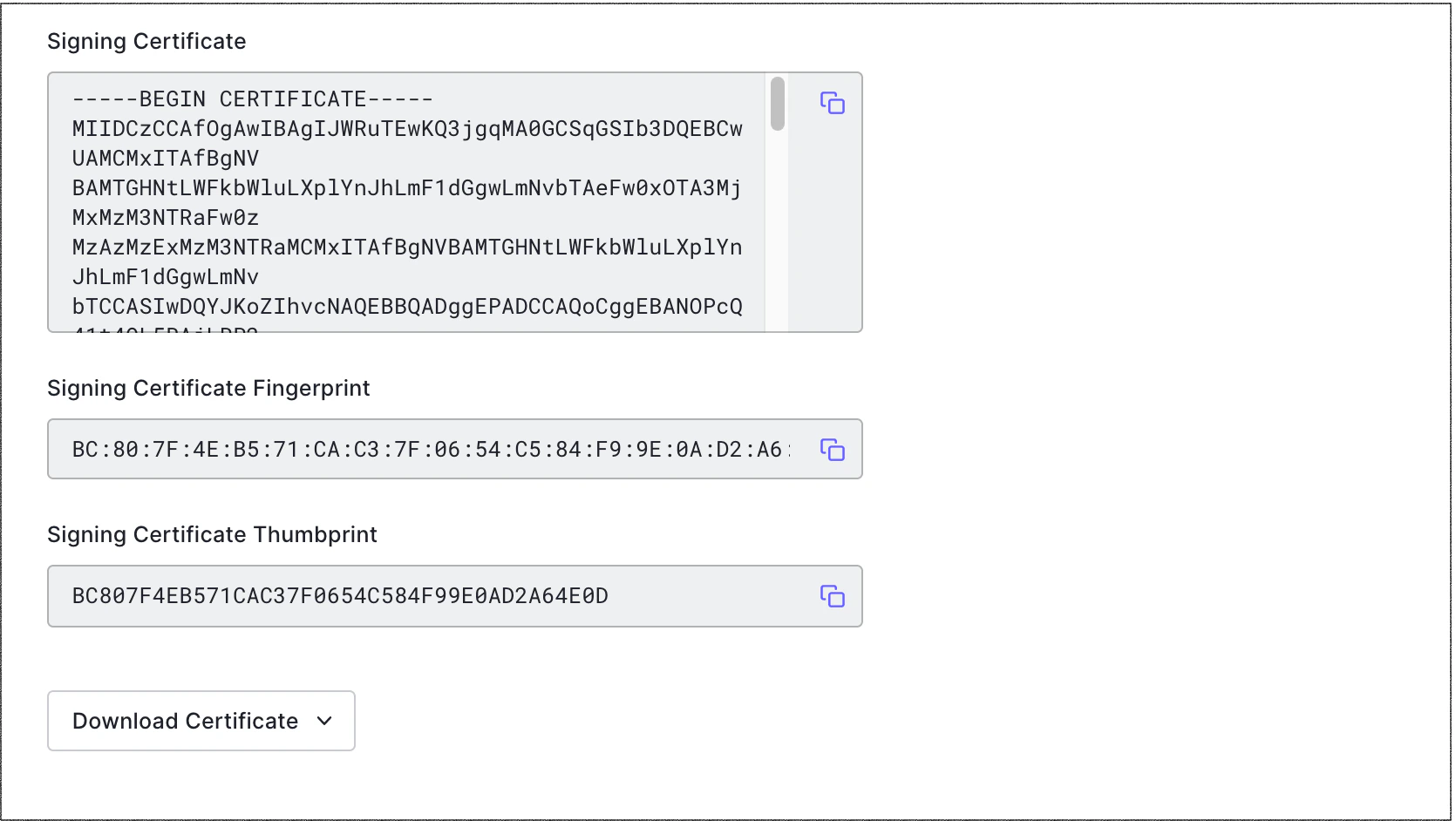
3. **Certificates** タブに移動し、**Signing Certificate** フィールドを見つけます。
#### HS256 署名アルゴリズムを使用している場合
1. [Auth0 Dashboard > アプリケーション](https://manage.auth0.com/#/applications) に移動し、対象のアプリケーション名を選択します。
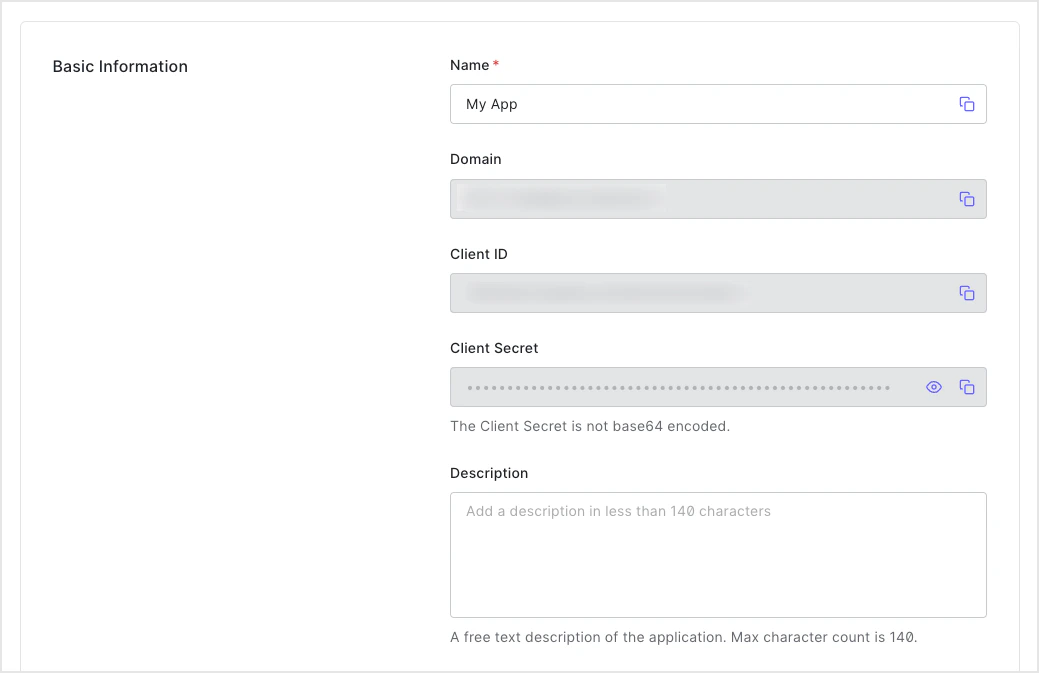
2. **基本情報** で、クライアントシークレットを **Client Secret** フィールドで確認します。
## Management API を使う
### すべての署名鍵を取得する
[`/signing_keys/get_signing_keys`](https://auth0.com/docs/api/management/v2#!/signing_keys/get_signing_keys) エンドポイントに `GET` リクエストを送信します。`{yourMgmtApiAccessToken}` プレースホルダーの値は、必ずご自身の Management API Access Token に置き換えてください。
```bash cURL theme={null}
curl --request GET \
--url 'https://{yourDomain}/api/v2/keys/signing' \
--header 'authorization: Bearer {yourMgmtApiAccessToken}'
```
```csharp C# theme={null}
var client = new RestClient("https://{yourDomain}/api/v2/keys/signing");
var request = new RestRequest(Method.GET);
request.AddHeader("authorization", "Bearer {yourMgmtApiAccessToken}");
IRestResponse response = client.Execute(request);
```
```go Go theme={null}
package main
import (
"fmt"
"net/http"
"io/ioutil"
)
func main() {
url := "https://{yourDomain}/api/v2/keys/signing"
req, _ := http.NewRequest("GET", url, nil)
req.Header.Add("authorization", "Bearer {yourMgmtApiAccessToken}")
res, _ := http.DefaultClient.Do(req)
defer res.Body.Close()
body, _ := ioutil.ReadAll(res.Body)
fmt.Println(res)
fmt.Println(string(body))
}
```
```java Java theme={null}
HttpResponse response = Unirest.get("https://{yourDomain}/api/v2/keys/signing")
.header("authorization", "Bearer {yourMgmtApiAccessToken}")
.asString();
```
```javascript Node.JS theme={null}
var axios = require("axios").default;
var options = {
method: 'GET',
url: 'https://{yourDomain}/api/v2/keys/signing',
headers: {authorization: 'Bearer {yourMgmtApiAccessToken}'}
};
axios.request(options).then(function (response) {
console.log(response.data);
}).catch(function (error) {
console.error(error);
});
```
```php PHP theme={null}
$curl = curl_init();
curl_setopt_array($curl, [
CURLOPT_URL => "https://{yourDomain}/api/v2/keys/signing",
CURLOPT_RETURNTRANSFER => true,
CURLOPT_ENCODING => "",
CURLOPT_MAXREDIRS => 10,
CURLOPT_TIMEOUT => 30,
CURLOPT_HTTP_VERSION => CURL_HTTP_VERSION_1_1,
CURLOPT_CUSTOMREQUEST => "GET",
CURLOPT_HTTPHEADER => [
"authorization: Bearer {yourMgmtApiAccessToken}"
],
]);
$response = curl_exec($curl);
$err = curl_error($curl);
curl_close($curl);
if ($err) {
echo "cURL Error #:" . $err;
} else {
echo $response;
}
```
```python Python theme={null}
import http.client
conn = http.client.HTTPSConnection("")
headers = { 'authorization': "Bearer {yourMgmtApiAccessToken}" }
conn.request("GET", "/{yourDomain}/api/v2/keys/signing", headers=headers)
res = conn.getresponse()
data = res.read()
print(data.decode("utf-8"))
```
```ruby Ruby theme={null}
require 'uri'
require 'net/http'
require 'openssl'
url = URI("https://{yourDomain}/api/v2/keys/signing")
http = Net::HTTP.new(url.host, url.port)
http.use_ssl = true
http.verify_mode = OpenSSL::SSL::VERIFY_PEER
request = Net::HTTP::Get.new(url)
request["authorization"] = 'Bearer {yourMgmtApiAccessToken}'
response = http.request(request)
puts response.read_body
```
| 値 | 説明 |
| ----------------------- | -------------------------------------------------------------------------------------------------------------------- |
| `MGMT_API_ACCESS_TOKEN` | スコープ `read:signing_keys` を持つ [Access Token for the Management API](https://auth0.com/docs/api/management/v2/tokens)。 |
### 1 つの署名鍵を取得する
[`/signing_keys/get_signing_key`](https://auth0.com/docs/api/management/v2#!/signing_keys/get_signing_key) エンドポイントに `GET` リクエストを送信します。`{yourKeyId}` と `{yourMgmtApiAccessToken}` のプレースホルダー値は、それぞれ署名鍵の ID と Management API Access Token に必ず置き換えてください。
```bash cURL theme={null}
curl --request GET \
--url 'https://{yourDomain}/api/v2/keys/signing/%7ByourKeyId%7D' \
--header 'authorization: Bearer {yourMgmtApiAccessToken}'
```
```csharp C# theme={null}
var client = new RestClient("https://{yourDomain}/api/v2/keys/signing/%7ByourKeyId%7D");
var request = new RestRequest(Method.GET);
request.AddHeader("authorization", "Bearer {yourMgmtApiAccessToken}");
IRestResponse response = client.Execute(request);
```
```go Go theme={null}
package main
import (
"fmt"
"net/http"
"io/ioutil"
)
func main() {
url := "https://{yourDomain}/api/v2/keys/signing/%7ByourKeyId%7D"
req, _ := http.NewRequest("GET", url, nil)
req.Header.Add("authorization", "Bearer {yourMgmtApiAccessToken}")
res, _ := http.DefaultClient.Do(req)
defer res.Body.Close()
body, _ := ioutil.ReadAll(res.Body)
fmt.Println(res)
fmt.Println(string(body))
}
```
```java Java theme={null}
HttpResponse response = Unirest.get("https://{yourDomain}/api/v2/keys/signing/%7ByourKeyId%7D")
.header("authorization", "Bearer {yourMgmtApiAccessToken}")
.asString();
```
```javascript Node.JS theme={null}
var axios = require("axios").default;
var options = {
method: 'GET',
url: 'https://{yourDomain}/api/v2/keys/signing/%7ByourKeyId%7D',
headers: {authorization: 'Bearer {yourMgmtApiAccessToken}'}
};
axios.request(options).then(function (response) {
console.log(response.data);
}).catch(function (error) {
console.error(error);
});
```
```php PHP theme={null}
$curl = curl_init();
curl_setopt_array($curl, [
CURLOPT_URL => "https://{yourDomain}/api/v2/keys/signing/%7ByourKeyId%7D",
CURLOPT_RETURNTRANSFER => true,
CURLOPT_ENCODING => "",
CURLOPT_MAXREDIRS => 10,
CURLOPT_TIMEOUT => 30,
CURLOPT_HTTP_VERSION => CURL_HTTP_VERSION_1_1,
CURLOPT_CUSTOMREQUEST => "GET",
CURLOPT_HTTPHEADER => [
"authorization: Bearer {yourMgmtApiAccessToken}"
],
]);
$response = curl_exec($curl);
$err = curl_error($curl);
curl_close($curl);
if ($err) {
echo "cURL Error #:" . $err;
} else {
echo $response;
}
```
```python Python theme={null}
import http.client
conn = http.client.HTTPSConnection("")
headers = { 'authorization': "Bearer {yourMgmtApiAccessToken}" }
conn.request("GET", "/{yourDomain}/api/v2/keys/signing/%7ByourKeyId%7D", headers=headers)
res = conn.getresponse()
data = res.read()
print(data.decode("utf-8"))
```
```ruby Ruby theme={null}
require 'uri'
require 'net/http'
require 'openssl'
url = URI("https://{yourDomain}/api/v2/keys/signing/%7ByourKeyId%7D")
http = Net::HTTP.new(url.host, url.port)
http.use_ssl = true
http.verify_mode = OpenSSL::SSL::VERIFY_PEER
request = Net::HTTP::Get.new(url)
request["authorization"] = 'Bearer {yourMgmtApiAccessToken}'
response = http.request(request)
puts response.read_body
```
| 値 | 説明 |
| ----------------------- | --------------------------------------------------------------------------------------------------------------------------------------- |
| `YOUR_KEY_ID` | 取得する署名鍵の ID。署名鍵 ID を確認する方法については、[JSON Web Key Sets を見つける](/docs/ja-jp/secure/tokens/json-web-tokens/locate-json-web-key-sets)を参照してください。 |
| `MGMT_API_ACCESS_TOKEN` | スコープ `read:signing_keys` を持つ [Access Token for the Management API](https://auth0.com/docs/api/management/v2/tokens)。 |
## 詳細
* [署名鍵を取り消す](/docs/ja-jp/get-started/tenant-settings/signing-keys/revoke-signing-keys)
* [署名鍵をローテーションする](/docs/ja-jp/get-started/tenant-settings/signing-keys/rotate-signing-keys)
* [署名アルゴリズム](/docs/ja-jp/get-started/applications/signing-algorithms)
* [アプリケーションの署名アルゴリズムを変更する](/docs/ja-jp/get-started/applications/change-application-signing-algorithms)