> ## Documentation Index
> Fetch the complete documentation index at: https://translations.mintlify.site/llms.txt
> Use this file to discover all available pages before exploring further.
# Auth0 組織 のM2Mアクセスを設定する
> Dashboard または Management API でクライアントグラントの関連付けを通じて、Auth0 組織 のマシンツーマシンアクセスを承認、取り消し、監査します。
export const AuthCodeBlock = ({filename, icon, language, highlight, children}) => {
const [displayText, setDisplayText] = useState(children);
const [copyText, setCopyText] = useState(children);
const wrapperRef = React.useRef(null);
useEffect(() => {
let unsubscribe = null;
function init() {
if (!window.autorun || !window.rootStore) {
return;
}
unsubscribe = window.autorun(() => {
let processedChildrenForDisplay = children;
let processedChildrenForCopy = children;
for (const [key, value] of window.rootStore.variableStore.values.entries()) {
const escapedKey = key.replaceAll(/[.*+?^${}()|[\]\\]/g, (String.raw)`\$&`);
let displayValue = value;
if (key === "{yourClientSecret}" && value !== "{yourClientSecret}") {
displayValue = value.substring(0, 3) + "*****MASKED*****";
}
processedChildrenForDisplay = processedChildrenForDisplay.replaceAll(new RegExp(escapedKey, "g"), displayValue);
processedChildrenForCopy = processedChildrenForCopy.replaceAll(new RegExp(escapedKey, "g"), value);
}
setDisplayText(processedChildrenForDisplay);
setCopyText(processedChildrenForCopy);
});
}
if (window.rootStore) {
init();
} else {
window.addEventListener("adu:storeReady", init);
}
return () => {
window.removeEventListener("adu:storeReady", init);
unsubscribe?.();
};
}, [children]);
useEffect(() => {
if (!wrapperRef.current) return;
const originalWriteText = navigator.clipboard.writeText.bind(navigator.clipboard);
let isOverriding = false;
const handleClick = e => {
const button = e.target.closest('[data-testid="copy-code-button"]');
if (!button || !wrapperRef.current.contains(button)) return;
isOverriding = true;
navigator.clipboard.writeText = text => {
if (isOverriding) {
isOverriding = false;
navigator.clipboard.writeText = originalWriteText;
return originalWriteText(copyText);
}
return originalWriteText(text);
};
setTimeout(() => {
if (isOverriding) {
isOverriding = false;
navigator.clipboard.writeText = originalWriteText;
}
}, 100);
};
const wrapper = wrapperRef.current;
wrapper.addEventListener('click', handleClick, true);
return () => {
wrapper.removeEventListener('click', handleClick, true);
if (navigator.clipboard.writeText !== originalWriteText) {
navigator.clipboard.writeText = originalWriteText;
}
};
}, [copyText]);
return
{displayText}
;
};
export const codeExampleAuthorize = `curl -X POST --location "https://{yourDomain}/api/v2/organizations/{ORG_id}/client-grants" \\
--header 'authorization: Bearer MGMT_API_ACCESS_TOKEN' \\
--header 'content-type: application/json' \\
--data '{
"grant_id": "GRANT_ID"
}'
`;
export const codeExampleAudit1 = `curl -X GET --location "https://{yourDomain}/api/v2/organizations/{ORG_id}/client-grants/" \\
--header 'authorization: Bearer MGMT_API_ACCESS_TOKEN'`;
export const codeExampleAudit2 = `curl -X GET --location "https://{yourDomain}/api/v2/clients?q=client_grant.organization_id%3Aorganization_id" \\
--header 'authorization: Bearer MGMT_API_ACCESS_TOKEN'`;
export const codeExampleAudit3 = `curl -X GET --location "https://{yourDomain}/api/v2/client-grants?allow_any_organization=true" \\
--header 'authorization: Bearer MGMT_API_ACCESS_TOKEN'`;
export const codeExampleAudit4 = `curl -X GET --location "https://{yourDomain}/api/v2/clients?q=client_grant.allow_any_organization%3Atrue" \\
--header 'authorization: Bearer MGMT_API_ACCESS_TOKEN'`;
Machine-to-Machine Access for Organizations では、クライアント認証情報フローを使用して、各 API ごとに特定のアプリケーションがアクセスできる Auth0 組織 を定義できます。
## M2Mアクセスを承認する
アプリケーションにマシンツーマシンアクセスを承認するには、特定のAPIに対して組織を使用できるようにする必要があります。そのためには、該当するAPIに対するアプリケーションのクライアントグラントを組織に関連付けます。関連付けると、アプリケーションはクライアントグラントで定義されたAPIとスコープのトークンをリクエストする際に組織を使用できます。組織に対してアプリケーションがアクセスする必要のあるAPIごとに、この関連付けを設定します。
このフローは[サードパーティアプリケーション](/docs/ja-jp/get-started/applications/third-party-applications)でサポートされています。サードパーティアプリケーションでは`allow_any_organization`を使用できないため、以下の手順に従って各組織を明示的に承認する必要があります。
[Auth0 Dashboard](https://manage.auth0.com/)または[Management API](https://auth0.com/docs/api/management/v2)を使用して、アプリケーションのM2Mアクセスを承認できます。
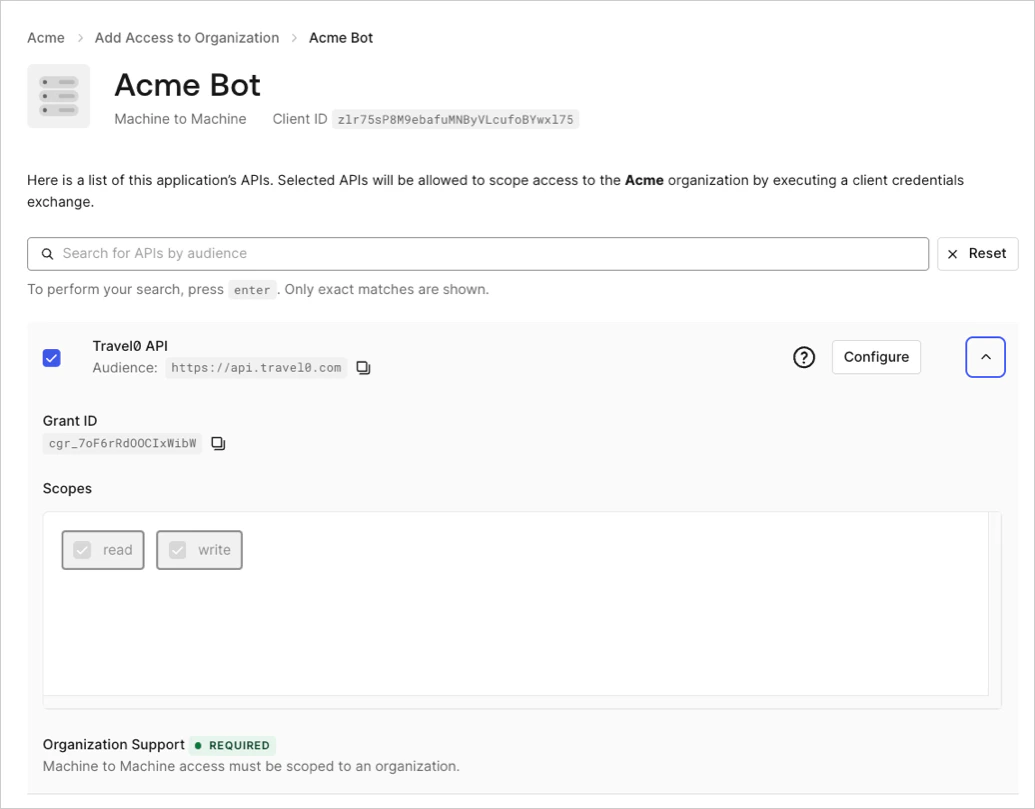
Auth0 Dashboardでアプリケーションのクライアントグラントを組織に関連付けるには、次の手順を実行します。
1. [**組織**](https://manage.auth0.com/dashboard/*/organizations/list)に移動し、関連付ける組織を選択します。
2. **Machine-to-Machine Access**タブを選択します。
3. **Add Access**を選択します。
4. 組織に関連付けるアプリケーションを選択します。
5. APIを選択します。
6. **Save**を選択します。
 [Associate client grant to 組織](https://auth0.com/docs/api/management/v2/organizations/create-organization-client-grants)エンドポイントを使用して、アプリケーションのクライアントグラントを組織に関連付けます。
## M2M アクセスを取り消す
M2M アクセスを取り消す、またはアプリケーションの 組織 へのアクセスを削除するには、クライアントグラントと 組織 の関連付けを削除する必要があります。この関連付けを削除すると、アプリケーションはグラントで定義された API の新しいトークンをリクエストする際に 組織 を使用できなくなります。M2M アクセスの取り消しは、[サードパーティアプリケーション](/docs/ja-jp/get-started/applications/third-party-applications)でも同様に行えます。
M2M アクセスを取り消しても、組織 へのアクセスが付与されているアプリケーションには影響しません。詳細については、[Define 組織 Behavior](/docs/ja-jp/manage-users/organizations/organizations-for-m2m-applications/configure-your-application-for-m2m-access#define-organization-behavior)を参照してください。
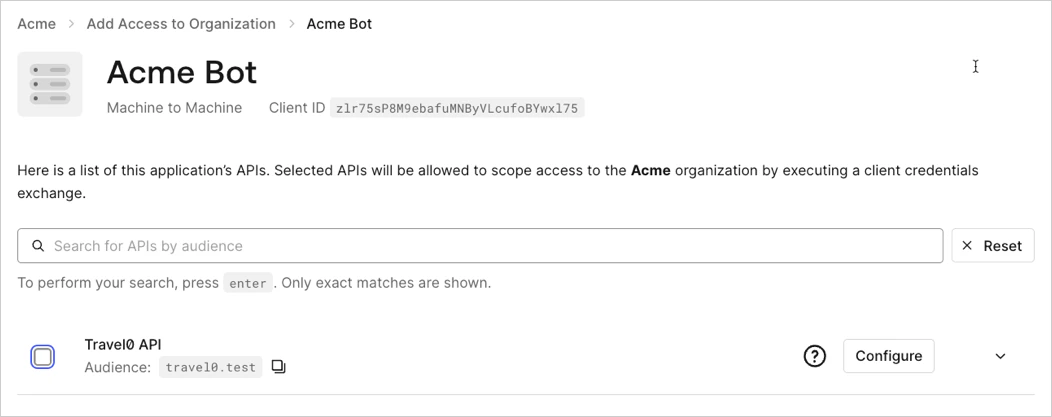
[Auth0 Dashboard](https://manage.auth0.com/)でアプリケーションのクライアントグラントと 組織 の関連付けを削除するには、次の手順を実行します。
1. [**組織**](https://manage.auth0.com/dashboard/*/organizations/list)に移動し、関連付けを削除する 組織 を選択します。
2. **Machine-to-Machine Access** タブを選択します。
3. アプリケーションを選択します。
4. 組織 との関連付けを解除する API の横にあるチェックボックスをオフにします。
5. **Save** を選択します。
 [Disassociate client grants from 組織](https://auth0.com/docs/api/management/v2/organizations/delete-client-grants-by-grant-id)エンドポイントを使用して、アプリケーションのクライアントグラントと 組織 の関連付けを削除します。
```bash lines theme={null}
curl -X DELETE --location "https://{yourDomain}/api/v2/organizations/{ORG_id}/client-grants/{GRANT_ID}" \
--header 'authorization: Bearer MGMT_API_ACCESS_TOKEN' ;
```
[Disassociate client grants from 組織](https://auth0.com/docs/api/management/v2/organizations/delete-client-grants-by-grant-id)エンドポイントを使用して、アプリケーションのクライアントグラントと 組織 の関連付けを削除します。
```bash lines theme={null}
curl -X DELETE --location "https://{yourDomain}/api/v2/organizations/{ORG_id}/client-grants/{GRANT_ID}" \
--header 'authorization: Bearer MGMT_API_ACCESS_TOKEN' ;
```
## M2M アクセスを監査する
組織 への Machine-to-Machine Access は、クライアントグラントを 組織 に直接関連付けるか、クライアントグラントの設定で任意の 組織 へのアクセスを許可することで付与できます。どちらの場合も、Auth0 Dashboard または Management API で監査できます。ここでは、アプリケーションについて 組織 に関連付けられたクライアントグラントの一覧を表示または取得できます。組織 への M2M アクセス権限の仕組みについて詳しくは、[M2M アクセス用にアプリケーションを設定する](/docs/ja-jp/manage-users/organizations/organizations-for-m2m-applications/configure-your-application-for-m2m-access) および [M2M アクセスを認可する](#authorize-m2m-access)を参照してください。[サードパーティアプリケーション](/docs/ja-jp/get-started/applications/third-party-applications)でも、同じ方法で監査できます。
### 直接関連付けによって付与されたアクセス
[Auth0 Dashboard](https://manage.auth0.com/)と[Management API](https://auth0.com/docs/api/management/v2)を使用して、組織に直接関連付けられているクライアントグラントのM2Mアクセスを監査します。
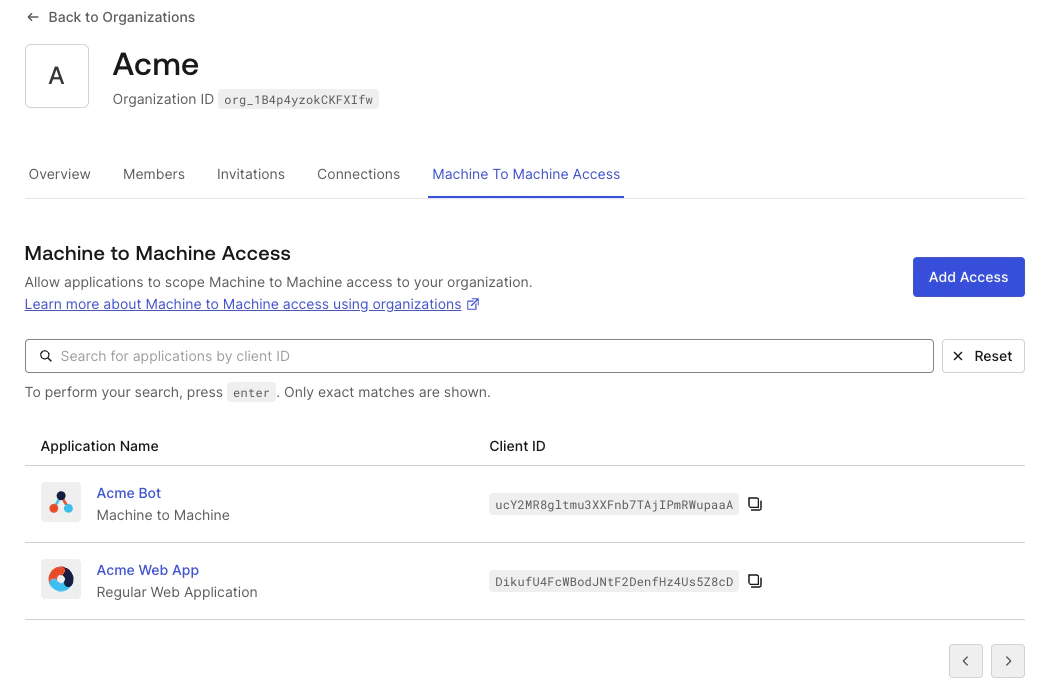
Auth0 Dashboardで特定の組織に対して認可されているアプリケーションのクライアントグラントを表示するには、次の手順に従います。
1. [**組織**](https://manage.auth0.com/dashboard/*/organizations/list)に移動し、確認する組織を選択します。
2. **Machine-to-Machine Access**タブを選択します。直接関連付けを通じてこの組織のAPIにアクセスできるすべてのアプリケーションが、ページ分割されたリストに表示されます。
3. アプリケーションを選択し、そのアプリケーションに一覧表示されている認可済みAPIを確認します。
 [組織 Client Grants](https://auth0.com/docs/api/management/v2/organizations/get-organization-client-grants) APIエンドポイントを使用して、組織に関連付けられたクライアントグラントを取得します。
また、組織のAPIの少なくとも1つにアクセスできるアプリケーションに関する情報を取得するには、[Get Clients API endpoint](https://auth0.com/docs/api/management/v2/clients/get-clients)の`q`クエリパラメータに検索ターム`client_grant.organization_id:{organization_id}`を指定します。[User Search Query Syntax](/docs/ja-jp/manage-users/user-search/user-search-query-syntax)に似たLucene構文を使用してください。
[組織 Client Grants](https://auth0.com/docs/api/management/v2/organizations/get-organization-client-grants) APIエンドポイントを使用して、組織に関連付けられたクライアントグラントを取得します。
また、組織のAPIの少なくとも1つにアクセスできるアプリケーションに関する情報を取得するには、[Get Clients API endpoint](https://auth0.com/docs/api/management/v2/clients/get-clients)の`q`クエリパラメータに検索ターム`client_grant.organization_id:{organization_id}`を指定します。[User Search Query Syntax](/docs/ja-jp/manage-users/user-search/user-search-query-syntax)に似たLucene構文を使用してください。
### 任意の組織へのアクセスが許可された場合
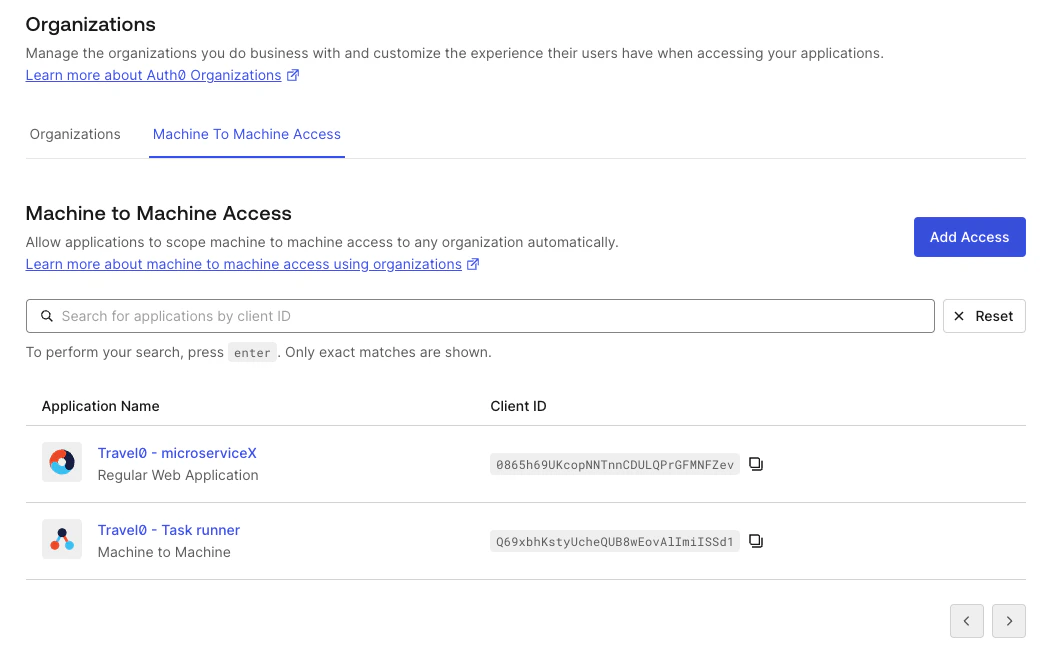
[Auth0 Dashboard](https://manage.auth0.com/)と[Management API](https://auth0.com/docs/api/management/v2)を使用して、任意の組織へのアクセスが許可されているアプリケーションのM2Mアクセスを監査できます。
このセクションは[サードパーティアプリケーション](/docs/ja-jp/get-started/applications/third-party-applications)には適用されません。サードパーティアプリケーションは`allow_any_organization`を使用できないため、この監査クエリには表示されません。代わりに、上記の直接関連付けクエリを使用してください。
1. [**組織**](https://manage.auth0.com/dashboard/*/organizations/list)に移動します。
2. **Machine-to-Machine Access**タブを選択します。少なくとも1つの組織のAPIにアクセスできるすべてのアプリケーションが、ページ分割されたリストで表示されます。
3. アプリケーションを選択し、そのアプリケーションで認可されているAPIを確認します。
 [Get Client Grants](https://auth0.com/docs/api/management/v2/client-grants/get-client-grants) APIエンドポイントで`allow_any_organization`パラメータを指定し、クライアントグラントを取得します。
または、任意の組織の少なくとも1つのAPIにアクセスできるアプリケーションの情報を取得するには、[Get Client Grants](https://auth0.com/docs/api/management/v2/client-grants/get-client-grants) APIエンドポイントで、検索ターム`client_grant.allow_any_organization:true`を指定した`q`クエリパラメータを使用できます。[User Search Query Syntax](/docs/ja-jp/manage-users/user-search/user-search-query-syntax)と類似したLucene構文を使用してください。
[Get Client Grants](https://auth0.com/docs/api/management/v2/client-grants/get-client-grants) APIエンドポイントで`allow_any_organization`パラメータを指定し、クライアントグラントを取得します。
または、任意の組織の少なくとも1つのAPIにアクセスできるアプリケーションの情報を取得するには、[Get Client Grants](https://auth0.com/docs/api/management/v2/client-grants/get-client-grants) APIエンドポイントで、検索ターム`client_grant.allow_any_organization:true`を指定した`q`クエリパラメータを使用できます。[User Search Query Syntax](/docs/ja-jp/manage-users/user-search/user-search-query-syntax)と類似したLucene構文を使用してください。
### 組織へのアクセスに基づくアプリケーションの検索
検索結果は結果整合性を持ちます。
次の表は、`/clients` endpoint の `q` パラメータを使用してアプリケーションを検索する際にサポートされる検索タームを示しています。
| **フィールド** | **説明** |
| ------------------------------------------------ | --------------------------------------------------- |
| `client_grant.organization_id:{organization_id}` | 組織の API のうち少なくとも1つにアクセスできるアプリケーションを検索するために使用します。 |
| `client_grant.allow_any_organization:true` | 任意の組織の API のうち少なくとも1つにアクセスできるアプリケーションを検索するために使用します。 |
### テナントログ
Machine-to-Machine Access for Organizations は、テナントログにも反映されます。該当する `seccft` テナントログで、リクエストに関連付けられた `organization` を確認できます。
次のコードサンプルは、organization 情報を含む `seccft` テナントログの例です。
```json lines theme={null}
{
"date": "2024-10-24T19:06:17.460Z",
"type": "seccft",
"description": "Client Credentials for Access Token",
"connection_id": "",
"client_id": "qoQKtXuhdSibs1jUeXk3mmCwXoAafGnO",
"client_name": "jwt.io (Test Application)",
"ip": "130.41.219.72",
"user_agent": "Other 0.0.0 / Other 0.0.0",
"hostname": "david-test.test-aws-abundant-lobster-6004.auth0c.com",
"user_id": "",
"user_name": "",
"organization_id": "org_mPdwToiiHHOtz0SH",
"organization_name": "cc_test",
"audience": "https://jwt.io.com",
"scope": "read:data",
"$event_schema": {
"version": "1.0.0"
},
"log_id": "90020241024190617517817000000000000001223372036854775862",
"tenant_name": "david-test",
"_id": "90020241024190617517817000000000000001223372036854775862",
"isMobile": false,
"id": "90020241024190617517817000000000000001223372036854775862"
}
```