> ## Documentation Index
> Fetch the complete documentation index at: https://translations.mintlify.site/llms.txt
> Use this file to discover all available pages before exploring further.
> Auth0のRefresh Tokenのローテーションを設定して、非ローテーション リフレッシュトークンからローテーションされるリフレッシュトークンへの移行と、その逆方向の移行を行う方法について説明します。
# Refresh Tokenのローテーションを設定する
export const AuthCodeBlock = ({filename, icon, language, highlight, children}) => {
const [displayText, setDisplayText] = useState(children);
const [copyText, setCopyText] = useState(children);
const wrapperRef = React.useRef(null);
useEffect(() => {
let unsubscribe = null;
function init() {
if (!window.autorun || !window.rootStore) {
return;
}
unsubscribe = window.autorun(() => {
let processedChildrenForDisplay = children;
let processedChildrenForCopy = children;
for (const [key, value] of window.rootStore.variableStore.values.entries()) {
const escapedKey = key.replaceAll(/[.*+?^${}()|[\]\\]/g, (String.raw)`\$&`);
let displayValue = value;
if (key === "{yourClientSecret}" && value !== "{yourClientSecret}") {
displayValue = value.substring(0, 3) + "*****MASKED*****";
}
processedChildrenForDisplay = processedChildrenForDisplay.replaceAll(new RegExp(escapedKey, "g"), displayValue);
processedChildrenForCopy = processedChildrenForCopy.replaceAll(new RegExp(escapedKey, "g"), value);
}
setDisplayText(processedChildrenForDisplay);
setCopyText(processedChildrenForCopy);
});
}
if (window.rootStore) {
init();
} else {
window.addEventListener("adu:storeReady", init);
}
return () => {
window.removeEventListener("adu:storeReady", init);
unsubscribe?.();
};
}, [children]);
useEffect(() => {
if (!wrapperRef.current) return;
const originalWriteText = navigator.clipboard.writeText.bind(navigator.clipboard);
let isOverriding = false;
const handleClick = e => {
const button = e.target.closest('[data-testid="copy-code-button"]');
if (!button || !wrapperRef.current.contains(button)) return;
isOverriding = true;
navigator.clipboard.writeText = text => {
if (isOverriding) {
isOverriding = false;
navigator.clipboard.writeText = originalWriteText;
return originalWriteText(copyText);
}
return originalWriteText(text);
};
setTimeout(() => {
if (isOverriding) {
isOverriding = false;
navigator.clipboard.writeText = originalWriteText;
}
}, 100);
};
const wrapper = wrapperRef.current;
wrapper.addEventListener('click', handleClick, true);
return () => {
wrapper.removeEventListener('click', handleClick, true);
if (navigator.clipboard.writeText !== originalWriteText) {
navigator.clipboard.writeText = originalWriteText;
}
};
}, [copyText]);
return
{displayText}
;
};
export const codeExample = `const auth0 = await createAuth0Client({
domain: '{yourDomain}',
client_id: '{yourClientId}',
audience: '{yourApiIdentifier}',
useRefreshTokens: true
});
`;
Auth0 Dashboard または [Auth0 SPA SDK](/docs/ja-jp/libraries/auth0-single-page-app-sdk) を使用して、各アプリケーションで リフレッシュトークンのローテーションを設定します。Refresh Tokenのローテーションが有効な場合、ユーザーはシームレスに移行できます。アプリケーションは、従来の未期限切れの非ローテーション リフレッシュトークンを使用し、それをローテーションされるリフレッシュトークンに交換します。
移行シナリオでは、非ローテーション リフレッシュトークンからローテーションされるリフレッシュトークンへの移行と、その逆方向の移行の両方で、自動的なトークンの取り消しに対応しています。
* **Refresh Tokenのローテーションが有効な場合**:
非ローテーション リフレッシュトークンを交換すると、新しいローテーションされるリフレッシュトークンが発行され、同じ `client_id`、リソースサーバー、ユーザー、テナントに対して発行されたすべての非ローテーション トークンが削除されます。
* **Refresh Tokenのローテーションが無効な場合**:
ローテーションされるリフレッシュトークンを交換すると、非ローテーション リフレッシュトークンが発行され、同じ `client_id`、リソースサーバー、ユーザー、テナントに対して発行されたローテーションされるリフレッシュトークン ファミリーが取り消されます。
## Auth0 Dashboardで設定する
1. [Dashboard > Applications](https://manage.auth0.com/#/applications) に移動します。
2. 設定するアプリケーションを選択します。
3. **Settings** タブに移動します。
4. **リフレッシュトークンのローテーション** で、**Allow Refresh Token Rotation** を有効にします。
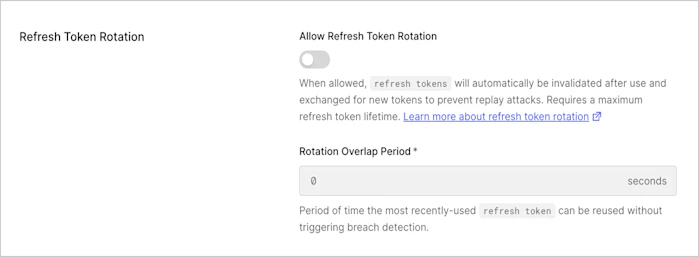 5. 自動的な再利用検出がトリガーされる前に、リクエストとレスポンスの間の猶予時間を考慮できるよう、リフレッシュトークンの **Rotation Overlap Period** (秒) を入力します。
このオーバーラップ期間は、一定時間内にローテーションされるリフレッシュトークンを複数回交換する際の同時実行の問題を回避するのに役立ちます。猶予時間内は侵害検出機能は適用されず、新しいローテーションリフレッシュトークンが発行されます。再利用できるのは直前のトークンのみで、ひとつ前のさらに前のトークンが交換されると、侵害検出がトリガーされます。
6. **Save Changes** を選択します。
リフレッシュトークンのローテーションは、リフレッシュトークンのグラントタイプが有効になっている OIDC準拠のアプリケーションでのみサポートされています。
5. 自動的な再利用検出がトリガーされる前に、リクエストとレスポンスの間の猶予時間を考慮できるよう、リフレッシュトークンの **Rotation Overlap Period** (秒) を入力します。
このオーバーラップ期間は、一定時間内にローテーションされるリフレッシュトークンを複数回交換する際の同時実行の問題を回避するのに役立ちます。猶予時間内は侵害検出機能は適用されず、新しいローテーションリフレッシュトークンが発行されます。再利用できるのは直前のトークンのみで、ひとつ前のさらに前のトークンが交換されると、侵害検出がトリガーされます。
6. **Save Changes** を選択します。
リフレッシュトークンのローテーションは、リフレッシュトークンのグラントタイプが有効になっている OIDC準拠のアプリケーションでのみサポートされています。
## Auth0 SPA SDK を使用して設定する
Auth0 SPA SDK を使用して、リフレッシュトークンのローテーションを有効にできます。クライアント SDK でオフラインアクセスを有効にし、`offline_access` スコープをリクエストする必要があります。
1. `auth0-spa-js` SDK の最新バージョンをインストールします。
`npm install @auth0/auth0-spa-js`
2. `useRefreshTokens: true` を設定して SDK でこの機能を有効にし、`offline_access` スコープの送信を開始します。
3. リフレッシュトークンのローテーション設定を行います。例:
```http lines theme={null}
PATCH /api/v2/clients/{client_id}
{
"refresh_token": {
"rotation_type": "rotating",
"expiration_type": "expiring",
"token_lifetime": "2592000",
"leeway": 3
}
}
```
| 属性 | 説明 |
| ----------------- | -------------------------------------------------------------------------------------------------------------------------------------------- |
| `rotation_type` | 文字列: "rotating" または "non-rotating" |
| `expiration_type` | 文字列: "expiring" または "non-expiring" |
| `token_lifetime` | **リフレッシュトークンのローテーション** が有効な場合、デフォルトのリフレッシュトークンの有効期限は 30 日間 (2,592,000 秒) です。最大 1 年 (31,557,600 秒) まで設定できます。**トークンがローテーションされても有効期限は延長されません。** |
| `leeway` | クライアントが同じリフレッシュトークンを使って再試行する際、ネットワークの同時実行に起因する問題によって本来トークンが無効化されるケースを考慮し、一定時間内であれば同じリフレッシュトークンを使用できるようにします。デフォルトでは leeway は無効です。秒単位で設定できます。 |
リフレッシュトークンのローテーションは、リフレッシュトークン グラントタイプが有効な OIDC準拠のアプリケーションでのみサポートされています。
## 自動再利用検出
以前に無効化されたトークンが使用されると、その無効化されたトークンの発行以降に発行されたリフレッシュトークン一式が、グラントとともに直ちに取り消され、ユーザーは再認証を求められます。
## 詳細はこちら
* [リフレッシュトークンのローテーション](/docs/ja-jp/secure/tokens/refresh-tokens/refresh-token-rotation)
* [リフレッシュトークンのローテーションを使用する](/docs/ja-jp/secure/tokens/refresh-tokens/use-refresh-token-rotation)
* [リフレッシュトークンのローテーションを無効にする](/docs/ja-jp/secure/tokens/refresh-tokens/disable-refresh-token-rotation)