> ## Documentation Index
> Fetch the complete documentation index at: https://translations.mintlify.site/llms.txt
> Use this file to discover all available pages before exploring further.

> Aprende a configurar un formulario de perfil progresivo con Forms for Actions

# Casos de uso: Configura un formulario de perfil progresivo con Forms

<Card title="Antes de comenzar">
  1. Crea una [aplicación de máquina a máquina](/es/docs/get-started/auth0-overview/create-applications/machine-to-machine-apps) con los siguientes alcances habilitados:

  * `read:users`
  * `update:users`
  * `create:users`
  * `read:users_app_metadata`
  * `update:users_app_metadata`
  * `create:users_app_metadata`

  2. Agrega una [conexión de Vault](/es/docs/customize/forms/vault) con las credenciales de la aplicación M2M.
</Card>

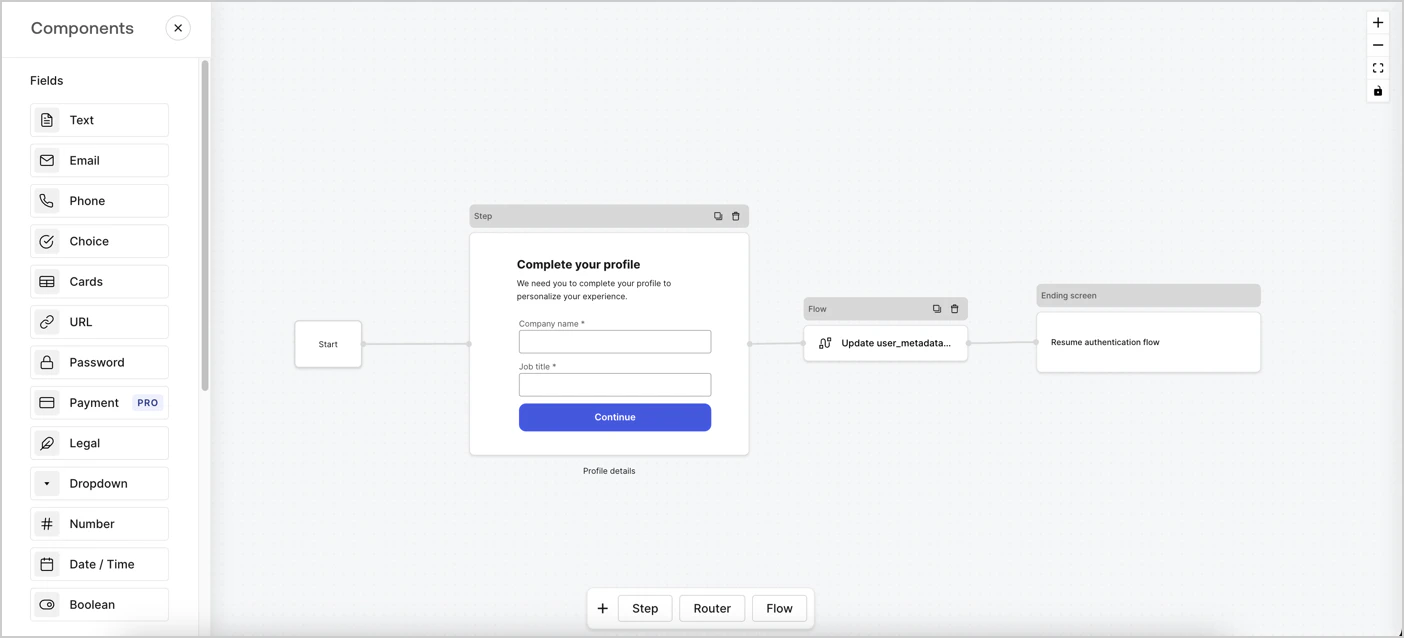
Forms for Actions te permite crear flujos de perfil progresivo para decidir cuándo solicitar a los usuarios información faltante, como el nombre de la empresa y el cargo, y almacenarla como atributos de `user_metadata`.
<Frame>
  <img src="https://mintcdn.com/translations/xwVvTWJUElMm5YAK/docs/images/cdy7uua7fh8z/xUx9YmnHvnAqL19JvNtNP/60dae88f893d4ebe8e3523421e960596/Progressive-profle-overview.png?fit=max&auto=format&n=xwVvTWJUElMm5YAK&q=85&s=52fb99b3d1c63b74179017ee2ebb56a6" alt="Dashboard > Actions > Forms > Form" data-og-width="1404" width="1404" data-og-height="638" height="638" data-path="docs/images/cdy7uua7fh8z/xUx9YmnHvnAqL19JvNtNP/60dae88f893d4ebe8e3523421e960596/Progressive-profle-overview.png" data-optimize="true" data-opv="3" srcset="https://mintcdn.com/translations/xwVvTWJUElMm5YAK/docs/images/cdy7uua7fh8z/xUx9YmnHvnAqL19JvNtNP/60dae88f893d4ebe8e3523421e960596/Progressive-profle-overview.png?w=280&fit=max&auto=format&n=xwVvTWJUElMm5YAK&q=85&s=ed63db8d171c3c75034430ef281a1e57 280w, https://mintcdn.com/translations/xwVvTWJUElMm5YAK/docs/images/cdy7uua7fh8z/xUx9YmnHvnAqL19JvNtNP/60dae88f893d4ebe8e3523421e960596/Progressive-profle-overview.png?w=560&fit=max&auto=format&n=xwVvTWJUElMm5YAK&q=85&s=5769197ae0a52917089f1478abaedc6f 560w, https://mintcdn.com/translations/xwVvTWJUElMm5YAK/docs/images/cdy7uua7fh8z/xUx9YmnHvnAqL19JvNtNP/60dae88f893d4ebe8e3523421e960596/Progressive-profle-overview.png?w=840&fit=max&auto=format&n=xwVvTWJUElMm5YAK&q=85&s=20223f2d84b7bb418ba137d91d07c5c1 840w, https://mintcdn.com/translations/xwVvTWJUElMm5YAK/docs/images/cdy7uua7fh8z/xUx9YmnHvnAqL19JvNtNP/60dae88f893d4ebe8e3523421e960596/Progressive-profle-overview.png?w=1100&fit=max&auto=format&n=xwVvTWJUElMm5YAK&q=85&s=7597ff87472aaf5eb92a47c9630cbc6f 1100w, https://mintcdn.com/translations/xwVvTWJUElMm5YAK/docs/images/cdy7uua7fh8z/xUx9YmnHvnAqL19JvNtNP/60dae88f893d4ebe8e3523421e960596/Progressive-profle-overview.png?w=1650&fit=max&auto=format&n=xwVvTWJUElMm5YAK&q=85&s=f97f442da6818fedfc3a63ca957f1e5a 1650w, https://mintcdn.com/translations/xwVvTWJUElMm5YAK/docs/images/cdy7uua7fh8z/xUx9YmnHvnAqL19JvNtNP/60dae88f893d4ebe8e3523421e960596/Progressive-profle-overview.png?w=2500&fit=max&auto=format&n=xwVvTWJUElMm5YAK&q=85&s=b2c1c3d65edb994a8a4b15e215fdd359 2500w" />
</Frame>

En las siguientes secciones se describe cómo crear un formulario de perfil progresivo con nodos y flujos, junto con los pasos para agregarlo a una [Action Post Login](/es/docs/customize/actions/explore-triggers/signup-and-login-triggers/login-trigger).

<div id="create-a-form-from-scratch">
  ## Crear un formulario desde cero
</div>

Siga estos pasos para crear un formulario y recopilar información:

1. Abra el editor de formularios seleccionando **Auth0 Dashboard > Actions > Forms.**
2. Seleccione **Create Form** > **Start from scratch**.

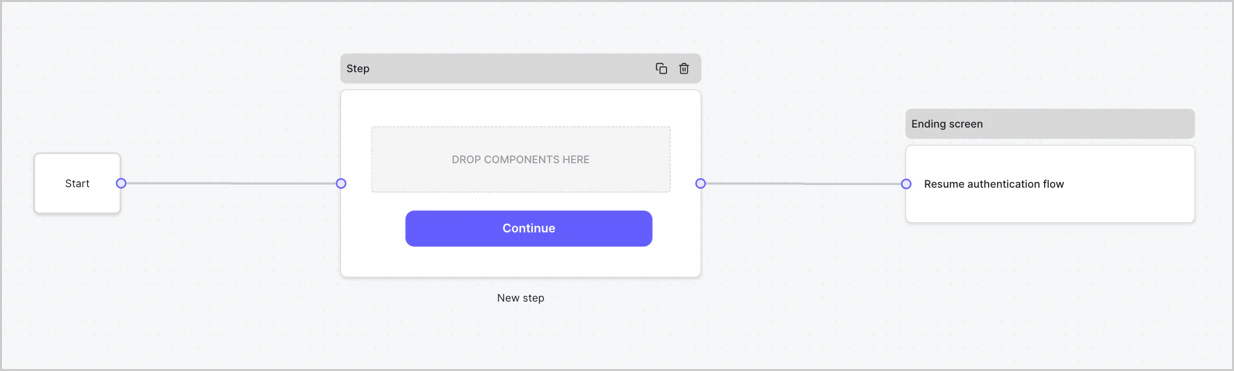
De forma predeterminada, un formulario nuevo contiene un nodo Start, un nodo Step y un nodo de pantalla de finalización.
<Frame>
  <img src="https://mintcdn.com/translations/Dcx0M11uuptU53TX/docs/images/cdy7uua7fh8z/2TZ9jSjgEcARFpULI6hz4R/a4319a1bd482f2ee5cc23100fdb2f42c/New-form-Forms-for-action-use-case.png?fit=max&auto=format&n=Dcx0M11uuptU53TX&q=85&s=9d84cbac3e62af2aa02cfe1a79d88e89" alt="Dashboard > Forms > Use Cases > Form" data-og-width="1234" width="1234" data-og-height="371" height="371" data-path="docs/images/cdy7uua7fh8z/2TZ9jSjgEcARFpULI6hz4R/a4319a1bd482f2ee5cc23100fdb2f42c/New-form-Forms-for-action-use-case.png" data-optimize="true" data-opv="3" srcset="https://mintcdn.com/translations/Dcx0M11uuptU53TX/docs/images/cdy7uua7fh8z/2TZ9jSjgEcARFpULI6hz4R/a4319a1bd482f2ee5cc23100fdb2f42c/New-form-Forms-for-action-use-case.png?w=280&fit=max&auto=format&n=Dcx0M11uuptU53TX&q=85&s=90f658e64ee4db52dd801b0b3a9cc5f1 280w, https://mintcdn.com/translations/Dcx0M11uuptU53TX/docs/images/cdy7uua7fh8z/2TZ9jSjgEcARFpULI6hz4R/a4319a1bd482f2ee5cc23100fdb2f42c/New-form-Forms-for-action-use-case.png?w=560&fit=max&auto=format&n=Dcx0M11uuptU53TX&q=85&s=0142cb0e6b542f3f6fb28a86564966e7 560w, https://mintcdn.com/translations/Dcx0M11uuptU53TX/docs/images/cdy7uua7fh8z/2TZ9jSjgEcARFpULI6hz4R/a4319a1bd482f2ee5cc23100fdb2f42c/New-form-Forms-for-action-use-case.png?w=840&fit=max&auto=format&n=Dcx0M11uuptU53TX&q=85&s=a387dbdcff51c1414d133a7a0ecc22e5 840w, https://mintcdn.com/translations/Dcx0M11uuptU53TX/docs/images/cdy7uua7fh8z/2TZ9jSjgEcARFpULI6hz4R/a4319a1bd482f2ee5cc23100fdb2f42c/New-form-Forms-for-action-use-case.png?w=1100&fit=max&auto=format&n=Dcx0M11uuptU53TX&q=85&s=47295de6a4fc2408153380510492809e 1100w, https://mintcdn.com/translations/Dcx0M11uuptU53TX/docs/images/cdy7uua7fh8z/2TZ9jSjgEcARFpULI6hz4R/a4319a1bd482f2ee5cc23100fdb2f42c/New-form-Forms-for-action-use-case.png?w=1650&fit=max&auto=format&n=Dcx0M11uuptU53TX&q=85&s=bb15314f7f7017c91d0450e80273d964 1650w, https://mintcdn.com/translations/Dcx0M11uuptU53TX/docs/images/cdy7uua7fh8z/2TZ9jSjgEcARFpULI6hz4R/a4319a1bd482f2ee5cc23100fdb2f42c/New-form-Forms-for-action-use-case.png?w=2500&fit=max&auto=format&n=Dcx0M11uuptU53TX&q=85&s=4431480842db7e65b5ee761a61702d7e 2500w" />
</Frame>

<div id="configure-the-step-node">
  ### Configurar el nodo Step
</div>

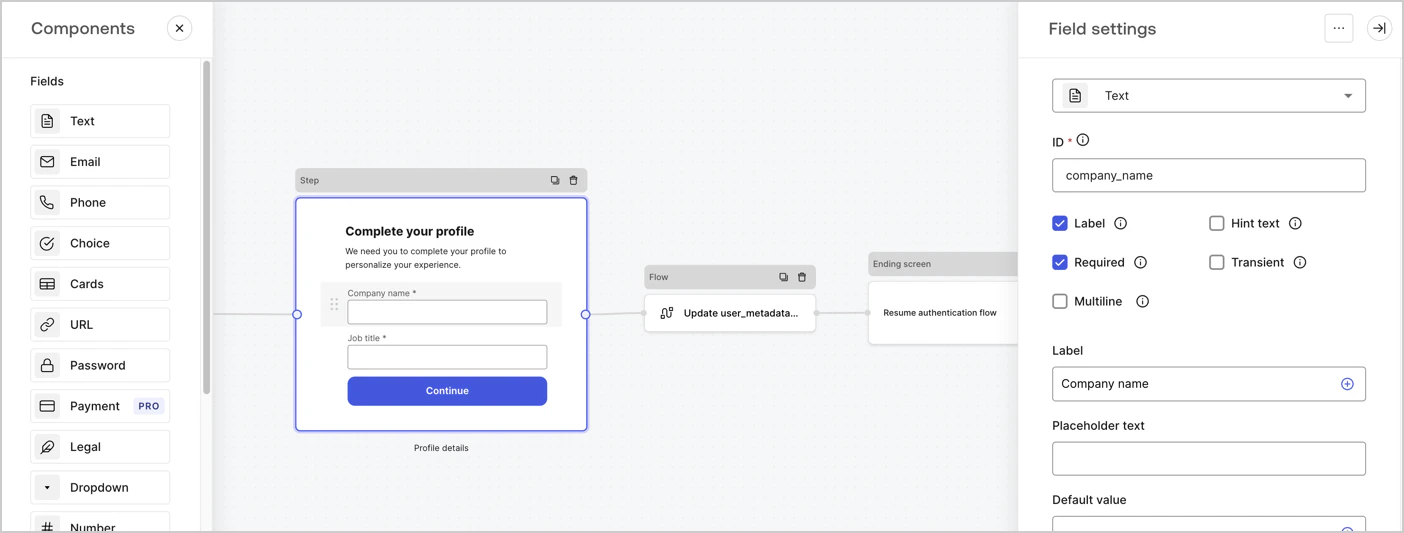
El nodo Step es la interfaz gráfica que ven los usuarios. Agregue [Fields](/es/docs/customize/forms/nodes-and-components) al nodo Step para recopilar el nombre de la empresa y el cargo del usuario siguiendo estos pasos:

1. Arrastre un campo de **Rich text** desde el **menú Components** al nodo **Step**.

   * **Rich text**: Introduzca un mensaje personalizado.

     * **Ejemplo**: `¡Complete su perfil! Necesitamos que complete su perfil para personalizar su experiencia.`
   * Seleccione **Save**.
2. Arrastre un campo de **Text** al nodo **Step**.

   * **ID**: Introduzca `company_name`.
   * **Label**: Active la casilla.
   * **Label**: Introduzca `Company name`.
   * **Required**: Active la casilla.
   * Seleccione **Save**.
3. Arrastre un campo de **Text** al nodo **Step**.

   1. **ID**: Introduzca `job_title`.
   2. **Label**: Introduzca `Job title`.
   3. **Label**: Active la casilla.
   4. **Required**: Active la casilla.
   5. Seleccione **Save**.
4. Seleccione **Publish** para guardar.
<Frame>
  <img src="https://mintcdn.com/translations/6GE5Z24GDCZehiJ9/docs/images/cdy7uua7fh8z/6H1lRzwKyYioQyQJ9MtIoM/aa248e92fc028a68a5b92ff361a11644/progressive-profile-step.png?fit=max&auto=format&n=6GE5Z24GDCZehiJ9&q=85&s=45eebdb293a786f725075e0571aeffc1" alt="Dashboard > Actions > Forms > Form > Step node" data-og-width="1404" width="1404" data-og-height="533" height="533" data-path="docs/images/cdy7uua7fh8z/6H1lRzwKyYioQyQJ9MtIoM/aa248e92fc028a68a5b92ff361a11644/progressive-profile-step.png" data-optimize="true" data-opv="3" srcset="https://mintcdn.com/translations/6GE5Z24GDCZehiJ9/docs/images/cdy7uua7fh8z/6H1lRzwKyYioQyQJ9MtIoM/aa248e92fc028a68a5b92ff361a11644/progressive-profile-step.png?w=280&fit=max&auto=format&n=6GE5Z24GDCZehiJ9&q=85&s=37d45b95958a00c274db827292612139 280w, https://mintcdn.com/translations/6GE5Z24GDCZehiJ9/docs/images/cdy7uua7fh8z/6H1lRzwKyYioQyQJ9MtIoM/aa248e92fc028a68a5b92ff361a11644/progressive-profile-step.png?w=560&fit=max&auto=format&n=6GE5Z24GDCZehiJ9&q=85&s=54e9108a1a6c92e66b4080620879d99f 560w, https://mintcdn.com/translations/6GE5Z24GDCZehiJ9/docs/images/cdy7uua7fh8z/6H1lRzwKyYioQyQJ9MtIoM/aa248e92fc028a68a5b92ff361a11644/progressive-profile-step.png?w=840&fit=max&auto=format&n=6GE5Z24GDCZehiJ9&q=85&s=b3e68876873f9c69c4dbddbf2bc6acbb 840w, https://mintcdn.com/translations/6GE5Z24GDCZehiJ9/docs/images/cdy7uua7fh8z/6H1lRzwKyYioQyQJ9MtIoM/aa248e92fc028a68a5b92ff361a11644/progressive-profile-step.png?w=1100&fit=max&auto=format&n=6GE5Z24GDCZehiJ9&q=85&s=089c8b1865e43c52278d08eab7cb1ddd 1100w, https://mintcdn.com/translations/6GE5Z24GDCZehiJ9/docs/images/cdy7uua7fh8z/6H1lRzwKyYioQyQJ9MtIoM/aa248e92fc028a68a5b92ff361a11644/progressive-profile-step.png?w=1650&fit=max&auto=format&n=6GE5Z24GDCZehiJ9&q=85&s=9026bcfb86dfc696e419c9b5442507b8 1650w, https://mintcdn.com/translations/6GE5Z24GDCZehiJ9/docs/images/cdy7uua7fh8z/6H1lRzwKyYioQyQJ9MtIoM/aa248e92fc028a68a5b92ff361a11644/progressive-profile-step.png?w=2500&fit=max&auto=format&n=6GE5Z24GDCZehiJ9&q=85&s=47a2d77c750038c566b12cc6ca6defe4 2500w" />
</Frame>

<div id="configure-the-flow-node">
  ### Configura el nodo de flujo
</div>

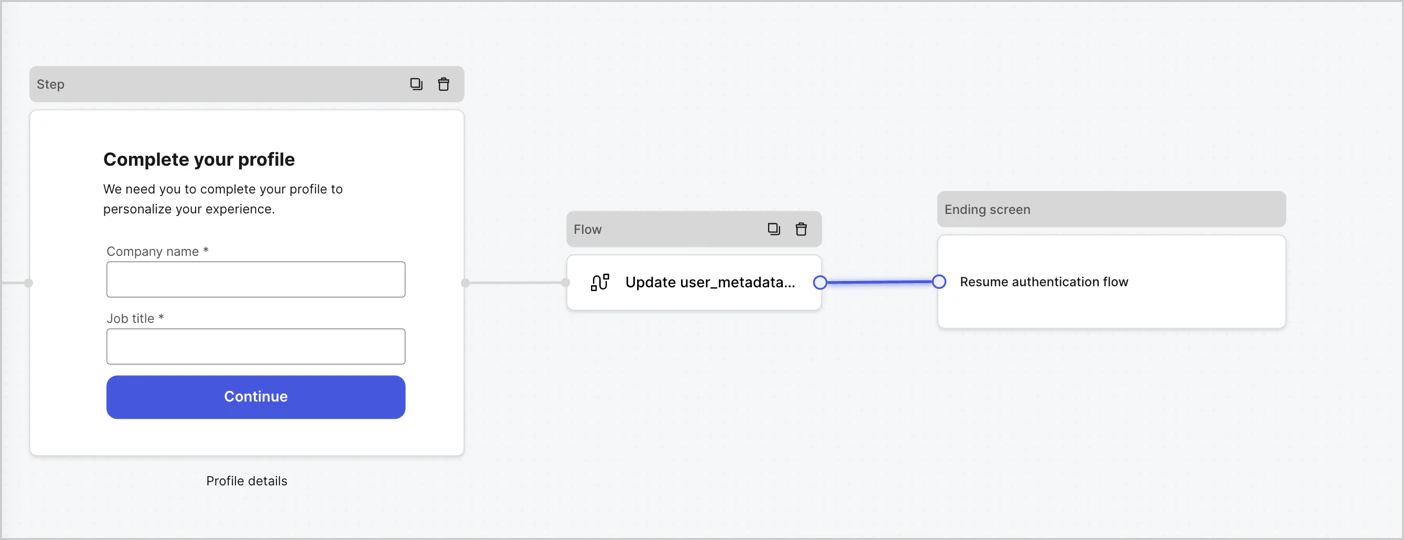
Agrega un nodo **Flow** después del nodo **Step** para actualizar `user_metadata` y reanudar el flujo de autenticación siguiendo estos pasos:

1. Selecciona **Flow** en la parte inferior del editor de formularios.
2. Elimina el vínculo existente entre los nodos **Step** y **Ending Screen**.
3. Selecciona el nuevo **Flow** > **Click to add a flow** > **Create a new flow.**

   * Introduce `Update user_metadata` en el campo **Name**.
   * Selecciona **Create**.
   * Selecciona **Save**.
4. Vincula el nodo **Flow** a los nodos **Step** y **Ending Screen**, como se muestra a continuación.
5. Selecciona **Publish** para guardar.
<Frame>
  <img src="https://mintcdn.com/translations/MV7tE-x71x8RWRES/docs/images/cdy7uua7fh8z/5C91DaWn4LGtJT9BF87ssu/095171d0c452a287c44bfde12fd6d13f/link-nodes.png?fit=max&auto=format&n=MV7tE-x71x8RWRES&q=85&s=07f4e1019ea8ff699ea79251ccc5bb2b" alt="Dashboard > Actions > Forms > Form" data-og-width="1404" width="1404" data-og-height="540" height="540" data-path="docs/images/cdy7uua7fh8z/5C91DaWn4LGtJT9BF87ssu/095171d0c452a287c44bfde12fd6d13f/link-nodes.png" data-optimize="true" data-opv="3" srcset="https://mintcdn.com/translations/MV7tE-x71x8RWRES/docs/images/cdy7uua7fh8z/5C91DaWn4LGtJT9BF87ssu/095171d0c452a287c44bfde12fd6d13f/link-nodes.png?w=280&fit=max&auto=format&n=MV7tE-x71x8RWRES&q=85&s=6acf5a54b11e8af9100825ee3f66e450 280w, https://mintcdn.com/translations/MV7tE-x71x8RWRES/docs/images/cdy7uua7fh8z/5C91DaWn4LGtJT9BF87ssu/095171d0c452a287c44bfde12fd6d13f/link-nodes.png?w=560&fit=max&auto=format&n=MV7tE-x71x8RWRES&q=85&s=db3313a21b099c75cabad756fd162b3d 560w, https://mintcdn.com/translations/MV7tE-x71x8RWRES/docs/images/cdy7uua7fh8z/5C91DaWn4LGtJT9BF87ssu/095171d0c452a287c44bfde12fd6d13f/link-nodes.png?w=840&fit=max&auto=format&n=MV7tE-x71x8RWRES&q=85&s=544d30eaa8bf19b93f9069f7534d6760 840w, https://mintcdn.com/translations/MV7tE-x71x8RWRES/docs/images/cdy7uua7fh8z/5C91DaWn4LGtJT9BF87ssu/095171d0c452a287c44bfde12fd6d13f/link-nodes.png?w=1100&fit=max&auto=format&n=MV7tE-x71x8RWRES&q=85&s=8d41d2745ffdddd9211cbdbae0e7c6b7 1100w, https://mintcdn.com/translations/MV7tE-x71x8RWRES/docs/images/cdy7uua7fh8z/5C91DaWn4LGtJT9BF87ssu/095171d0c452a287c44bfde12fd6d13f/link-nodes.png?w=1650&fit=max&auto=format&n=MV7tE-x71x8RWRES&q=85&s=81de5afd8aa300a864e9d241a53ae658 1650w, https://mintcdn.com/translations/MV7tE-x71x8RWRES/docs/images/cdy7uua7fh8z/5C91DaWn4LGtJT9BF87ssu/095171d0c452a287c44bfde12fd6d13f/link-nodes.png?w=2500&fit=max&auto=format&n=MV7tE-x71x8RWRES&q=85&s=d49035ac065c3dda504067adeedba7c9 2500w" />
</Frame>

Agrega una acción de Auth0 para actualizar el usuario al flujo siguiendo estos pasos:

1. Selecciona el flujo **Update user\_metadata** y, a continuación, selecciona **Edit Flow** para abrir el editor de flujo en una pestaña nueva.
2. Debajo de la acción **Start**, selecciona el icono **+** para agregar una acción **Update user**. Completa los siguientes campos y, luego, selecciona **Save** para continuar.

   * **Connection**: Selecciona en la lista desplegable la conexión de Vault para tu aplicación M2M.

   * **User ID**: Introduce `{{context.user.user_id}}`.

   * **Body**: Copia y pega el siguiente código para actualizar `user_metadata` con las propiedades `job_title` y `company_name`.

     ```json lines theme={null}
     {
        "user_metadata": {
           "job_title": "{{fields.job_title}}",
           "company_name": "{{fields.company_name}}"
        }
     }
     ```

   * Selecciona **Save**.
3. Selecciona **Publish** para guardar.

<Frame>
  <img src="https://mintcdn.com/translations/6GE5Z24GDCZehiJ9/docs/images/cdy7uua7fh8z/65Jx4W5oIZJyyvA8z4HqIx/0661b1a8ca6361c54fc4fef07ba59f0b/update-user.png?fit=max&auto=format&n=6GE5Z24GDCZehiJ9&q=85&s=7e1caaf5ea4560476575b73cecb6df2e" alt="Dashboard > Actions > Forms > Flows" data-og-width="1404" width="1404" data-og-height="244" height="244" data-path="docs/images/cdy7uua7fh8z/65Jx4W5oIZJyyvA8z4HqIx/0661b1a8ca6361c54fc4fef07ba59f0b/update-user.png" data-optimize="true" data-opv="3" srcset="https://mintcdn.com/translations/6GE5Z24GDCZehiJ9/docs/images/cdy7uua7fh8z/65Jx4W5oIZJyyvA8z4HqIx/0661b1a8ca6361c54fc4fef07ba59f0b/update-user.png?w=280&fit=max&auto=format&n=6GE5Z24GDCZehiJ9&q=85&s=c344529f19a221599f7d96cec4906b19 280w, https://mintcdn.com/translations/6GE5Z24GDCZehiJ9/docs/images/cdy7uua7fh8z/65Jx4W5oIZJyyvA8z4HqIx/0661b1a8ca6361c54fc4fef07ba59f0b/update-user.png?w=560&fit=max&auto=format&n=6GE5Z24GDCZehiJ9&q=85&s=b727276b5ae17bd7891a2f98dbedb3dd 560w, https://mintcdn.com/translations/6GE5Z24GDCZehiJ9/docs/images/cdy7uua7fh8z/65Jx4W5oIZJyyvA8z4HqIx/0661b1a8ca6361c54fc4fef07ba59f0b/update-user.png?w=840&fit=max&auto=format&n=6GE5Z24GDCZehiJ9&q=85&s=762bf30f089067212f11c0ac2d987689 840w, https://mintcdn.com/translations/6GE5Z24GDCZehiJ9/docs/images/cdy7uua7fh8z/65Jx4W5oIZJyyvA8z4HqIx/0661b1a8ca6361c54fc4fef07ba59f0b/update-user.png?w=1100&fit=max&auto=format&n=6GE5Z24GDCZehiJ9&q=85&s=6de81ef141aba0be2e9bcd51e185cdd9 1100w, https://mintcdn.com/translations/6GE5Z24GDCZehiJ9/docs/images/cdy7uua7fh8z/65Jx4W5oIZJyyvA8z4HqIx/0661b1a8ca6361c54fc4fef07ba59f0b/update-user.png?w=1650&fit=max&auto=format&n=6GE5Z24GDCZehiJ9&q=85&s=473ae41d6a1c9a4ca0a2a33d45c73b71 1650w, https://mintcdn.com/translations/6GE5Z24GDCZehiJ9/docs/images/cdy7uua7fh8z/65Jx4W5oIZJyyvA8z4HqIx/0661b1a8ca6361c54fc4fef07ba59f0b/update-user.png?w=2500&fit=max&auto=format&n=6GE5Z24GDCZehiJ9&q=85&s=68049e0b45fe8db2e4e7010392b842cb 2500w" />
</Frame>

<div id="retrieve-the-form-render-code">
  ### Obtén el código de renderizado del formulario
</div>

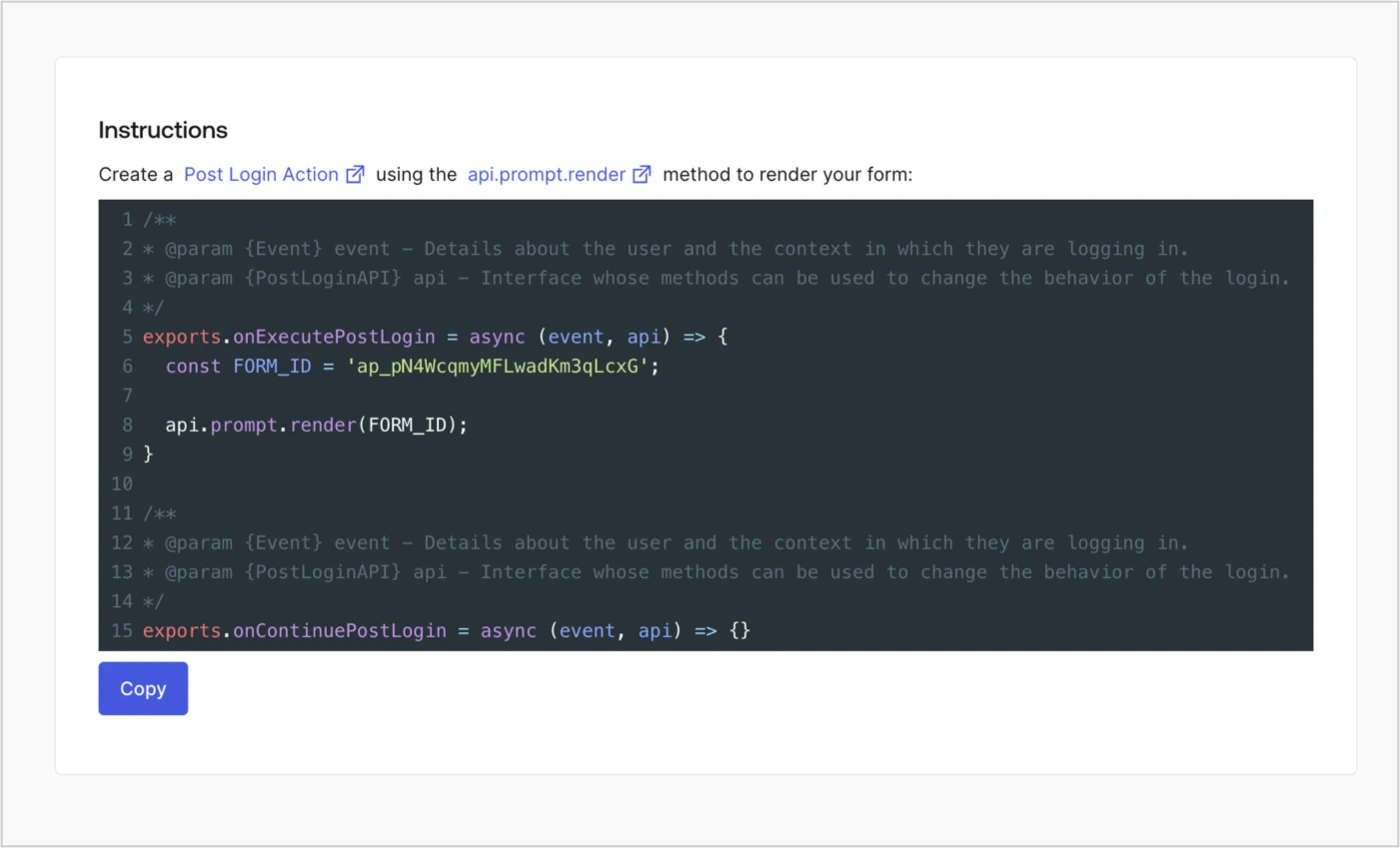
Obtén el código de renderizado del formulario para mostrarlo con una Action personalizada de Post Login siguiendo estos pasos:

* En el editor de formularios, selecciona **`<> Render`**.
* Selecciona **Copiar**.
<Frame>
  <img src="https://mintcdn.com/translations/Dcx0M11uuptU53TX/docs/images/cdy7uua7fh8z/2EIUzc539sq9lwoTKbjoJv/496a864c0fc44a782c9cadca119dbfb0/embed.png?fit=max&auto=format&n=Dcx0M11uuptU53TX&q=85&s=384ef6b70c700b214d699187cdbf7eea" alt="Dashboard > Actions > Forms > Form > Embed" data-og-width="1400" width="1400" data-og-height="848" height="848" data-path="docs/images/cdy7uua7fh8z/2EIUzc539sq9lwoTKbjoJv/496a864c0fc44a782c9cadca119dbfb0/embed.png" data-optimize="true" data-opv="3" srcset="https://mintcdn.com/translations/Dcx0M11uuptU53TX/docs/images/cdy7uua7fh8z/2EIUzc539sq9lwoTKbjoJv/496a864c0fc44a782c9cadca119dbfb0/embed.png?w=280&fit=max&auto=format&n=Dcx0M11uuptU53TX&q=85&s=e4395c30ca530056bf8b7451b6deb334 280w, https://mintcdn.com/translations/Dcx0M11uuptU53TX/docs/images/cdy7uua7fh8z/2EIUzc539sq9lwoTKbjoJv/496a864c0fc44a782c9cadca119dbfb0/embed.png?w=560&fit=max&auto=format&n=Dcx0M11uuptU53TX&q=85&s=ac6fa0252e068609208572dcbf489baf 560w, https://mintcdn.com/translations/Dcx0M11uuptU53TX/docs/images/cdy7uua7fh8z/2EIUzc539sq9lwoTKbjoJv/496a864c0fc44a782c9cadca119dbfb0/embed.png?w=840&fit=max&auto=format&n=Dcx0M11uuptU53TX&q=85&s=907c448e7fe5ade5aed859f4d343f834 840w, https://mintcdn.com/translations/Dcx0M11uuptU53TX/docs/images/cdy7uua7fh8z/2EIUzc539sq9lwoTKbjoJv/496a864c0fc44a782c9cadca119dbfb0/embed.png?w=1100&fit=max&auto=format&n=Dcx0M11uuptU53TX&q=85&s=283450a49e31012d3c5c21790d7a8336 1100w, https://mintcdn.com/translations/Dcx0M11uuptU53TX/docs/images/cdy7uua7fh8z/2EIUzc539sq9lwoTKbjoJv/496a864c0fc44a782c9cadca119dbfb0/embed.png?w=1650&fit=max&auto=format&n=Dcx0M11uuptU53TX&q=85&s=4e518c8ad8926b9edde551a9e5f44b97 1650w, https://mintcdn.com/translations/Dcx0M11uuptU53TX/docs/images/cdy7uua7fh8z/2EIUzc539sq9lwoTKbjoJv/496a864c0fc44a782c9cadca119dbfb0/embed.png?w=2500&fit=max&auto=format&n=Dcx0M11uuptU53TX&q=85&s=02e887a11021cbbd64e79b09401489b9 2500w" />
</Frame>

<div id="create-a-post-login-action">
  ## Crear una Action de Post Login
</div>

Cree una Action de post-login para renderizar el formulario siguiendo estos pasos:

1. Vaya a **Auth0 Dashboard > Actions > Flows > Login.**
2. Seleccione el icono **+** y, a continuación, **Build from scratch**:

   * **Nombre**: Escriba `Render Progressive Profile Form`.
   * **Trigger**: Seleccione `Login / Post Login`.
   * **Runtime**: Seleccione la versión recomendada.
3. Seleccione **Create**.

Para configurar la Action de post-login:

1. Elimine el código existente del editor de código.
2. Pegue el código de inserción del formulario en el editor de código.
3. Edite el código para definir la lógica condicional que renderizará el formulario.

   ```javascript lines theme={null}
   /**
   * @param {Event} event - Detalles sobre el usuario y el contexto en el que inicia sesión.
   * @param {PostLoginAPI} api - Interfaz cuyos métodos se pueden usar para cambiar el comportamiento del inicio de sesión.
   */
   exports.onExecutePostLogin = async (event, api) => {
     const FORM_ID = 'REPLACE_WITH_YOUR_FORM_ID';

     if (
       event.stats.logins_count > 2 &&
       !event.user.user_metadata.company_name &&
       !event.user.user_metadata.job_title
     ) {
       api.prompt.render(FORM_ID);
     }
   }

   exports.onContinuePostLogin = async (event, api) => { }
   ```

   <Callout icon="file-lines" color="#0EA5E9" iconType="regular">
     El código de ejemplo anterior renderizará el formulario cuando un usuario tenga más de 2 inicios de sesión y no tenga las propiedades `company_name` y `job_title` en los metadatos del usuario.
   </Callout>
4. Seleccione **Deploy.**
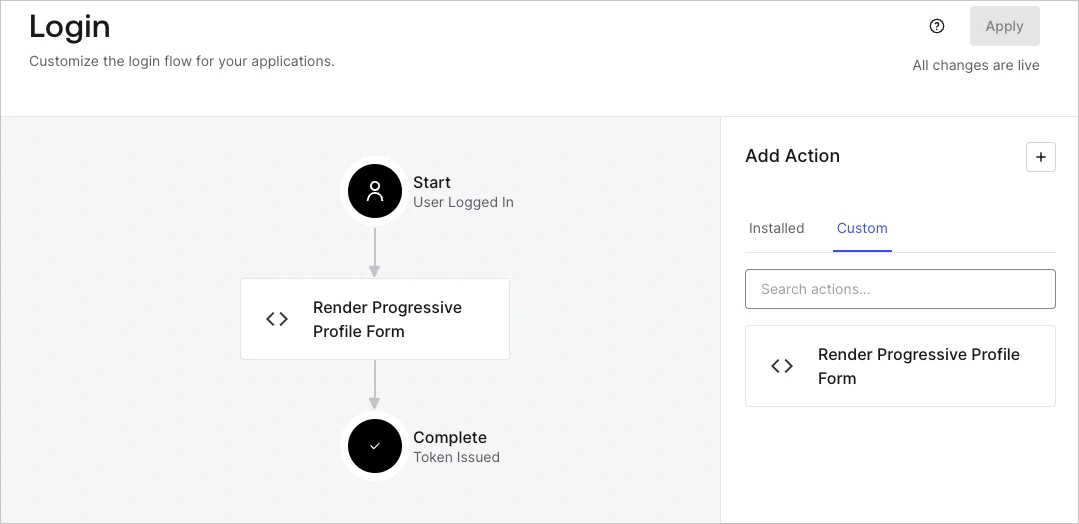
5. Arrastre y suelte la Action **Render Progressive Profile Form** en el flujo **Login**.
   <Frame>
     <img src="https://mintcdn.com/translations/eVsQcTnbClN-oB7d/docs/images/cdy7uua7fh8z/1QjjZdpTqTxx012UDN4xk9/99fba5ef4068a5688f1762eea7f42976/renderprogessiveprofile.png?fit=max&auto=format&n=eVsQcTnbClN-oB7d&q=85&s=a54028f6317267607f645bbb2324cfb0" alt="Dashboard > Forms > Use Cases Progressive Profile Login Action" data-og-width="1079" width="1079" data-og-height="524" height="524" data-path="docs/images/cdy7uua7fh8z/1QjjZdpTqTxx012UDN4xk9/99fba5ef4068a5688f1762eea7f42976/renderprogessiveprofile.png" data-optimize="true" data-opv="3" srcset="https://mintcdn.com/translations/eVsQcTnbClN-oB7d/docs/images/cdy7uua7fh8z/1QjjZdpTqTxx012UDN4xk9/99fba5ef4068a5688f1762eea7f42976/renderprogessiveprofile.png?w=280&fit=max&auto=format&n=eVsQcTnbClN-oB7d&q=85&s=b25c0a58909331b8aeb550013b99073a 280w, https://mintcdn.com/translations/eVsQcTnbClN-oB7d/docs/images/cdy7uua7fh8z/1QjjZdpTqTxx012UDN4xk9/99fba5ef4068a5688f1762eea7f42976/renderprogessiveprofile.png?w=560&fit=max&auto=format&n=eVsQcTnbClN-oB7d&q=85&s=83b4c974d7e06391f143abbd0d8e7892 560w, https://mintcdn.com/translations/eVsQcTnbClN-oB7d/docs/images/cdy7uua7fh8z/1QjjZdpTqTxx012UDN4xk9/99fba5ef4068a5688f1762eea7f42976/renderprogessiveprofile.png?w=840&fit=max&auto=format&n=eVsQcTnbClN-oB7d&q=85&s=bc003dfaa778b52e55a98948b617fc3d 840w, https://mintcdn.com/translations/eVsQcTnbClN-oB7d/docs/images/cdy7uua7fh8z/1QjjZdpTqTxx012UDN4xk9/99fba5ef4068a5688f1762eea7f42976/renderprogessiveprofile.png?w=1100&fit=max&auto=format&n=eVsQcTnbClN-oB7d&q=85&s=c9fa0b379b7743acebd0f0d78207d71b 1100w, https://mintcdn.com/translations/eVsQcTnbClN-oB7d/docs/images/cdy7uua7fh8z/1QjjZdpTqTxx012UDN4xk9/99fba5ef4068a5688f1762eea7f42976/renderprogessiveprofile.png?w=1650&fit=max&auto=format&n=eVsQcTnbClN-oB7d&q=85&s=d79f7a9ecfd5bddddd318bd409b26783 1650w, https://mintcdn.com/translations/eVsQcTnbClN-oB7d/docs/images/cdy7uua7fh8z/1QjjZdpTqTxx012UDN4xk9/99fba5ef4068a5688f1762eea7f42976/renderprogessiveprofile.png?w=2500&fit=max&auto=format&n=eVsQcTnbClN-oB7d&q=85&s=fd88d96bb14c3ef81fd09a9e4dc6e658 2500w" />
   </Frame>
6. Seleccione **Apply**.

<div id="test-implementation">
  ### Probar la implementación
</div>

Pruebe la implementación siguiendo estos pasos:

1. Inicie sesión con un usuario existente cuyo número de inicios de sesión sea mayor que 2 y cuyos atributos `user_metadata` `company_name` y `job_title` no tengan valor.
2. La Action de post-login en el flujo Login mostrará el formulario y solicitará la información.
3. Seleccione **Auth0 Dashboard > User Management > Users,** busque al usuario y verifique que los atributos `user_metadata` `company_name` y `job_title` contengan información.
