> ## Documentation Index
> Fetch the complete documentation index at: https://translations.mintlify.site/llms.txt
> Use this file to discover all available pages before exploring further.

> Configurer un formulaire de mise à jour de politique à l’aide de Forms for Actions

# Cas d’utilisation : configurer un formulaire de mise à jour de politique à l’aide de Forms

<Card title="Avant de commencer">
  1. Créez une [application machine à machine](/fr-CA/docs/get-started/auth0-overview/create-applications/machine-to-machine-apps) avec les scopes suivants activés :

  * `read:users`
  * `update:users`
  * `create:users`
  * `read:users_app_metadata`
  * `update:users_app_metadata`
  * `create:users_app_metadata`

  2. Ajoutez une [connexion Vault](/fr-CA/docs/customize/forms/vault) à l’aide des identifiants de l’application M2M.
</Card>

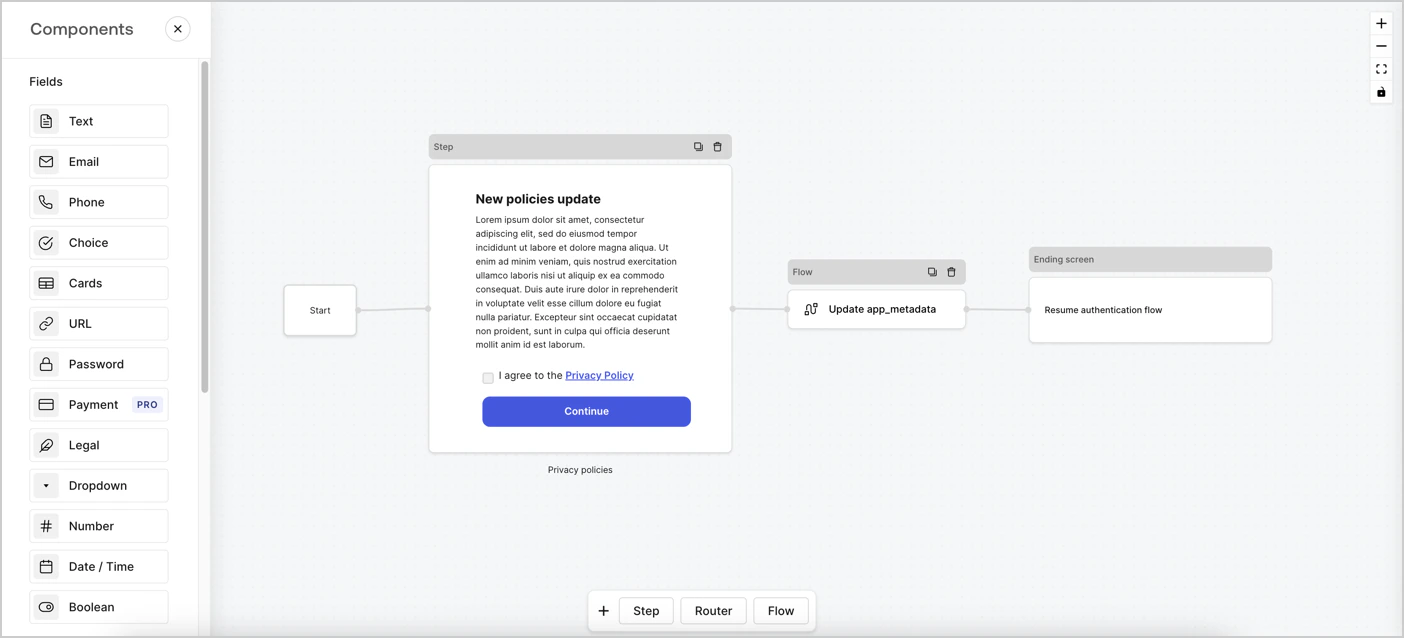
Forms for Actions vous permet de créer des flux personnalisés de politique de confidentialité et de stocker le consentement dans l’objet `app_metadata`.
<Frame>
  <img src="https://mintcdn.com/translations/6GE5Z24GDCZehiJ9/docs/images/cdy7uua7fh8z/6i68dMvHDTijfRmSgN1x8Q/ad900e7d4c0fb34645921435472b8684/privavy-policy-form.png?fit=max&auto=format&n=6GE5Z24GDCZehiJ9&q=85&s=aaf5d82ec9e0c23862c09fd906777545" alt="Auth0 Dashboard > Actions > Forms > Cas d’utilisation de politique de confidentialité" data-og-width="1404" width="1404" data-og-height="638" height="638" data-path="docs/images/cdy7uua7fh8z/6i68dMvHDTijfRmSgN1x8Q/ad900e7d4c0fb34645921435472b8684/privavy-policy-form.png" data-optimize="true" data-opv="3" srcset="https://mintcdn.com/translations/6GE5Z24GDCZehiJ9/docs/images/cdy7uua7fh8z/6i68dMvHDTijfRmSgN1x8Q/ad900e7d4c0fb34645921435472b8684/privavy-policy-form.png?w=280&fit=max&auto=format&n=6GE5Z24GDCZehiJ9&q=85&s=46093802f68f26b5c578f0ab5b677916 280w, https://mintcdn.com/translations/6GE5Z24GDCZehiJ9/docs/images/cdy7uua7fh8z/6i68dMvHDTijfRmSgN1x8Q/ad900e7d4c0fb34645921435472b8684/privavy-policy-form.png?w=560&fit=max&auto=format&n=6GE5Z24GDCZehiJ9&q=85&s=42c3c915dbf43ebfe47ca86b143322da 560w, https://mintcdn.com/translations/6GE5Z24GDCZehiJ9/docs/images/cdy7uua7fh8z/6i68dMvHDTijfRmSgN1x8Q/ad900e7d4c0fb34645921435472b8684/privavy-policy-form.png?w=840&fit=max&auto=format&n=6GE5Z24GDCZehiJ9&q=85&s=7ef405e34d733c94fc65c28917e15747 840w, https://mintcdn.com/translations/6GE5Z24GDCZehiJ9/docs/images/cdy7uua7fh8z/6i68dMvHDTijfRmSgN1x8Q/ad900e7d4c0fb34645921435472b8684/privavy-policy-form.png?w=1100&fit=max&auto=format&n=6GE5Z24GDCZehiJ9&q=85&s=281eb3fb82949d957271cfe8118398d8 1100w, https://mintcdn.com/translations/6GE5Z24GDCZehiJ9/docs/images/cdy7uua7fh8z/6i68dMvHDTijfRmSgN1x8Q/ad900e7d4c0fb34645921435472b8684/privavy-policy-form.png?w=1650&fit=max&auto=format&n=6GE5Z24GDCZehiJ9&q=85&s=c5a90b77070383bcc07deb22c647b6ab 1650w, https://mintcdn.com/translations/6GE5Z24GDCZehiJ9/docs/images/cdy7uua7fh8z/6i68dMvHDTijfRmSgN1x8Q/ad900e7d4c0fb34645921435472b8684/privavy-policy-form.png?w=2500&fit=max&auto=format&n=6GE5Z24GDCZehiJ9&q=85&s=ebb73b4fa432547f5fc1bf9c9f636c13 2500w" />
</Frame>

Les sections ci-dessous expliquent comment créer un formulaire de mise à jour de politique à l’aide de nœuds et de flux, ainsi que les étapes à suivre pour ajouter votre formulaire à une Action [Post Login](/fr-CA/docs/customize/actions/explore-triggers/signup-and-login-triggers/login-trigger).

<div id="create-a-form-from-scratch">
  ## Créer un formulaire à partir de zéro
</div>

Suivez ces étapes pour créer un formulaire et recueillir des renseignements :

1. Ouvrez l’éditeur de formulaires en sélectionnant **Auth0 Dashboard > Actions > Forms.**
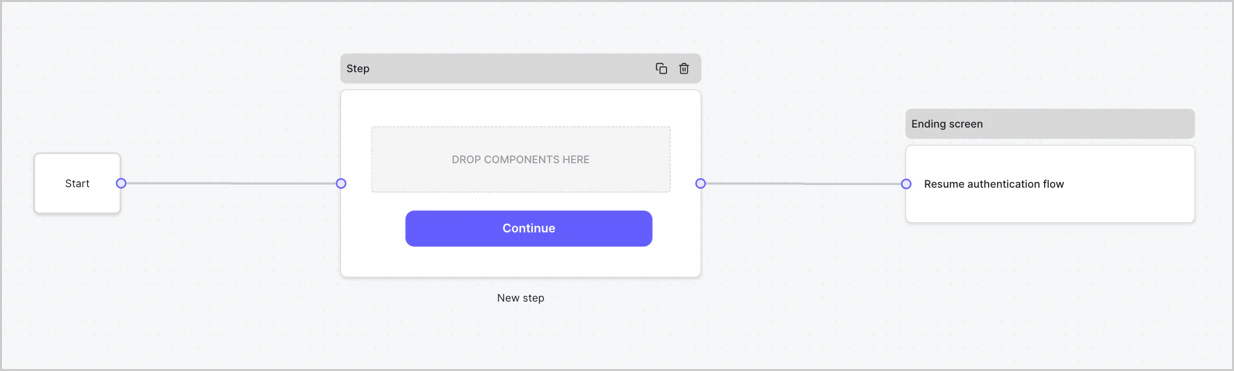
2. Sélectionnez **Créer un formulaire** > **À partir de zéro**.

Par défaut, un nouveau formulaire contient un nœud de début, un nœud d’étape et un nœud d’écran final.
<Frame>
  <img src="https://mintcdn.com/translations/Dcx0M11uuptU53TX/docs/images/cdy7uua7fh8z/2TZ9jSjgEcARFpULI6hz4R/a4319a1bd482f2ee5cc23100fdb2f42c/New-form-Forms-for-action-use-case.png?fit=max&auto=format&n=Dcx0M11uuptU53TX&q=85&s=9d84cbac3e62af2aa02cfe1a79d88e89" alt="Auth0 Dashboard > Forms > Cas d’utilisation > Formulaire" data-og-width="1234" width="1234" data-og-height="371" height="371" data-path="docs/images/cdy7uua7fh8z/2TZ9jSjgEcARFpULI6hz4R/a4319a1bd482f2ee5cc23100fdb2f42c/New-form-Forms-for-action-use-case.png" data-optimize="true" data-opv="3" srcset="https://mintcdn.com/translations/Dcx0M11uuptU53TX/docs/images/cdy7uua7fh8z/2TZ9jSjgEcARFpULI6hz4R/a4319a1bd482f2ee5cc23100fdb2f42c/New-form-Forms-for-action-use-case.png?w=280&fit=max&auto=format&n=Dcx0M11uuptU53TX&q=85&s=90f658e64ee4db52dd801b0b3a9cc5f1 280w, https://mintcdn.com/translations/Dcx0M11uuptU53TX/docs/images/cdy7uua7fh8z/2TZ9jSjgEcARFpULI6hz4R/a4319a1bd482f2ee5cc23100fdb2f42c/New-form-Forms-for-action-use-case.png?w=560&fit=max&auto=format&n=Dcx0M11uuptU53TX&q=85&s=0142cb0e6b542f3f6fb28a86564966e7 560w, https://mintcdn.com/translations/Dcx0M11uuptU53TX/docs/images/cdy7uua7fh8z/2TZ9jSjgEcARFpULI6hz4R/a4319a1bd482f2ee5cc23100fdb2f42c/New-form-Forms-for-action-use-case.png?w=840&fit=max&auto=format&n=Dcx0M11uuptU53TX&q=85&s=a387dbdcff51c1414d133a7a0ecc22e5 840w, https://mintcdn.com/translations/Dcx0M11uuptU53TX/docs/images/cdy7uua7fh8z/2TZ9jSjgEcARFpULI6hz4R/a4319a1bd482f2ee5cc23100fdb2f42c/New-form-Forms-for-action-use-case.png?w=1100&fit=max&auto=format&n=Dcx0M11uuptU53TX&q=85&s=47295de6a4fc2408153380510492809e 1100w, https://mintcdn.com/translations/Dcx0M11uuptU53TX/docs/images/cdy7uua7fh8z/2TZ9jSjgEcARFpULI6hz4R/a4319a1bd482f2ee5cc23100fdb2f42c/New-form-Forms-for-action-use-case.png?w=1650&fit=max&auto=format&n=Dcx0M11uuptU53TX&q=85&s=bb15314f7f7017c91d0450e80273d964 1650w, https://mintcdn.com/translations/Dcx0M11uuptU53TX/docs/images/cdy7uua7fh8z/2TZ9jSjgEcARFpULI6hz4R/a4319a1bd482f2ee5cc23100fdb2f42c/New-form-Forms-for-action-use-case.png?w=2500&fit=max&auto=format&n=Dcx0M11uuptU53TX&q=85&s=4431480842db7e65b5ee761a61702d7e 2500w" />
</Frame>

<div id="configure-the-step-node">
  ### Configurer le nœud Step
</div>

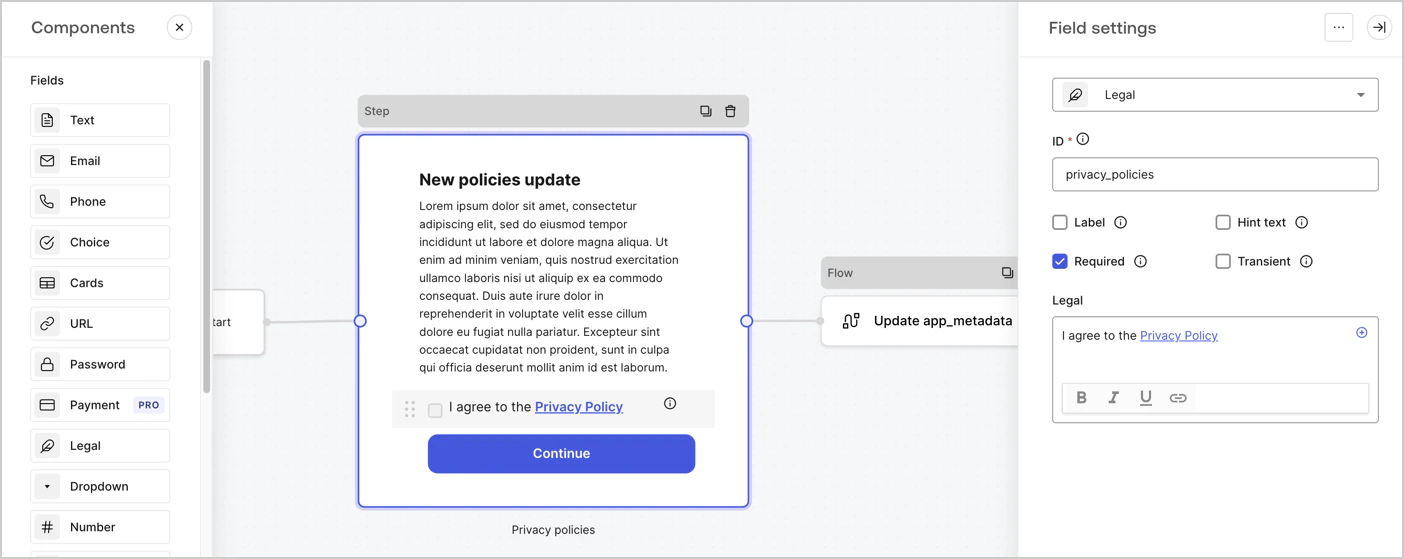
Le nœud Step est l’interface graphique que les utilisateurs voient. Ajoutez des [champs](/fr-CA/docs/customize/forms/nodes-and-components) au nœud Step pour recueillir la nouvelle valeur d’acceptation de l’accord en suivant ces étapes :

1. Faites glisser un champ **Rich text** depuis le **menu Components** dans le nœud **Step**.

   * **Rich text** : Entrez une description des mises à jour de votre politique de confidentialité.
   * Sélectionnez **Save**.
2. Faites glisser un champ **Legal** dans le nœud **Step**.

   * **ID** : Entrez `privacy_policies`.
   * **Required** : Cochez la case.
   * **Legal** : Entrez `I agree to the Privacy Policy`.
   * Sélectionnez **Save**.
3. Sélectionnez **Publish** pour enregistrer.
<Frame>
  <img src="https://mintcdn.com/translations/MV7tE-x71x8RWRES/docs/images/cdy7uua7fh8z/59zFFjQjAnjogkc2QGIqqJ/0ad66b1b636544122aa4e65968b76c2c/privacy-policy-step-node.png?fit=max&auto=format&n=MV7tE-x71x8RWRES&q=85&s=91c2b9965093d07a7526c0c8ae664573" alt="Auth0 Dashboard > Actions > Forms > Cas d’utilisation de la politique de confidentialité du nœud Step" data-og-width="1404" width="1404" data-og-height="559" height="559" data-path="docs/images/cdy7uua7fh8z/59zFFjQjAnjogkc2QGIqqJ/0ad66b1b636544122aa4e65968b76c2c/privacy-policy-step-node.png" data-optimize="true" data-opv="3" srcset="https://mintcdn.com/translations/MV7tE-x71x8RWRES/docs/images/cdy7uua7fh8z/59zFFjQjAnjogkc2QGIqqJ/0ad66b1b636544122aa4e65968b76c2c/privacy-policy-step-node.png?w=280&fit=max&auto=format&n=MV7tE-x71x8RWRES&q=85&s=54da153db1acfdf7abeebd6bb0faba7c 280w, https://mintcdn.com/translations/MV7tE-x71x8RWRES/docs/images/cdy7uua7fh8z/59zFFjQjAnjogkc2QGIqqJ/0ad66b1b636544122aa4e65968b76c2c/privacy-policy-step-node.png?w=560&fit=max&auto=format&n=MV7tE-x71x8RWRES&q=85&s=b103d92b8fb2684d93cea6fa3e2ce5a1 560w, https://mintcdn.com/translations/MV7tE-x71x8RWRES/docs/images/cdy7uua7fh8z/59zFFjQjAnjogkc2QGIqqJ/0ad66b1b636544122aa4e65968b76c2c/privacy-policy-step-node.png?w=840&fit=max&auto=format&n=MV7tE-x71x8RWRES&q=85&s=d20256dc0fad2d3719f43a84378f8288 840w, https://mintcdn.com/translations/MV7tE-x71x8RWRES/docs/images/cdy7uua7fh8z/59zFFjQjAnjogkc2QGIqqJ/0ad66b1b636544122aa4e65968b76c2c/privacy-policy-step-node.png?w=1100&fit=max&auto=format&n=MV7tE-x71x8RWRES&q=85&s=035b43fa7ef14d1b52145c7fec6ba77d 1100w, https://mintcdn.com/translations/MV7tE-x71x8RWRES/docs/images/cdy7uua7fh8z/59zFFjQjAnjogkc2QGIqqJ/0ad66b1b636544122aa4e65968b76c2c/privacy-policy-step-node.png?w=1650&fit=max&auto=format&n=MV7tE-x71x8RWRES&q=85&s=440c4665245e4903f707bef006551369 1650w, https://mintcdn.com/translations/MV7tE-x71x8RWRES/docs/images/cdy7uua7fh8z/59zFFjQjAnjogkc2QGIqqJ/0ad66b1b636544122aa4e65968b76c2c/privacy-policy-step-node.png?w=2500&fit=max&auto=format&n=MV7tE-x71x8RWRES&q=85&s=e19f3adea6fea8d8b62a1f54d552297b 2500w" />
</Frame>

<div id="configure-the-flow-node">
  ### Configurer le nœud Flow
</div>

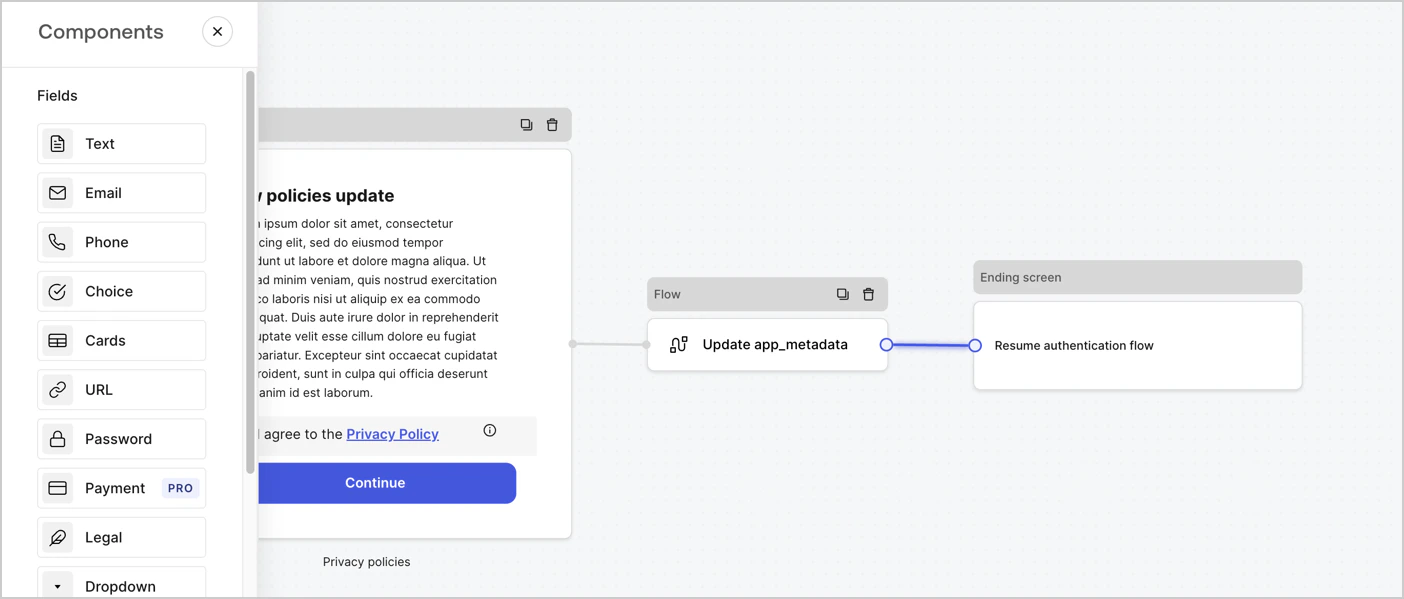
Ajoutez un nœud **Flow** après le nœud **Step** pour mettre à jour `app_metadata` et reprendre le flux d’authentification en suivant les étapes ci-dessous :

1. Sélectionnez **Flow** au bas de l’éditeur de formulaires.
2. Supprimez le lien existant entre les nœuds **Step** et **Ending Screen**.
3. Sélectionnez le nouveau **Flow** > **Click to add a flow** > **Create a new flow.**

   * Saisissez `Update app_metadata` dans le champ **Name**.
   * Sélectionnez **Create**.
   * Sélectionnez **Save**.
4. Reliez le nœud **Flow** aux nœuds **Step** et **Ending Screen**, comme illustré ci-dessous.
5. Sélectionnez **Publish** pour enregistrer.
<Frame>
  <img src="https://mintcdn.com/translations/6GE5Z24GDCZehiJ9/docs/images/cdy7uua7fh8z/6YIkzm7SrpM9LW76AXuRzh/353c518fe82bbaa440836da1d83596d6/link-policies.png?fit=max&auto=format&n=6GE5Z24GDCZehiJ9&q=85&s=b63b526849cbbf88b4cbf4aa647bd56f" alt="Dashboard > Actions > Forms > Form" data-og-width="1404" width="1404" data-og-height="599" height="599" data-path="docs/images/cdy7uua7fh8z/6YIkzm7SrpM9LW76AXuRzh/353c518fe82bbaa440836da1d83596d6/link-policies.png" data-optimize="true" data-opv="3" srcset="https://mintcdn.com/translations/6GE5Z24GDCZehiJ9/docs/images/cdy7uua7fh8z/6YIkzm7SrpM9LW76AXuRzh/353c518fe82bbaa440836da1d83596d6/link-policies.png?w=280&fit=max&auto=format&n=6GE5Z24GDCZehiJ9&q=85&s=5344af155f2abf62072c49c7666d7fc5 280w, https://mintcdn.com/translations/6GE5Z24GDCZehiJ9/docs/images/cdy7uua7fh8z/6YIkzm7SrpM9LW76AXuRzh/353c518fe82bbaa440836da1d83596d6/link-policies.png?w=560&fit=max&auto=format&n=6GE5Z24GDCZehiJ9&q=85&s=bae307e80ed60b7ebf117df50c486921 560w, https://mintcdn.com/translations/6GE5Z24GDCZehiJ9/docs/images/cdy7uua7fh8z/6YIkzm7SrpM9LW76AXuRzh/353c518fe82bbaa440836da1d83596d6/link-policies.png?w=840&fit=max&auto=format&n=6GE5Z24GDCZehiJ9&q=85&s=b7eab74e2daa101fb22f332ee6d06802 840w, https://mintcdn.com/translations/6GE5Z24GDCZehiJ9/docs/images/cdy7uua7fh8z/6YIkzm7SrpM9LW76AXuRzh/353c518fe82bbaa440836da1d83596d6/link-policies.png?w=1100&fit=max&auto=format&n=6GE5Z24GDCZehiJ9&q=85&s=714f56d8a365b5e5f887cebc536acafd 1100w, https://mintcdn.com/translations/6GE5Z24GDCZehiJ9/docs/images/cdy7uua7fh8z/6YIkzm7SrpM9LW76AXuRzh/353c518fe82bbaa440836da1d83596d6/link-policies.png?w=1650&fit=max&auto=format&n=6GE5Z24GDCZehiJ9&q=85&s=ad6efa6cef4084561f9d2629c9a70eb9 1650w, https://mintcdn.com/translations/6GE5Z24GDCZehiJ9/docs/images/cdy7uua7fh8z/6YIkzm7SrpM9LW76AXuRzh/353c518fe82bbaa440836da1d83596d6/link-policies.png?w=2500&fit=max&auto=format&n=6GE5Z24GDCZehiJ9&q=85&s=3f1c6e6d5ff06721c381c7ee5d3b8e2d 2500w" />
</Frame>

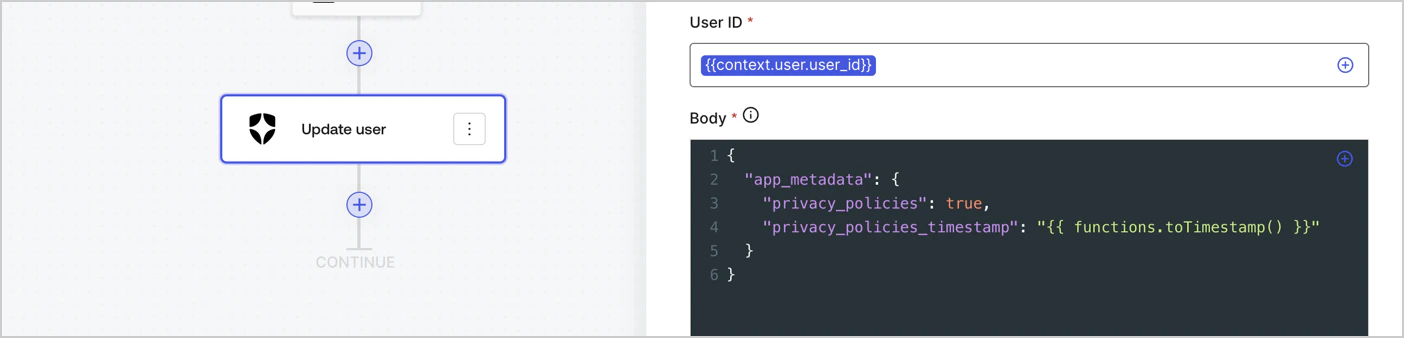
Ajoutez une action Auth0 **Update user** au flux en suivant les étapes ci-dessous :

1. Sélectionnez **Flow** **Update app\_metadata** > **Edit flow** pour ouvrir l’éditeur de flux dans un nouvel onglet.
2. Sous StartAction, sélectionnez l’icône **+** pour ajouter une action **Update user**. Remplissez les champs ci-dessous, puis sélectionnez **Save** pour continuer.

   * **Connection** : Dans la liste déroulante, sélectionnez la connexion Vault associée à votre application M2M.

   * **User ID** : Saisissez `{{context.user.user_id}}`.

   * **Body** : Copiez-collez le code suivant pour mettre à jour `app_metadata` avec les propriétés `privacy_policies` et `privacy_policies_timestamp`.

     ```text lines theme={null}
     {
       "app_metadata": {
         "privacy_policies": true,
         "privacy_policies_timestamp": "{{ functions.toTimestamp() }}"
       }
     }
     ```

   * Sélectionnez **Save**.
3. Sélectionnez **Publish** pour enregistrer.
<Frame>
  <img src="https://mintcdn.com/translations/mMSz-RNYLuOm2GmQ/docs/images/cdy7uua7fh8z/CvMNIwWrOUwaFW4X3G28p/1fb70ae57a20749d9ffaaba8dc0b7e26/update-user-privacy.png?fit=max&auto=format&n=mMSz-RNYLuOm2GmQ&q=85&s=307dec467b13927e5ade051a523cd3d6" alt="Dashboard > Actions > Forms > User case privacy policy code" data-og-width="1404" width="1404" data-og-height="338" height="338" data-path="docs/images/cdy7uua7fh8z/CvMNIwWrOUwaFW4X3G28p/1fb70ae57a20749d9ffaaba8dc0b7e26/update-user-privacy.png" data-optimize="true" data-opv="3" srcset="https://mintcdn.com/translations/mMSz-RNYLuOm2GmQ/docs/images/cdy7uua7fh8z/CvMNIwWrOUwaFW4X3G28p/1fb70ae57a20749d9ffaaba8dc0b7e26/update-user-privacy.png?w=280&fit=max&auto=format&n=mMSz-RNYLuOm2GmQ&q=85&s=6b79d6a94db4482d793aa296e0524328 280w, https://mintcdn.com/translations/mMSz-RNYLuOm2GmQ/docs/images/cdy7uua7fh8z/CvMNIwWrOUwaFW4X3G28p/1fb70ae57a20749d9ffaaba8dc0b7e26/update-user-privacy.png?w=560&fit=max&auto=format&n=mMSz-RNYLuOm2GmQ&q=85&s=79455897aa3ff4a8db63450272eefd4c 560w, https://mintcdn.com/translations/mMSz-RNYLuOm2GmQ/docs/images/cdy7uua7fh8z/CvMNIwWrOUwaFW4X3G28p/1fb70ae57a20749d9ffaaba8dc0b7e26/update-user-privacy.png?w=840&fit=max&auto=format&n=mMSz-RNYLuOm2GmQ&q=85&s=b921bbbfe036e7c59cfde2d6deb6f434 840w, https://mintcdn.com/translations/mMSz-RNYLuOm2GmQ/docs/images/cdy7uua7fh8z/CvMNIwWrOUwaFW4X3G28p/1fb70ae57a20749d9ffaaba8dc0b7e26/update-user-privacy.png?w=1100&fit=max&auto=format&n=mMSz-RNYLuOm2GmQ&q=85&s=a01292fd630fd66e0b1ac819256c79f7 1100w, https://mintcdn.com/translations/mMSz-RNYLuOm2GmQ/docs/images/cdy7uua7fh8z/CvMNIwWrOUwaFW4X3G28p/1fb70ae57a20749d9ffaaba8dc0b7e26/update-user-privacy.png?w=1650&fit=max&auto=format&n=mMSz-RNYLuOm2GmQ&q=85&s=40ad096e7c5cd43a4551f51345747b0d 1650w, https://mintcdn.com/translations/mMSz-RNYLuOm2GmQ/docs/images/cdy7uua7fh8z/CvMNIwWrOUwaFW4X3G28p/1fb70ae57a20749d9ffaaba8dc0b7e26/update-user-privacy.png?w=2500&fit=max&auto=format&n=mMSz-RNYLuOm2GmQ&q=85&s=e0c929345c4186ef9a7609fd490622e5 2500w" />
</Frame>

<Callout icon="file-lines" color="#0EA5E9" iconType="regular">
  Le flux **Update app\_metadata** ajoute une valeur `privacy_policies true` à l’objet app`_metadata` et génère également un horodatage à l’aide d’une [fonction d’assistance.](/fr-CA/docs/customize/forms/variables)
</Callout>

<div id="retrieve-the-form-render-code">
  ## Récupérer le code de rendu du formulaire
</div>

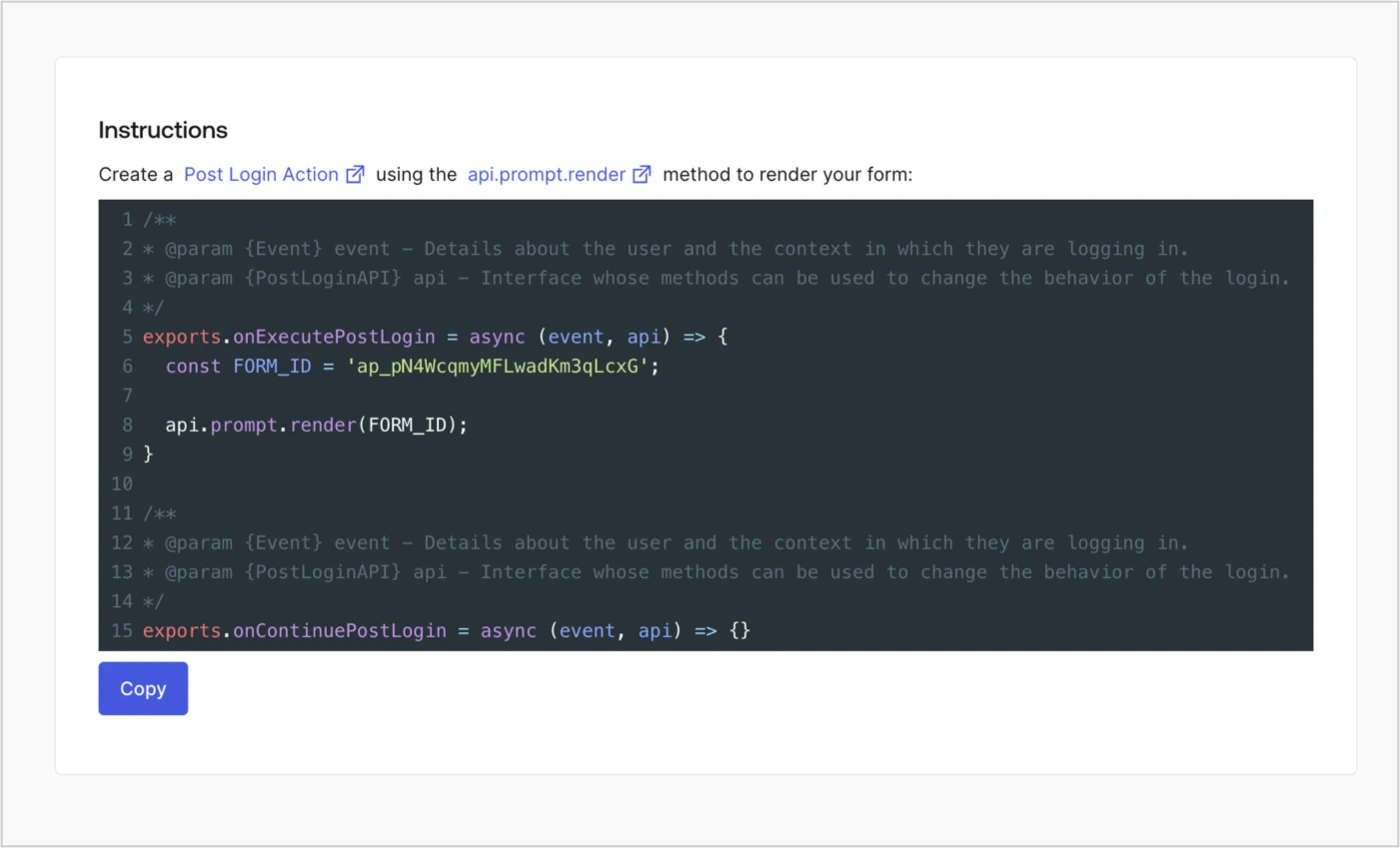
Récupérez le code de rendu de votre formulaire pour afficher le formulaire à l’aide d’une Action Post Login personnalisée en suivant ces étapes :

* Dans l’éditeur de formulaires, sélectionnez **`<> Render`**.
* Sélectionnez **Copy**.
<Frame>
  <img src="https://mintcdn.com/translations/Dcx0M11uuptU53TX/docs/images/cdy7uua7fh8z/2EIUzc539sq9lwoTKbjoJv/496a864c0fc44a782c9cadca119dbfb0/embed.png?fit=max&auto=format&n=Dcx0M11uuptU53TX&q=85&s=384ef6b70c700b214d699187cdbf7eea" alt="Auth0 Dashboard > Actions > Forms > Form > Embed" data-og-width="1400" width="1400" data-og-height="848" height="848" data-path="docs/images/cdy7uua7fh8z/2EIUzc539sq9lwoTKbjoJv/496a864c0fc44a782c9cadca119dbfb0/embed.png" data-optimize="true" data-opv="3" srcset="https://mintcdn.com/translations/Dcx0M11uuptU53TX/docs/images/cdy7uua7fh8z/2EIUzc539sq9lwoTKbjoJv/496a864c0fc44a782c9cadca119dbfb0/embed.png?w=280&fit=max&auto=format&n=Dcx0M11uuptU53TX&q=85&s=e4395c30ca530056bf8b7451b6deb334 280w, https://mintcdn.com/translations/Dcx0M11uuptU53TX/docs/images/cdy7uua7fh8z/2EIUzc539sq9lwoTKbjoJv/496a864c0fc44a782c9cadca119dbfb0/embed.png?w=560&fit=max&auto=format&n=Dcx0M11uuptU53TX&q=85&s=ac6fa0252e068609208572dcbf489baf 560w, https://mintcdn.com/translations/Dcx0M11uuptU53TX/docs/images/cdy7uua7fh8z/2EIUzc539sq9lwoTKbjoJv/496a864c0fc44a782c9cadca119dbfb0/embed.png?w=840&fit=max&auto=format&n=Dcx0M11uuptU53TX&q=85&s=907c448e7fe5ade5aed859f4d343f834 840w, https://mintcdn.com/translations/Dcx0M11uuptU53TX/docs/images/cdy7uua7fh8z/2EIUzc539sq9lwoTKbjoJv/496a864c0fc44a782c9cadca119dbfb0/embed.png?w=1100&fit=max&auto=format&n=Dcx0M11uuptU53TX&q=85&s=283450a49e31012d3c5c21790d7a8336 1100w, https://mintcdn.com/translations/Dcx0M11uuptU53TX/docs/images/cdy7uua7fh8z/2EIUzc539sq9lwoTKbjoJv/496a864c0fc44a782c9cadca119dbfb0/embed.png?w=1650&fit=max&auto=format&n=Dcx0M11uuptU53TX&q=85&s=4e518c8ad8926b9edde551a9e5f44b97 1650w, https://mintcdn.com/translations/Dcx0M11uuptU53TX/docs/images/cdy7uua7fh8z/2EIUzc539sq9lwoTKbjoJv/496a864c0fc44a782c9cadca119dbfb0/embed.png?w=2500&fit=max&auto=format&n=Dcx0M11uuptU53TX&q=85&s=02e887a11021cbbd64e79b09401489b9 2500w" />
</Frame>

<div id="create-a-post-login-action">
  ## Créer une Action Post Login
</div>

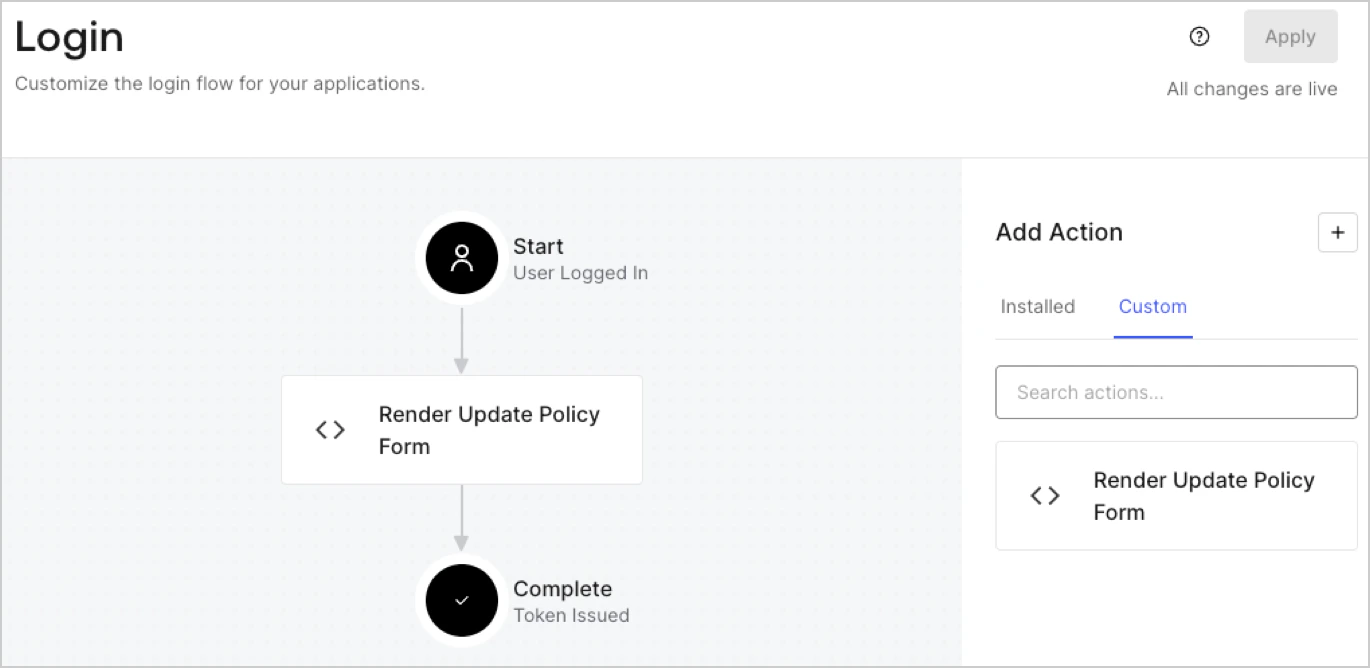
Créez une Action post-login pour afficher votre formulaire en suivant ces étapes :

1. Accédez à **Auth0 Dashboard > Actions > Flows > Login.**
2. Sélectionnez l’icône **+**, puis **Build from scratch** :

   * **Name** : Entrez `Render Update Policy Form`.
   * **Trigger** : Sélectionnez `Login / Post Login`.
   * **Runtime** : Sélectionnez la version recommandée.
3. Sélectionnez **Create**.

Pour configurer l’Action post-login :

1. Supprimez le code existant dans l’éditeur de code.
2. Collez le code de rendu du formulaire dans l’éditeur de code.
3. Modifiez le code pour définir la logique conditionnelle qui affichera le formulaire.

   ```javascript lines theme={null}
   /**
   * @param {Event} event - Détails sur l’utilisateur et le contexte dans lequel il se connecte.
   * @param {PostLoginAPI} api - Interface dont les méthodes peuvent être utilisées pour modifier le comportement du flux de connexion.
   */
   exports.onExecutePostLogin = async (event, api) => {
     const FORM_ID = 'REPLACE_WITH_YOUR_FORM_ID';

     if (event.user.app_metadata.privacy_policies !== true) {
       api.prompt.render(FORM_ID);
     }
   }

   exports.onContinuePostLogin = async (event, api) => { }
   ```

   <Callout icon="file-lines" color="#0EA5E9" iconType="regular">
     L’exemple de code ci-dessus affichera le formulaire si la propriété `privacy_policies` est absente des métadonnées d’application de l’utilisateur.
   </Callout>
4. Sélectionnez **Deploy.**
5. Glissez-déposez l’Action **Render Update Policy Form** dans le flux **Login**.
   <Frame>
     <img src="https://mintcdn.com/translations/MV7tE-x71x8RWRES/docs/images/cdy7uua7fh8z/5TOwDgevZsBqd7yZynUYWU/41ca909dc3007aed4f40ff794a05efa5/postlogin.png?fit=max&auto=format&n=MV7tE-x71x8RWRES&q=85&s=60d2f2d79f9ad381c6bea8a8b0f4be7c" alt="Auth0 Dashboard > Forms > Cas d’utilisation > Action de connexion pour le rendu du formulaire de mise à jour de la stratégie" data-og-width="1370" width="1370" data-og-height="668" height="668" data-path="docs/images/cdy7uua7fh8z/5TOwDgevZsBqd7yZynUYWU/41ca909dc3007aed4f40ff794a05efa5/postlogin.png" data-optimize="true" data-opv="3" srcset="https://mintcdn.com/translations/MV7tE-x71x8RWRES/docs/images/cdy7uua7fh8z/5TOwDgevZsBqd7yZynUYWU/41ca909dc3007aed4f40ff794a05efa5/postlogin.png?w=280&fit=max&auto=format&n=MV7tE-x71x8RWRES&q=85&s=d34aff7f9acdec24373d325a46d9fca6 280w, https://mintcdn.com/translations/MV7tE-x71x8RWRES/docs/images/cdy7uua7fh8z/5TOwDgevZsBqd7yZynUYWU/41ca909dc3007aed4f40ff794a05efa5/postlogin.png?w=560&fit=max&auto=format&n=MV7tE-x71x8RWRES&q=85&s=3d5efa17448bc265385432bcbc70bd39 560w, https://mintcdn.com/translations/MV7tE-x71x8RWRES/docs/images/cdy7uua7fh8z/5TOwDgevZsBqd7yZynUYWU/41ca909dc3007aed4f40ff794a05efa5/postlogin.png?w=840&fit=max&auto=format&n=MV7tE-x71x8RWRES&q=85&s=000cd7cc7b12a200fcdc18ea773ac5b7 840w, https://mintcdn.com/translations/MV7tE-x71x8RWRES/docs/images/cdy7uua7fh8z/5TOwDgevZsBqd7yZynUYWU/41ca909dc3007aed4f40ff794a05efa5/postlogin.png?w=1100&fit=max&auto=format&n=MV7tE-x71x8RWRES&q=85&s=3126c2a79abd0aff2e8499746e22872e 1100w, https://mintcdn.com/translations/MV7tE-x71x8RWRES/docs/images/cdy7uua7fh8z/5TOwDgevZsBqd7yZynUYWU/41ca909dc3007aed4f40ff794a05efa5/postlogin.png?w=1650&fit=max&auto=format&n=MV7tE-x71x8RWRES&q=85&s=cf82beb4a074ef33cc7685449f5cdd8a 1650w, https://mintcdn.com/translations/MV7tE-x71x8RWRES/docs/images/cdy7uua7fh8z/5TOwDgevZsBqd7yZynUYWU/41ca909dc3007aed4f40ff794a05efa5/postlogin.png?w=2500&fit=max&auto=format&n=MV7tE-x71x8RWRES&q=85&s=294b1d1cecd2e69ab5d02e69ab84f105 2500w" />
   </Frame>
6. Sélectionnez **Apply.**

<div id="test-implementation">
  ### Tester l’implémentation
</div>

Testez l’implémentation en suivant ces étapes :

1. Connectez-vous avec un utilisateur existant dont l’attribut `privacy_policies` de `app_metadata` n’a aucune valeur.
2. L’Action Post Login dans le flux Login affichera le formulaire et demandera l’acceptation.
3. Sélectionnez **Auth0 Dashboard > User Management > Users,** repérez l’utilisateur et vérifiez que l’attribut `privacy_policies` de `app_metadata` contient la valeur `true` ainsi qu’un horodatage.
