> ## Documentation Index
> Fetch the complete documentation index at: https://translations.mintlify.site/llms.txt
> Use this file to discover all available pages before exploring further.
> 設定済みのソーシャルまたはエンタープライズ IDプロバイダーからユーザープロファイル フィールドと API 権限が返されるように、Auth0 接続に追加の OAuth スコープを追加します。
# IDプロバイダー API を呼び出すためのスコープ/権限を追加
export const AuthCodeBlock = ({filename, icon, language, highlight, children}) => {
const [displayText, setDisplayText] = useState(children);
const [copyText, setCopyText] = useState(children);
const wrapperRef = React.useRef(null);
useEffect(() => {
let unsubscribe = null;
function init() {
if (!window.autorun || !window.rootStore) {
return;
}
unsubscribe = window.autorun(() => {
let processedChildrenForDisplay = children;
let processedChildrenForCopy = children;
for (const [key, value] of window.rootStore.variableStore.values.entries()) {
const escapedKey = key.replaceAll(/[.*+?^${}()|[\]\\]/g, (String.raw)`\$&`);
let displayValue = value;
if (key === "{yourClientSecret}" && value !== "{yourClientSecret}") {
displayValue = value.substring(0, 3) + "*****マスク済み*****";
}
processedChildrenForDisplay = processedChildrenForDisplay.replaceAll(new RegExp(escapedKey, "g"), displayValue);
processedChildrenForCopy = processedChildrenForCopy.replaceAll(new RegExp(escapedKey, "g"), value);
}
setDisplayText(processedChildrenForDisplay);
setCopyText(processedChildrenForCopy);
});
}
if (window.rootStore) {
init();
} else {
window.addEventListener("adu:storeReady", init);
}
return () => {
window.removeEventListener("adu:storeReady", init);
unsubscribe?.();
};
}, [children]);
useEffect(() => {
if (!wrapperRef.current) return;
const originalWriteText = navigator.clipboard.writeText.bind(navigator.clipboard);
let isOverriding = false;
const handleClick = e => {
const button = e.target.closest('[data-testid="copy-code-button"]');
if (!button || !wrapperRef.current.contains(button)) return;
isOverriding = true;
navigator.clipboard.writeText = text => {
if (isOverriding) {
isOverriding = false;
navigator.clipboard.writeText = originalWriteText;
return originalWriteText(copyText);
}
return originalWriteText(text);
};
setTimeout(() => {
if (isOverriding) {
isOverriding = false;
navigator.clipboard.writeText = originalWriteText;
}
}, 100);
};
const wrapper = wrapperRef.current;
wrapper.addEventListener('click', handleClick, true);
return () => {
wrapper.removeEventListener('click', handleClick, true);
if (navigator.clipboard.writeText !== originalWriteText) {
navigator.clipboard.writeText = originalWriteText;
}
};
}, [copyText]);
return
{displayText}
;
};
ユーザーがログインしたら、ユーザープロファイルを取得し、関連付けられた`accessToken`を使って、[IDプロバイダー API を呼び出す](/ja/docs/authenticate/identity-providers/calling-an-external-idp-api)で説明されているとおりIDプロバイダー (IdP) API を呼び出すことができます。
ただし、IdP API の呼び出し時に`Access Denied`が返される場合は、ログイン時にユーザーに対して必要な権限を正しくリクエストしていない可能性があります。正しい権限は、次の 2 つの方法のいずれかでリクエストできます。
## IDプロバイダー設定を変更する
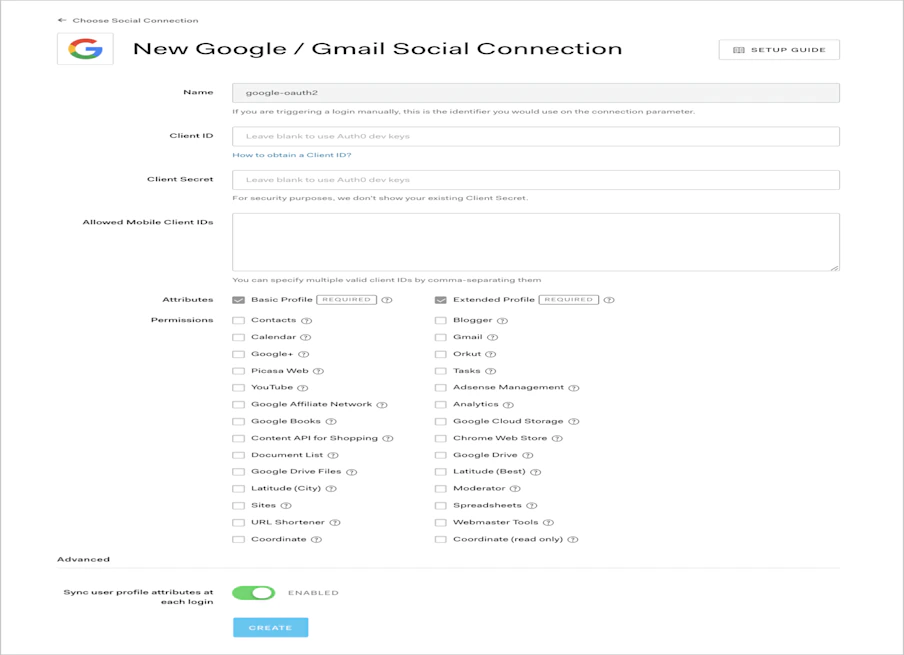
ユーザーに必要なスコープ/権限を設定するには、[Auth0 Dashboard > Authentication > Social](https://manage.auth0.com/#/connections/social) に移動して、IdP を選択します。設定画面に表示される必要な権限を選択できます。
たとえば、**Google / Gmail** 接続をクリックすると、Google 固有の権限を設定できます。
## Authorize エンドポイントにスコープを渡す
[authorize endpoint](https://auth0.com/docs/api/authentication#login) を呼び出す際には、要求するスコープ/権限をカンマ区切りのリストとして `connection_scope` パラメーターに渡すこともできます。たとえば、Google に `https://www.googleapis.com/auth/contacts.readonly` と `https://www.googleapis.com/auth/analytics` のスコープを要求する場合は、ユーザーが Google アカウントでログインするよう、これらを `connection` パラメーターとあわせて渡すことができます。
export const codeExample = `https://{yourDomain}/authorize
?response_type=id_token
&client_id={yourClientId}
&redirect_uri={https://yourApp/callback}
&scope=openid%20profile
&connection=google-oauth2
&connection_scope=https%3A%2F%2Fwww.googleapis.com%2Fauth%2Fanalytics%2Chttps%3A%2F%2Fwww.googleapis.com%2Fauth%2Fcontacts.readonly
&nonce=abc`;
上記のリクエスト例では、`connection_scope` パラメーターの値は URL エンコードされています。Google に渡されるデコード後の値は `https://www.googleapis.com/auth/analytics, https://www.googleapis.com/auth/contacts.readonly` です。