> ## Documentation Index
> Fetch the complete documentation index at: https://translations.mintlify.site/llms.txt
> Use this file to discover all available pages before exploring further.
> OIDC ログアウトエンドポイントを使用してユーザーをログアウトする方法を説明します。
# OIDC エンドポイントを使用して Auth0 からユーザーをログアウトする
export const AuthCodeGroup = ({children, dropdown}) => {
const [processedChildren, setProcessedChildren] = useState(children);
useEffect(() => {
let unsubscribe = null;
function init() {
unsubscribe = window.autorun(() => {
const processChildren = node => {
if (typeof node === "string") {
let processedNode = node;
for (const [key, value] of window.rootStore.variableStore.values.entries()) {
const escapedKey = key.replaceAll(/[.*+?^${}()|[\]\\]/g, (String.raw)`\$&`);
processedNode = processedNode.replaceAll(new RegExp(escapedKey, "g"), value);
}
return processedNode;
} else if (Array.isArray(node)) {
return node.map(processChildren);
} else if (node && node.props && node.props.children) {
return {
...node,
props: {
...node.props,
children: processChildren(node.props.children)
}
};
}
return node;
};
setProcessedChildren(processChildren(children));
});
}
if (window.rootStore) {
init();
} else {
window.addEventListener("adu:storeReady", init);
}
return () => {
window.removeEventListener("adu:storeReady", init);
unsubscribe?.();
};
}, [children]);
return {processedChildren};
};
export const AuthCodeBlock = ({filename, icon, language, highlight, children}) => {
const [displayText, setDisplayText] = useState(children);
const [copyText, setCopyText] = useState(children);
const wrapperRef = React.useRef(null);
useEffect(() => {
let unsubscribe = null;
function init() {
if (!window.autorun || !window.rootStore) {
return;
}
unsubscribe = window.autorun(() => {
let processedChildrenForDisplay = children;
let processedChildrenForCopy = children;
for (const [key, value] of window.rootStore.variableStore.values.entries()) {
const escapedKey = key.replaceAll(/[.*+?^${}()|[\]\\]/g, (String.raw)`\$&`);
let displayValue = value;
if (key === "{yourClientSecret}" && value !== "{yourClientSecret}") {
displayValue = value.substring(0, 3) + "*****マスク済み*****";
}
processedChildrenForDisplay = processedChildrenForDisplay.replaceAll(new RegExp(escapedKey, "g"), displayValue);
processedChildrenForCopy = processedChildrenForCopy.replaceAll(new RegExp(escapedKey, "g"), value);
}
setDisplayText(processedChildrenForDisplay);
setCopyText(processedChildrenForCopy);
});
}
if (window.rootStore) {
init();
} else {
window.addEventListener("adu:storeReady", init);
}
return () => {
window.removeEventListener("adu:storeReady", init);
unsubscribe?.();
};
}, [children]);
useEffect(() => {
if (!wrapperRef.current) return;
const originalWriteText = navigator.clipboard.writeText.bind(navigator.clipboard);
let isOverriding = false;
const handleClick = e => {
const button = e.target.closest('[data-testid="copy-code-button"]');
if (!button || !wrapperRef.current.contains(button)) return;
isOverriding = true;
navigator.clipboard.writeText = text => {
if (isOverriding) {
isOverriding = false;
navigator.clipboard.writeText = originalWriteText;
return originalWriteText(copyText);
}
return originalWriteText(text);
};
setTimeout(() => {
if (isOverriding) {
isOverriding = false;
navigator.clipboard.writeText = originalWriteText;
}
}, 100);
};
const wrapper = wrapperRef.current;
wrapper.addEventListener('click', handleClick, true);
return () => {
wrapper.removeEventListener('click', handleClick, true);
if (navigator.clipboard.writeText !== originalWriteText) {
navigator.clipboard.writeText = originalWriteText;
}
};
}, [copyText]);
return
{displayText}
;
};
export const codeExample3 = `https://{yourDomain}/oidc/logout?{clientId}={yourClientId}&logout_hint={sessionId}`;
export const codeExample4 = `https://{yourDomain}/oidc/logout?post_logout_redirect_uri=http%3A%2F%2Fwww.example.com`;
export const codeExample5 = `PATCH https://{yourDomain}/api/v2/clients/{clientId}
Authorization: Bearer {yourMgmtApiAccessToken}
Content-Type: application/json
{
"allowed_logout_urls": [
"https://www.example.com",
"https://www.example.com/logout"
]
}
`;
export const codeExample6 = `PATCH https://{yourDomain}/api/v2/tenants/settings
Authorization: Bearer {yourMgmtApiAccessToken}
Content-Type: application/json
{
"allowed_logout_urls": [
"https://www.example.com",
"https://www.example.com/logout"
]
}
`;
Auth0 は、エンドユーザーのログアウト向けに OpenID Connect の [RP-Initiated Logout 1.0](https://openid.net/specs/openid-connect-rpinitiated-1_0.html) を実装しています。この標準は、OpenID Connect の [最終仕様](https://openid.net/developers/specs/)群の一部です。
## 仕組み
RP-Initiated Logout は、依拠当事者 (ユーザー) が OpenID プロバイダー (Auth0) にログアウトを要求するシナリオです。
1. ユーザーがアプリケーションでログアウトを開始します。
2. アプリケーションがユーザーを Auth0 Authentication API の [OIDC Logout](https://auth0.com/docs/api/authentication#oidc-logout) エンドポイントにリダイレクトします。
3. Auth0 は、指定された [OIDC Logout エンドポイントパラメーター](#oidc-logout-endpoint-parameters) に基づいて、ユーザーを適切な宛先にリダイレクトします。
## RP-Initiated Logout を設定する
RP-Initiated Logout を設定するには、アプリケーションが Auth0 テナントの[ディスカバリー メタデータ ドキュメント](https://openid.net/specs/openid-connect-discovery-1_0.html#ProviderConfig)で `end_session_endpoint` パラメーターを確認でき、必要なパラメーターを指定して OIDC Logout エンドポイントを呼び出せるようにする必要があります。
### エンドポイントの検出を有効にする
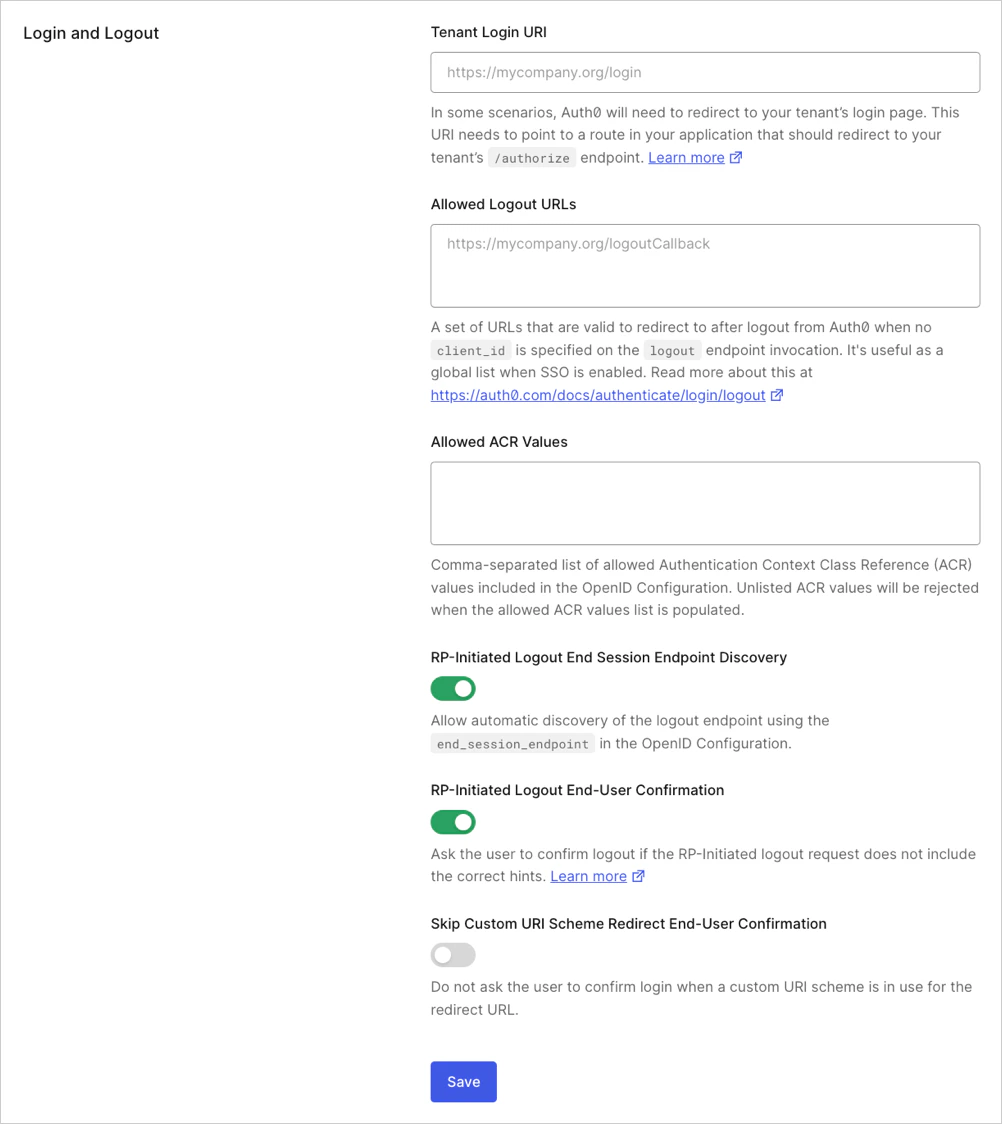
2023年11月14日以降に作成されたAuth0テナントでは、**RP-Initiated Logout End Session Endpoint Discovery** はデフォルトで有効です。
Auth0 Dashboard または Auth0 の Management API で **RP-Initiated Logout End Session Endpoint Discovery** を有効にできます。
Dashboard で **RP-Initiated Logout End Session Endpoint Discovery** を有効にするには、次の手順を実行します。
1. [Dashboard > Settings > Advanced](https://manage.auth0.com/#/tenant/advanced) に移動します。
2. **Login and Logout** セクションを探します。
3. **RP-Initiated Logout End Session Endpoint Discovery** のトグルを有効にします。
Management API で **RP-Initiated Logout End Session Endpoint Discovery** を有効にするには、次の手順を実行します。
1. `update:tenant_settings` スコープを含む [Management APIアクセストークンを取得](/ja/docs/secure/tokens/access-tokens/management-api-access-tokens/get-management-api-access-tokens-for-production) します。
2. 次のペイロードを使用して、Management API の [Update tenant settings](https://auth0.com/docs/api/management/v2/tenants/patch-settings) エンドポイントを呼び出します。
```json JSON lines theme={null}
{
"oidc_logout": {
"rp_logout_end_session_endpoint_discovery": true
}
}
```
### OIDC Logout エンドポイントを呼び出す
Auth0 の [SDK ライブラリ](/ja/docs/libraries) のほとんどは OIDC に準拠しており、RP-Initiated Logout を標準でサポートしています。
OIDC Logout エンドポイントを呼び出す際、Auth0 では `id_token_hint` パラメーターを指定することを推奨しています。
アプリケーションで IDトークン を安全に保存できない場合は、代わりに `logout_hint` パラメーターと `client_id` パラメーターを指定できます。
OIDC Logout エンドポイントは、重複する情報を含めて呼び出すこともできます。
たとえば、`id_token_hint` パラメーターと `logout_hint` パラメーター、または `id_token_hint` パラメーターと `client_id` パラメーターを送信できます。
いずれの場合も、Auth0 はユーザーとセッションのデータに整合性があるかを確認し、不一致がある場合はエラーを返します。
#### OIDC Logout エンドポイントのパラメーター
Authentication API の [OIDC Logout](https://auth0.com/docs/api/authentication#oidc-logout) エンドポイントは、次のパラメーターをサポートします。
| Parameter | Required? | Description |
| -------------------------- | --------- | -------------------------------------------------------------------------------------- |
| `id_token_hint` | 推奨 | 以前にそのユーザーに対して発行された IDトークン。ログアウトするユーザーを示します。 |
| `logout_hint` | 任意 | ログアウトするユーザーを示すセッション ID (`sid`) の値。 |
| `post_logout_redirect_uri` | 任意 | ログアウト後にユーザーをリダイレクトする先を示すリダイレクト URL の値。 |
| `client_id` | 任意 | アプリケーションのクライアントID。 |
| `federated` | 任意 | ユーザーをそのIDプロバイダーからログアウトするよう Auth0 に指示します。 |
| `state` | 任意 | アプリケーションが最初のログアウトリクエストに追加し、Auth0 が `post_logout_redirect_uri` にリダイレクトする際に含める不透明な値。 |
| `ui_locales` | 任意 | リクエストで使用する言語の一覧を制限するための、スペース区切りのロケールのリスト。リストの先頭のロケールは、テナントで有効になっているロケールと一致している必要があります。 |
#### `id_token_hint` パラメーター
Auth0 では、OIDC Logout エンドポイントを呼び出す際に `id_token_hint` パラメーターを使用することを推奨しています。
`id_token_hint` パラメーターの値には、ユーザーの認証後に Auth0 が発行した IDトークン を指定する必要があります。
IDトークン には、検証に使用される登録済みクレームの発行者 (`iss`) 、対象者 (`aud`) 、および Auth0 セッション ID (`sid`) が含まれます。IDトークン のクレームの詳細については、[ID Token Structure](/ja/docs/secure/tokens/id-tokens/id-token-structure) を参照してください。
##### 例
```http HTTP theme={null}
https://{yourDomain}/oidc/logout?id_token_hint={yourIdToken}&post_logout_redirect_uri={yourCallbackUrl}
```
```bash cURL theme={null}
curl --request GET \
--url 'https://{yourDomain}/oidc/logout' \
--header 'content-type: application/x-www-form-urlencoded' \
--data 'id_token_hint={yourIdToken}' \
--data 'post_logout_redirect_uri={yourCallbackUrl}'
```
#### logout\_hint パラメーター
`logout_hint` パラメーターの値には、ユーザーの現在の Auth0 セッションのセッション ID (`sid`) を指定する必要があります。
セッション ID (`sid`) は、ユーザーの認証後に Auth0 が発行した IDトークンに、登録済みクレームとして含まれています。
現在のセッションの開始時に Auth0 が発行した IDトークンに関連付けられたセッション ID (`sid`) を使用する必要があります。Auth0 は、ランダムな値や現在のセッション データを反映していない値を含むリクエストを無視します。
##### 例
#### `post_logout_redirect_uri` パラメーター
`post_logout_redirect_uri` パラメーターの値は、有効でエンコード済みの URL であり、次のいずれかの **Allowed Logout URLs** リストに登録されている必要があります。
1. [Application settings](/ja/docs/get-started/applications/application-settings#application-uris): `id_token_hint` パラメーター、または `logout_hint` パラメーターと `client_id` パラメーターを指定する場合。
2. [Tenant settings](/ja/docs/get-started/tenant-settings#login-and-logout): `logout_hint` パラメーターのみを指定する場合。
##### 例
##### アプリケーションの Allowed Logout URLs を更新
Auth0 Dashboard または Management API を使用して、アプリケーションの **Allowed Logout URLs** 一覧に URL を登録できます。
Dashboard でアプリケーションの **Allowed Logout URLs** 一覧に URL を登録するには、次の手順に従います。
1. [Dashboard > Applications > Applications](https://manage.auth0.com/#/applications) に移動します。
2. 対象のアプリケーションを選択します。
3. **Application URIs** セクションを見つけます。
4. [ガイドライン](#allowed-logout-urls-guidelines)に従って、**Allowed Logout URLs** を更新します。
Management API の [Update a client](https://auth0.com/docs/api/management/v2/clients/patch-clients-by-id) エンドポイントを呼び出すと、リクエスト本文で指定したフィールドの既存の設定データはすべて上書きされます。
意図しないデータ損失を防ぐため、まず Management API の [Get a client](https://auth0.com/docs/api/management/v2/clients/get-clients-by-id) エンドポイントを呼び出して、アプリケーションの現在の設定データを取得してください。
Management API を使用してアプリケーションの **Allowed Logout URLs** 一覧に URL を登録するには、次の手順に従います。
1. `update:clients` スコープを含む [Management API アクセストークンを取得](/ja/docs/secure/tokens/access-tokens/management-api-access-tokens/get-management-api-access-tokens-for-production) します。
2. Management API の [Update a client](https://auth0.com/docs/api/management/v2/clients/patch-clients-by-id) エンドポイントを呼び出し、リクエスト本文内の `allowed_logout_urls` フィールドの値にその URL を含めてください。
##### テナントの Allowed Logout URLs を更新する
Auth0 Dashboard または Auth0 Management API を使用して、テナントの **Allowed Logout URLs** リストに URL を登録できます。
Auth0 Dashboard でテナントの **Allowed Logout URLs** リストに URL を登録するには、次の手順に従います。
1. [Dashboard > Settings > Advanced](https://manage.auth0.com/#/tenant/advanced) に移動します。
2. **Login and Logout** セクションを見つけます。
3. [ガイドライン](#allowed-logout-urls-guidelines) に従って **Allowed Logout URLs** を更新します。
Management API の [Update tenant settings](https://auth0.com/docs/api/management/v2/tenants/patch-settings) エンドポイントを呼び出すと、リクエストボディで指定したフィールドの既存の設定データはすべて上書きされます。
誤ってデータを失わないように、まず Management API の [Get tenant settings](https://auth0.com/docs/api/management/v2/tenants/tenant-settings-route) エンドポイントを呼び出して、テナントの現在の設定データを取得してください。
Management API を使用してテナントの **Allowed Logout URLs** リストに URL を登録するには、次の手順に従います。
1. `update:tenant_settings` スコープを含む [Management API アクセストークンを取得](/ja/docs/secure/tokens/access-tokens/management-api-access-tokens/get-management-api-access-tokens-for-production) します。
2. Management API の [Update tenant settings](https://auth0.com/docs/api/management/v2/tenants/patch-settings) エンドポイントを呼び出し、リクエストボディ内の `allowed_logout_urls` フィールドの値に対象の URL を含めます。
##### Allowed Logout URLs のガイドライン
検証エラーを避けるため、**Allowed Logout URLs** を更新する際は、次のガイドラインに従ってください。
* 複数の URL 値はコンマ (`,`) で区切ります。
* URL スキーム (たとえば `https://`) を含めます。
サブドメインのワイルドカードとしてアスタリスク (`*`) を使用できます (例: `https://*.example.com`) 。ただし、本番環境ではワイルドカードを使用しないことを推奨します。詳細については、[Subdomain URL Placeholders](/ja/docs/get-started/applications/wildcards-for-subdomains#wildcard-url-placeholders) を参照してください。
##### post\_logout\_redirect\_uri にクエリ文字列パラメーターを追加する
OIDC Logout エンドポイントは、`post_logout_redirect_uri` パラメーターで指定された URL に含まれるクエリ文字列パラメーターを解析します。
**Allowed Logout URLs** には、**クエリ文字列パラメーターを含む完全一致の URL** を追加する必要があります。追加しない場合、ログアウトリクエストは拒否されます。URL は、すべてのクエリパラメーター名と値を含めて完全に一致している必要があります。
たとえば、`post_logout_redirect_uri` パラメーターに `https://example.com/logout?myParam=1234` (`https%3A%2F%2Fexample.com%2Flogout%3FmyParam%3D1234` としてエンコード) を渡す場合は、完全な URL `https://example.com/logout?myParam=1234` を **Allowed Logout URLs** に追加する必要があります。
動的なクエリパラメーター値はサポートされていません。クエリパラメーター名と値の組み合わせごとに、一意の値を **Allowed Logout URLs** に個別のエントリとして登録する必要があります。
#### `ui_locales` パラメーター
`ui_locales` パラメーターの値は、[サポートされているロケール](/ja/docs/customize/internationalization-and-localization/universal-login-internationalization#new-universal-login-experience-localization)をスペース区切りで並べたリストである必要があります。
リストの先頭に指定する値は、[テナントの Default Language 設定](/ja/docs/get-started/tenant-settings#languages)と一致している必要があります。
#### `federated` パラメーター
`federated` パラメーターに値は必要ありません。
OIDC Logout エンドポイントの呼び出し時に `federated` パラメーターを含めると、Auth0 は[ユーザーをその IDプロバイダーからログアウトさせる](/ja/docs/authenticate/login/logout/log-users-out-of-idps)ことを試みます。
## ログアウト同意プロンプト
OIDC 標準では、OpenID プロバイダーがそのリクエストがユーザー本人によるものだと確認できない場合、ログアウトフローを中断して、ユーザーに同意を求めるプロンプトを表示する必要があると定義されています。
Auth0 は、次のいずれかの条件を検出すると、ログアウト同意プロンプトを表示してこの動作を実施します。
* `id_token_hint` パラメーターと `logout_hint` パラメーターのどちらも指定されていない。
* IDトークンの `sid` クレームが、リクエスト内のブラウザーセッションに対応していない。
* `logout_hint` パラメーターの値が、現在のセッションデータと一致しない。
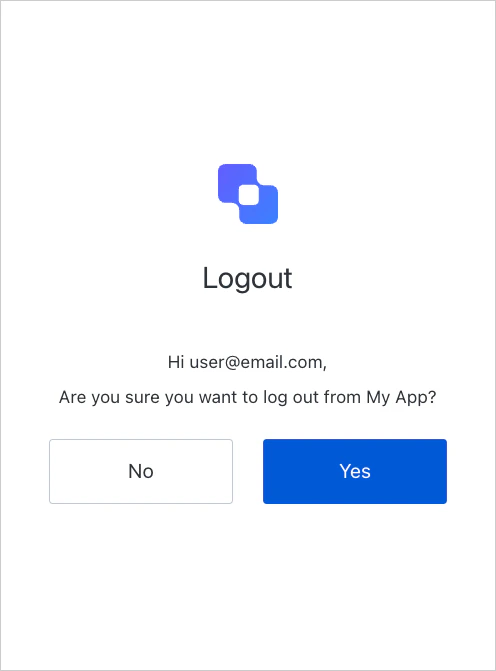 ユーザーがログアウトリクエストを確認すると、Auth0 はログアウトフローを続行します。
### ログアウト同意プロンプトを無効にする
ログアウト同意プロンプトは無効にできます。無効にすると、Auth0 は異常な動作の検出を行わず、ログアウトリクエストを自動的に受け付けます。
Dashboard でログアウト同意プロンプトを無効にするには、次の手順に従います。
1. [Dashboard > Settings > Advanced](https://manage.auth0.com/#/tenant/advanced) に移動します。
2. **Show RP-Initiated Logout End-User Confirmation** トグルを無効にします。
## 詳細
* [アプリケーションからユーザーをログアウトする](/ja/docs/authenticate/login/logout/log-users-out-of-applications)
* [IDプロバイダーからユーザーをログアウトする](/ja/docs/authenticate/login/logout/log-users-out-of-idps)
* [SAML IDプロバイダーからユーザーをログアウトする](/ja/docs/authenticate/login/logout/log-users-out-of-saml-idps)
* [代替ログアウトを使用してユーザーをリダイレクトする](/ja/docs/authenticate/login/logout/redirect-users-after-logout)