> ## Documentation Index
> Fetch the complete documentation index at: https://translations.mintlify.site/llms.txt
> Use this file to discover all available pages before exploring further.

> Forms for Actions を使用して更新ポリシーフォームを設定する

# ユースケース: Forms を使用して更新ポリシーフォームを設定する

<Card title="始める前に">
  1. 次のスコープを有効にした [マシン間アプリケーション](/ja/docs/get-started/auth0-overview/create-applications/machine-to-machine-apps) を作成します。

  * `read:users`
  * `update:users`
  * `create:users`
  * `read:users_app_metadata`
  * `update:users_app_metadata`
  * `create:users_app_metadata`

  2. M2M アプリケーションの認証情報を使用して、[Vault 接続](/ja/docs/customize/forms/vault) を追加します。
</Card>

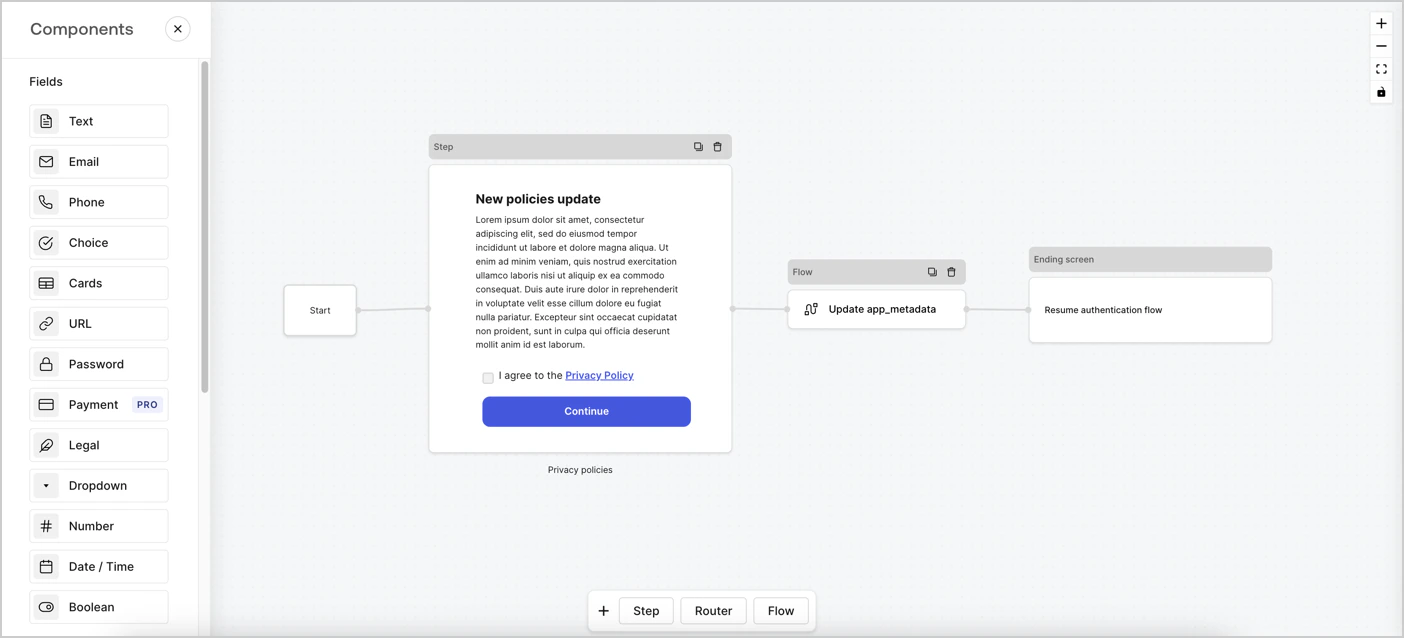
Forms for Actions を使用すると、カスタムのプライバシーポリシーフローを作成し、同意内容を `app_metadata` オブジェクトに保存できます。
<Frame>
  <img src="https://mintcdn.com/translations/6GE5Z24GDCZehiJ9/docs/images/cdy7uua7fh8z/6i68dMvHDTijfRmSgN1x8Q/ad900e7d4c0fb34645921435472b8684/privavy-policy-form.png?fit=max&auto=format&n=6GE5Z24GDCZehiJ9&q=85&s=aaf5d82ec9e0c23862c09fd906777545" alt="Dashboard > Actions > Forms > Privacy policy use case" data-og-width="1404" width="1404" data-og-height="638" height="638" data-path="docs/images/cdy7uua7fh8z/6i68dMvHDTijfRmSgN1x8Q/ad900e7d4c0fb34645921435472b8684/privavy-policy-form.png" data-optimize="true" data-opv="3" srcset="https://mintcdn.com/translations/6GE5Z24GDCZehiJ9/docs/images/cdy7uua7fh8z/6i68dMvHDTijfRmSgN1x8Q/ad900e7d4c0fb34645921435472b8684/privavy-policy-form.png?w=280&fit=max&auto=format&n=6GE5Z24GDCZehiJ9&q=85&s=46093802f68f26b5c578f0ab5b677916 280w, https://mintcdn.com/translations/6GE5Z24GDCZehiJ9/docs/images/cdy7uua7fh8z/6i68dMvHDTijfRmSgN1x8Q/ad900e7d4c0fb34645921435472b8684/privavy-policy-form.png?w=560&fit=max&auto=format&n=6GE5Z24GDCZehiJ9&q=85&s=42c3c915dbf43ebfe47ca86b143322da 560w, https://mintcdn.com/translations/6GE5Z24GDCZehiJ9/docs/images/cdy7uua7fh8z/6i68dMvHDTijfRmSgN1x8Q/ad900e7d4c0fb34645921435472b8684/privavy-policy-form.png?w=840&fit=max&auto=format&n=6GE5Z24GDCZehiJ9&q=85&s=7ef405e34d733c94fc65c28917e15747 840w, https://mintcdn.com/translations/6GE5Z24GDCZehiJ9/docs/images/cdy7uua7fh8z/6i68dMvHDTijfRmSgN1x8Q/ad900e7d4c0fb34645921435472b8684/privavy-policy-form.png?w=1100&fit=max&auto=format&n=6GE5Z24GDCZehiJ9&q=85&s=281eb3fb82949d957271cfe8118398d8 1100w, https://mintcdn.com/translations/6GE5Z24GDCZehiJ9/docs/images/cdy7uua7fh8z/6i68dMvHDTijfRmSgN1x8Q/ad900e7d4c0fb34645921435472b8684/privavy-policy-form.png?w=1650&fit=max&auto=format&n=6GE5Z24GDCZehiJ9&q=85&s=c5a90b77070383bcc07deb22c647b6ab 1650w, https://mintcdn.com/translations/6GE5Z24GDCZehiJ9/docs/images/cdy7uua7fh8z/6i68dMvHDTijfRmSgN1x8Q/ad900e7d4c0fb34645921435472b8684/privavy-policy-form.png?w=2500&fit=max&auto=format&n=6GE5Z24GDCZehiJ9&q=85&s=ebb73b4fa432547f5fc1bf9c9f636c13 2500w" />
</Frame>

以下のセクションでは、ノードとフローを使用して Update Policy フォームを作成する方法と、そのフォームを [Post Login](/ja/docs/customize/actions/explore-triggers/signup-and-login-triggers/login-trigger) Action に追加する手順を説明します。

<div id="create-a-form-from-scratch">
  ## フォームを一から作成する
</div>

情報を収集するフォームを作成するには、次の手順に従います。

1. **Auth0 Dashboard > Actions > Forms** を選択して、フォームエディターを開きます。
2. **Create Form** > **Start from scratch** を選択します。

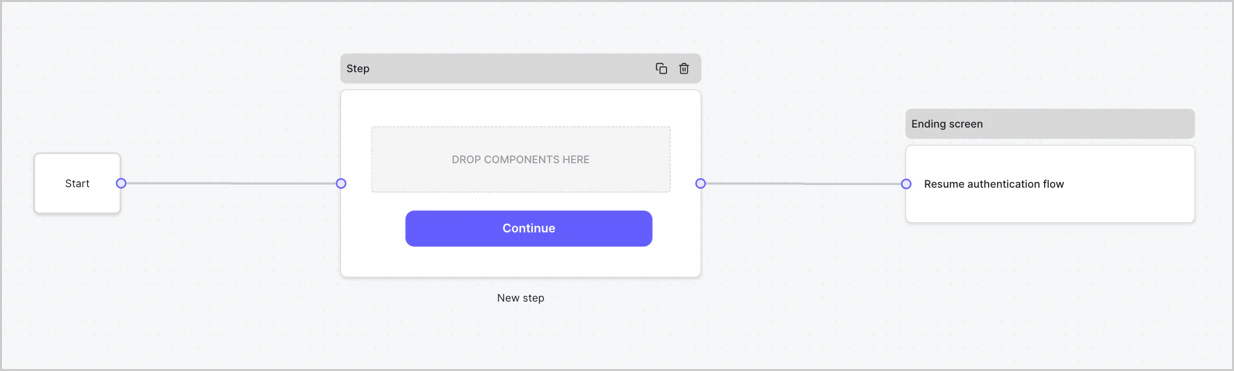
デフォルトでは、新しいフォームには Start ノード、Step ノード、Ending screen ノードが含まれます。
<Frame>
  <img src="https://mintcdn.com/translations/Dcx0M11uuptU53TX/docs/images/cdy7uua7fh8z/2TZ9jSjgEcARFpULI6hz4R/a4319a1bd482f2ee5cc23100fdb2f42c/New-form-Forms-for-action-use-case.png?fit=max&auto=format&n=Dcx0M11uuptU53TX&q=85&s=9d84cbac3e62af2aa02cfe1a79d88e89" alt="Dashboard > Forms > Use Cases > Form" data-og-width="1234" width="1234" data-og-height="371" height="371" data-path="docs/images/cdy7uua7fh8z/2TZ9jSjgEcARFpULI6hz4R/a4319a1bd482f2ee5cc23100fdb2f42c/New-form-Forms-for-action-use-case.png" data-optimize="true" data-opv="3" srcset="https://mintcdn.com/translations/Dcx0M11uuptU53TX/docs/images/cdy7uua7fh8z/2TZ9jSjgEcARFpULI6hz4R/a4319a1bd482f2ee5cc23100fdb2f42c/New-form-Forms-for-action-use-case.png?w=280&fit=max&auto=format&n=Dcx0M11uuptU53TX&q=85&s=90f658e64ee4db52dd801b0b3a9cc5f1 280w, https://mintcdn.com/translations/Dcx0M11uuptU53TX/docs/images/cdy7uua7fh8z/2TZ9jSjgEcARFpULI6hz4R/a4319a1bd482f2ee5cc23100fdb2f42c/New-form-Forms-for-action-use-case.png?w=560&fit=max&auto=format&n=Dcx0M11uuptU53TX&q=85&s=0142cb0e6b542f3f6fb28a86564966e7 560w, https://mintcdn.com/translations/Dcx0M11uuptU53TX/docs/images/cdy7uua7fh8z/2TZ9jSjgEcARFpULI6hz4R/a4319a1bd482f2ee5cc23100fdb2f42c/New-form-Forms-for-action-use-case.png?w=840&fit=max&auto=format&n=Dcx0M11uuptU53TX&q=85&s=a387dbdcff51c1414d133a7a0ecc22e5 840w, https://mintcdn.com/translations/Dcx0M11uuptU53TX/docs/images/cdy7uua7fh8z/2TZ9jSjgEcARFpULI6hz4R/a4319a1bd482f2ee5cc23100fdb2f42c/New-form-Forms-for-action-use-case.png?w=1100&fit=max&auto=format&n=Dcx0M11uuptU53TX&q=85&s=47295de6a4fc2408153380510492809e 1100w, https://mintcdn.com/translations/Dcx0M11uuptU53TX/docs/images/cdy7uua7fh8z/2TZ9jSjgEcARFpULI6hz4R/a4319a1bd482f2ee5cc23100fdb2f42c/New-form-Forms-for-action-use-case.png?w=1650&fit=max&auto=format&n=Dcx0M11uuptU53TX&q=85&s=bb15314f7f7017c91d0450e80273d964 1650w, https://mintcdn.com/translations/Dcx0M11uuptU53TX/docs/images/cdy7uua7fh8z/2TZ9jSjgEcARFpULI6hz4R/a4319a1bd482f2ee5cc23100fdb2f42c/New-form-Forms-for-action-use-case.png?w=2500&fit=max&auto=format&n=Dcx0M11uuptU53TX&q=85&s=4431480842db7e65b5ee761a61702d7e 2500w" />
</Frame>

<div id="configure-the-step-node">
  ### Step ノードを設定する
</div>

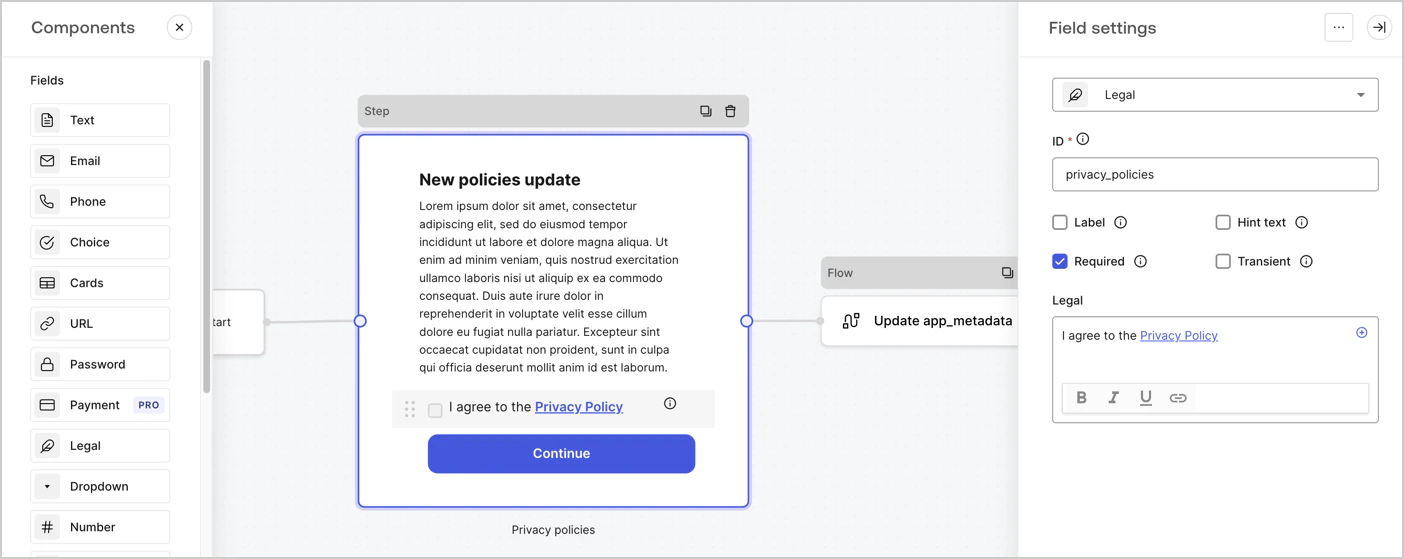
Step ノードは、ユーザーに表示される画面です。次の手順で Step ノードに [Fields](/ja/docs/customize/forms/nodes-and-components) を追加し、新しい同意への承諾値を取得します。

1. **Components menu** から **Rich text** フィールドを **Step** ノードにドラッグします。

   * **Rich text**: プライバシーポリシーの更新内容に関する説明を入力します。
   * **Save** を選択します。
2. **Legal** フィールドを **Step** ノードにドラッグします。

   * **ID**: `privacy_policies` を入力します。
   * **Required**: チェックボックスを有効にします。
   * **Legal**: `I agree to the Privacy Policy` を入力します。
   * **Save** を選択します。
3. 保存するには **Publish** を選択します。
<Frame>
  <img src="https://mintcdn.com/translations/MV7tE-x71x8RWRES/docs/images/cdy7uua7fh8z/59zFFjQjAnjogkc2QGIqqJ/0ad66b1b636544122aa4e65968b76c2c/privacy-policy-step-node.png?fit=max&auto=format&n=MV7tE-x71x8RWRES&q=85&s=91c2b9965093d07a7526c0c8ae664573" alt="Dashboard > Actions > Forms > ユースケース プライバシーポリシー Step ノード" data-og-width="1404" width="1404" data-og-height="559" height="559" data-path="docs/images/cdy7uua7fh8z/59zFFjQjAnjogkc2QGIqqJ/0ad66b1b636544122aa4e65968b76c2c/privacy-policy-step-node.png" data-optimize="true" data-opv="3" srcset="https://mintcdn.com/translations/MV7tE-x71x8RWRES/docs/images/cdy7uua7fh8z/59zFFjQjAnjogkc2QGIqqJ/0ad66b1b636544122aa4e65968b76c2c/privacy-policy-step-node.png?w=280&fit=max&auto=format&n=MV7tE-x71x8RWRES&q=85&s=54da153db1acfdf7abeebd6bb0faba7c 280w, https://mintcdn.com/translations/MV7tE-x71x8RWRES/docs/images/cdy7uua7fh8z/59zFFjQjAnjogkc2QGIqqJ/0ad66b1b636544122aa4e65968b76c2c/privacy-policy-step-node.png?w=560&fit=max&auto=format&n=MV7tE-x71x8RWRES&q=85&s=b103d92b8fb2684d93cea6fa3e2ce5a1 560w, https://mintcdn.com/translations/MV7tE-x71x8RWRES/docs/images/cdy7uua7fh8z/59zFFjQjAnjogkc2QGIqqJ/0ad66b1b636544122aa4e65968b76c2c/privacy-policy-step-node.png?w=840&fit=max&auto=format&n=MV7tE-x71x8RWRES&q=85&s=d20256dc0fad2d3719f43a84378f8288 840w, https://mintcdn.com/translations/MV7tE-x71x8RWRES/docs/images/cdy7uua7fh8z/59zFFjQjAnjogkc2QGIqqJ/0ad66b1b636544122aa4e65968b76c2c/privacy-policy-step-node.png?w=1100&fit=max&auto=format&n=MV7tE-x71x8RWRES&q=85&s=035b43fa7ef14d1b52145c7fec6ba77d 1100w, https://mintcdn.com/translations/MV7tE-x71x8RWRES/docs/images/cdy7uua7fh8z/59zFFjQjAnjogkc2QGIqqJ/0ad66b1b636544122aa4e65968b76c2c/privacy-policy-step-node.png?w=1650&fit=max&auto=format&n=MV7tE-x71x8RWRES&q=85&s=440c4665245e4903f707bef006551369 1650w, https://mintcdn.com/translations/MV7tE-x71x8RWRES/docs/images/cdy7uua7fh8z/59zFFjQjAnjogkc2QGIqqJ/0ad66b1b636544122aa4e65968b76c2c/privacy-policy-step-node.png?w=2500&fit=max&auto=format&n=MV7tE-x71x8RWRES&q=85&s=e19f3adea6fea8d8b62a1f54d552297b 2500w" />
</Frame>

<div id="configure-the-flow-node">
  ### **Flow** ノードを設定する
</div>

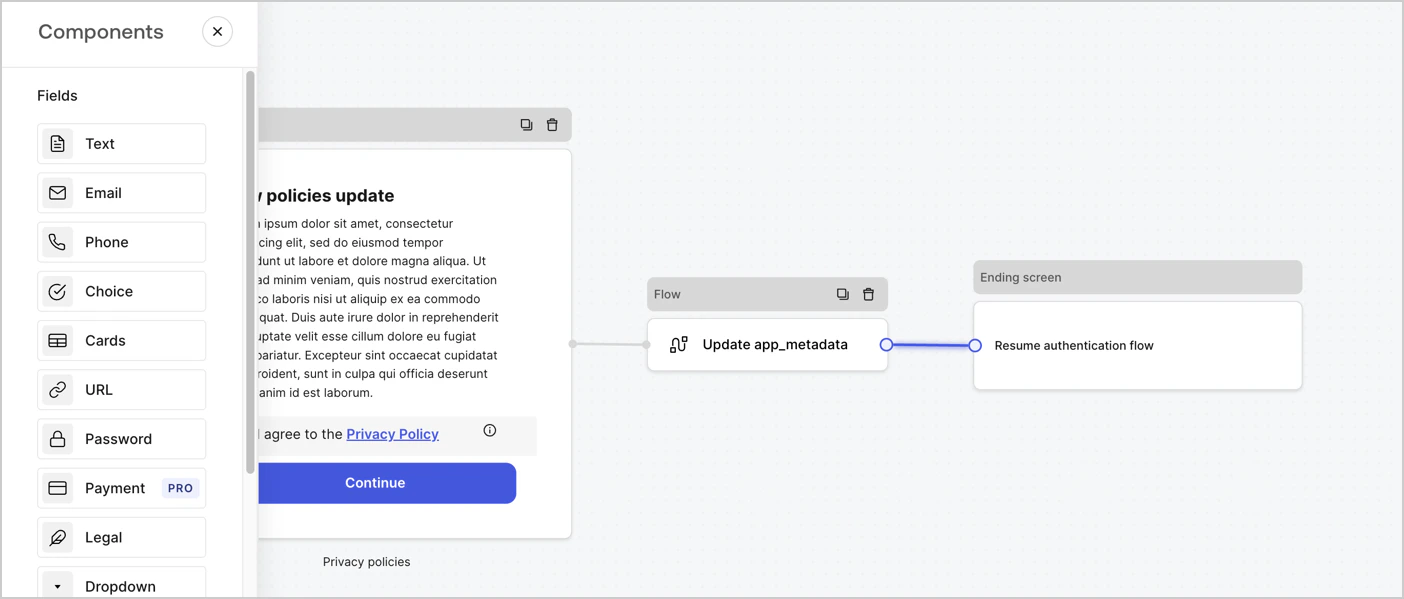
次の手順に従って、`app_metadata` を更新し、認証フローを再開するために **Step** ノードの後に **Flow** ノードを追加します。

1. フォームエディターの下部で **Flow** を選択します。
2. **Step** ノードと **Ending Screen** ノードの間にある既存のリンクを削除します。
3. 新しい **Flow** > **Click to add a flow** > **Create a new flow.** を選択します。

   * **Name** フィールドに `Update app_metadata` と入力します。
   * **Create** を選択します。
   * **Save** を選択します。
4. 以下の図のように、**Flow** ノードを **Step** ノードと **Ending Screen** ノードにリンクします。
5. 保存するには **Publish** を選択します。
<Frame>
  <img src="https://mintcdn.com/translations/6GE5Z24GDCZehiJ9/docs/images/cdy7uua7fh8z/6YIkzm7SrpM9LW76AXuRzh/353c518fe82bbaa440836da1d83596d6/link-policies.png?fit=max&auto=format&n=6GE5Z24GDCZehiJ9&q=85&s=b63b526849cbbf88b4cbf4aa647bd56f" alt="Dashboard > Actions > Forms > Form" data-og-width="1404" width="1404" data-og-height="599" height="599" data-path="docs/images/cdy7uua7fh8z/6YIkzm7SrpM9LW76AXuRzh/353c518fe82bbaa440836da1d83596d6/link-policies.png" data-optimize="true" data-opv="3" srcset="https://mintcdn.com/translations/6GE5Z24GDCZehiJ9/docs/images/cdy7uua7fh8z/6YIkzm7SrpM9LW76AXuRzh/353c518fe82bbaa440836da1d83596d6/link-policies.png?w=280&fit=max&auto=format&n=6GE5Z24GDCZehiJ9&q=85&s=5344af155f2abf62072c49c7666d7fc5 280w, https://mintcdn.com/translations/6GE5Z24GDCZehiJ9/docs/images/cdy7uua7fh8z/6YIkzm7SrpM9LW76AXuRzh/353c518fe82bbaa440836da1d83596d6/link-policies.png?w=560&fit=max&auto=format&n=6GE5Z24GDCZehiJ9&q=85&s=bae307e80ed60b7ebf117df50c486921 560w, https://mintcdn.com/translations/6GE5Z24GDCZehiJ9/docs/images/cdy7uua7fh8z/6YIkzm7SrpM9LW76AXuRzh/353c518fe82bbaa440836da1d83596d6/link-policies.png?w=840&fit=max&auto=format&n=6GE5Z24GDCZehiJ9&q=85&s=b7eab74e2daa101fb22f332ee6d06802 840w, https://mintcdn.com/translations/6GE5Z24GDCZehiJ9/docs/images/cdy7uua7fh8z/6YIkzm7SrpM9LW76AXuRzh/353c518fe82bbaa440836da1d83596d6/link-policies.png?w=1100&fit=max&auto=format&n=6GE5Z24GDCZehiJ9&q=85&s=714f56d8a365b5e5f887cebc536acafd 1100w, https://mintcdn.com/translations/6GE5Z24GDCZehiJ9/docs/images/cdy7uua7fh8z/6YIkzm7SrpM9LW76AXuRzh/353c518fe82bbaa440836da1d83596d6/link-policies.png?w=1650&fit=max&auto=format&n=6GE5Z24GDCZehiJ9&q=85&s=ad6efa6cef4084561f9d2629c9a70eb9 1650w, https://mintcdn.com/translations/6GE5Z24GDCZehiJ9/docs/images/cdy7uua7fh8z/6YIkzm7SrpM9LW76AXuRzh/353c518fe82bbaa440836da1d83596d6/link-policies.png?w=2500&fit=max&auto=format&n=6GE5Z24GDCZehiJ9&q=85&s=3f1c6e6d5ff06721c381c7ee5d3b8e2d 2500w" />
</Frame>

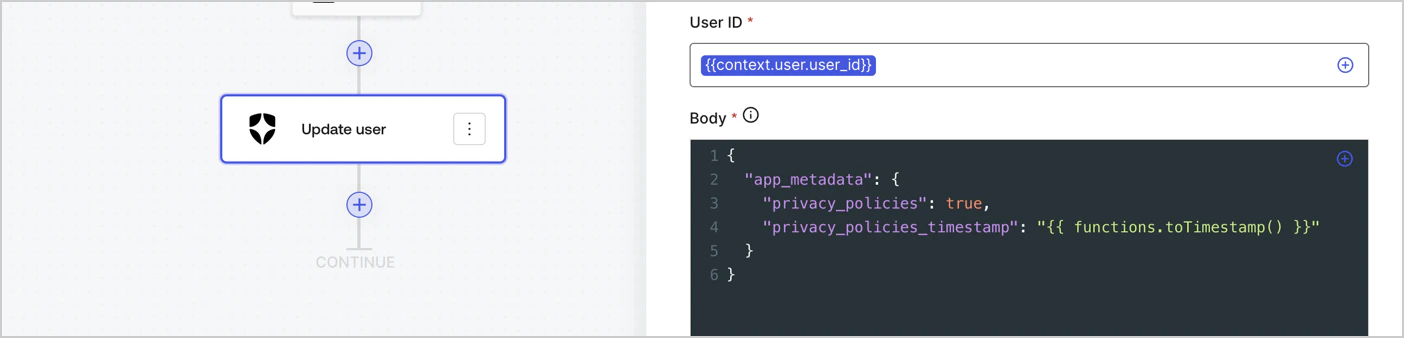
次の手順に従って、フローに Auth0 の **Update user** アクションを追加します。

1. **Flow** **Update app\_metadata** > **Edit flow** を選択し、新しいタブでフローエディターを開きます。
2. StartAction の下で **+** アイコンを選択し、**Update user** アクションを追加します。以下のフィールドを入力してから、**Save** を選択して続行します。

   * **Connection**: ドロップダウンから、M2M アプリケーション用の Vault 接続を選択します。

   * **User ID**: `{{context.user.user_id}}` を入力します。

   * **Body**: 次のコードをコピーして貼り付け、app\_metadata を `privacy_policies` および `privacy_policies_timestamp` プロパティで更新します。

     ```text lines theme={null}
     {
       "app_metadata": {
         "privacy_policies": true,
         "privacy_policies_timestamp": "{{ functions.toTimestamp() }}"
       }
     }
     ```

   * **Save** を選択します。
3. 保存するには **Publish** を選択します。
<Frame>
  <img src="https://mintcdn.com/translations/mMSz-RNYLuOm2GmQ/docs/images/cdy7uua7fh8z/CvMNIwWrOUwaFW4X3G28p/1fb70ae57a20749d9ffaaba8dc0b7e26/update-user-privacy.png?fit=max&auto=format&n=mMSz-RNYLuOm2GmQ&q=85&s=307dec467b13927e5ade051a523cd3d6" alt="Dashboard > Actions > Forms > User case privacy policy code" data-og-width="1404" width="1404" data-og-height="338" height="338" data-path="docs/images/cdy7uua7fh8z/CvMNIwWrOUwaFW4X3G28p/1fb70ae57a20749d9ffaaba8dc0b7e26/update-user-privacy.png" data-optimize="true" data-opv="3" srcset="https://mintcdn.com/translations/mMSz-RNYLuOm2GmQ/docs/images/cdy7uua7fh8z/CvMNIwWrOUwaFW4X3G28p/1fb70ae57a20749d9ffaaba8dc0b7e26/update-user-privacy.png?w=280&fit=max&auto=format&n=mMSz-RNYLuOm2GmQ&q=85&s=6b79d6a94db4482d793aa296e0524328 280w, https://mintcdn.com/translations/mMSz-RNYLuOm2GmQ/docs/images/cdy7uua7fh8z/CvMNIwWrOUwaFW4X3G28p/1fb70ae57a20749d9ffaaba8dc0b7e26/update-user-privacy.png?w=560&fit=max&auto=format&n=mMSz-RNYLuOm2GmQ&q=85&s=79455897aa3ff4a8db63450272eefd4c 560w, https://mintcdn.com/translations/mMSz-RNYLuOm2GmQ/docs/images/cdy7uua7fh8z/CvMNIwWrOUwaFW4X3G28p/1fb70ae57a20749d9ffaaba8dc0b7e26/update-user-privacy.png?w=840&fit=max&auto=format&n=mMSz-RNYLuOm2GmQ&q=85&s=b921bbbfe036e7c59cfde2d6deb6f434 840w, https://mintcdn.com/translations/mMSz-RNYLuOm2GmQ/docs/images/cdy7uua7fh8z/CvMNIwWrOUwaFW4X3G28p/1fb70ae57a20749d9ffaaba8dc0b7e26/update-user-privacy.png?w=1100&fit=max&auto=format&n=mMSz-RNYLuOm2GmQ&q=85&s=a01292fd630fd66e0b1ac819256c79f7 1100w, https://mintcdn.com/translations/mMSz-RNYLuOm2GmQ/docs/images/cdy7uua7fh8z/CvMNIwWrOUwaFW4X3G28p/1fb70ae57a20749d9ffaaba8dc0b7e26/update-user-privacy.png?w=1650&fit=max&auto=format&n=mMSz-RNYLuOm2GmQ&q=85&s=40ad096e7c5cd43a4551f51345747b0d 1650w, https://mintcdn.com/translations/mMSz-RNYLuOm2GmQ/docs/images/cdy7uua7fh8z/CvMNIwWrOUwaFW4X3G28p/1fb70ae57a20749d9ffaaba8dc0b7e26/update-user-privacy.png?w=2500&fit=max&auto=format&n=mMSz-RNYLuOm2GmQ&q=85&s=e0c929345c4186ef9a7609fd490622e5 2500w" />
</Frame>

<Callout icon="file-lines" color="#0EA5E9" iconType="regular">
  フロー **Update app\_metadata** は、`app_metadata` オブジェクトに `privacy_policies` の値 `true` を追加し、[ヘルパー関数](/ja/docs/customize/forms/variables)を使用してタイムスタンプも生成します。
</Callout>

<div id="retrieve-the-form-render-code">
  ## フォームのレンダリングコードを取得する
</div>

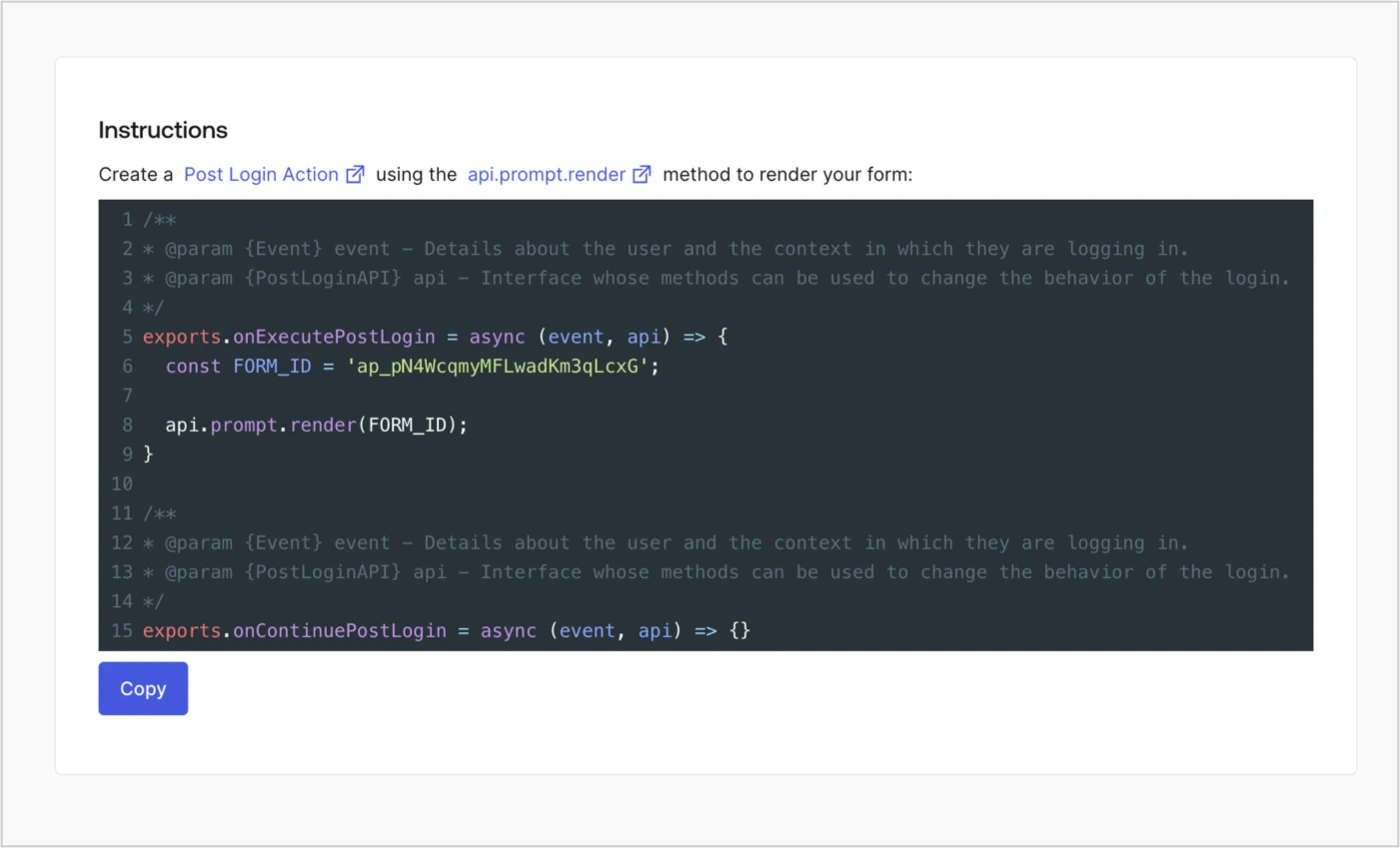
カスタムの Post Login Action でフォームをレンダリングするために、次の手順でフォームのレンダリングコードを取得します。

* フォームエディターで **`<> Render`** を選択します。
* **Copy** を選択します。
<Frame>
  <img src="https://mintcdn.com/translations/Dcx0M11uuptU53TX/docs/images/cdy7uua7fh8z/2EIUzc539sq9lwoTKbjoJv/496a864c0fc44a782c9cadca119dbfb0/embed.png?fit=max&auto=format&n=Dcx0M11uuptU53TX&q=85&s=384ef6b70c700b214d699187cdbf7eea" alt="Dashboard > Actions > Forms > フォーム > 埋め込み" data-og-width="1400" width="1400" data-og-height="848" height="848" data-path="docs/images/cdy7uua7fh8z/2EIUzc539sq9lwoTKbjoJv/496a864c0fc44a782c9cadca119dbfb0/embed.png" data-optimize="true" data-opv="3" srcset="https://mintcdn.com/translations/Dcx0M11uuptU53TX/docs/images/cdy7uua7fh8z/2EIUzc539sq9lwoTKbjoJv/496a864c0fc44a782c9cadca119dbfb0/embed.png?w=280&fit=max&auto=format&n=Dcx0M11uuptU53TX&q=85&s=e4395c30ca530056bf8b7451b6deb334 280w, https://mintcdn.com/translations/Dcx0M11uuptU53TX/docs/images/cdy7uua7fh8z/2EIUzc539sq9lwoTKbjoJv/496a864c0fc44a782c9cadca119dbfb0/embed.png?w=560&fit=max&auto=format&n=Dcx0M11uuptU53TX&q=85&s=ac6fa0252e068609208572dcbf489baf 560w, https://mintcdn.com/translations/Dcx0M11uuptU53TX/docs/images/cdy7uua7fh8z/2EIUzc539sq9lwoTKbjoJv/496a864c0fc44a782c9cadca119dbfb0/embed.png?w=840&fit=max&auto=format&n=Dcx0M11uuptU53TX&q=85&s=907c448e7fe5ade5aed859f4d343f834 840w, https://mintcdn.com/translations/Dcx0M11uuptU53TX/docs/images/cdy7uua7fh8z/2EIUzc539sq9lwoTKbjoJv/496a864c0fc44a782c9cadca119dbfb0/embed.png?w=1100&fit=max&auto=format&n=Dcx0M11uuptU53TX&q=85&s=283450a49e31012d3c5c21790d7a8336 1100w, https://mintcdn.com/translations/Dcx0M11uuptU53TX/docs/images/cdy7uua7fh8z/2EIUzc539sq9lwoTKbjoJv/496a864c0fc44a782c9cadca119dbfb0/embed.png?w=1650&fit=max&auto=format&n=Dcx0M11uuptU53TX&q=85&s=4e518c8ad8926b9edde551a9e5f44b97 1650w, https://mintcdn.com/translations/Dcx0M11uuptU53TX/docs/images/cdy7uua7fh8z/2EIUzc539sq9lwoTKbjoJv/496a864c0fc44a782c9cadca119dbfb0/embed.png?w=2500&fit=max&auto=format&n=Dcx0M11uuptU53TX&q=85&s=02e887a11021cbbd64e79b09401489b9 2500w" />
</Frame>

<div id="create-a-post-login-action">
  ## Post Login Action を作成する
</div>

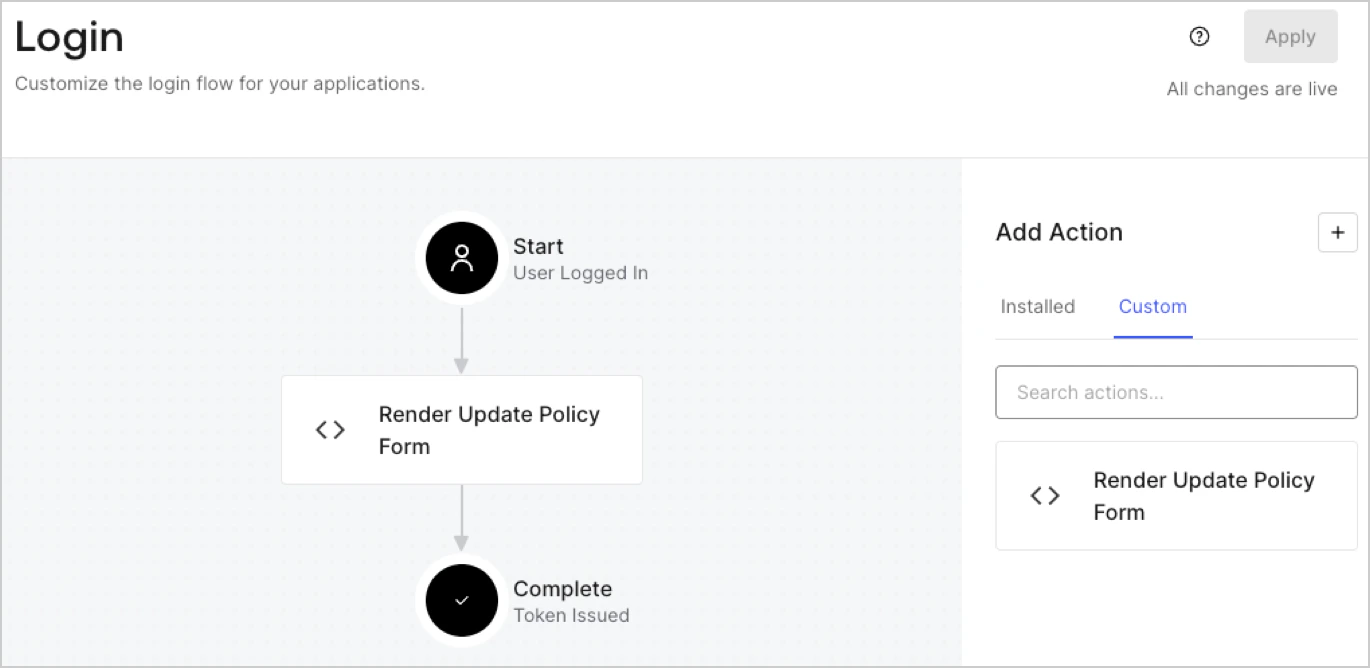
次の手順で、フォームをレンダリングする post-login Action を作成します。

1. **Auth0 Dashboard > Actions > Flows > Login** に移動します。
2. **+** アイコンを選択し、**Build from scratch** を選択します。

   * **Name**: `Render Update Policy Form` と入力します。
   * **Trigger**: `Login / Post Login` を選択します。
   * **Runtime**: 推奨バージョンを選択します。
3. **Create** を選択します。

post-login Action を設定するには、以下の手順に従います。

1. コードエディターから既存のコードを削除します。
2. フォームをレンダリングするコードをコードエディターに貼り付けます。
3. フォームをレンダリングする条件ロジックを定義するようにコードを編集します。

   ```javascript lines theme={null}
   /**
   * @param {Event} event - ユーザーと、そのユーザーがログインしているコンテキストに関する詳細。
   * @param {PostLoginAPI} api - ログインの動作を変更するためのメソッドを使用できるインターフェース。
   */
   exports.onExecutePostLogin = async (event, api) => {
     const FORM_ID = 'REPLACE_WITH_YOUR_FORM_ID';

     if (event.user.app_metadata.privacy_policies !== true) {
       api.prompt.render(FORM_ID);
     }
   }

   exports.onContinuePostLogin = async (event, api) => { }
   ```

   <Callout icon="file-lines" color="#0EA5E9" iconType="regular">
     上記のコード例では、ユーザーの app\_metadata に `privacy_policies` プロパティが存在しない場合にフォームがレンダリングされます。
   </Callout>
4. **Deploy** を選択します。
5. **Render Update Policy Form** Action を **Login** フローにドラッグアンドドロップします。
   <Frame>
     <img src="https://mintcdn.com/translations/MV7tE-x71x8RWRES/docs/images/cdy7uua7fh8z/5TOwDgevZsBqd7yZynUYWU/41ca909dc3007aed4f40ff794a05efa5/postlogin.png?fit=max&auto=format&n=MV7tE-x71x8RWRES&q=85&s=60d2f2d79f9ad381c6bea8a8b0f4be7c" alt="Dashboard > Forms > Use Case > Render update policy form login action" data-og-width="1370" width="1370" data-og-height="668" height="668" data-path="docs/images/cdy7uua7fh8z/5TOwDgevZsBqd7yZynUYWU/41ca909dc3007aed4f40ff794a05efa5/postlogin.png" data-optimize="true" data-opv="3" srcset="https://mintcdn.com/translations/MV7tE-x71x8RWRES/docs/images/cdy7uua7fh8z/5TOwDgevZsBqd7yZynUYWU/41ca909dc3007aed4f40ff794a05efa5/postlogin.png?w=280&fit=max&auto=format&n=MV7tE-x71x8RWRES&q=85&s=d34aff7f9acdec24373d325a46d9fca6 280w, https://mintcdn.com/translations/MV7tE-x71x8RWRES/docs/images/cdy7uua7fh8z/5TOwDgevZsBqd7yZynUYWU/41ca909dc3007aed4f40ff794a05efa5/postlogin.png?w=560&fit=max&auto=format&n=MV7tE-x71x8RWRES&q=85&s=3d5efa17448bc265385432bcbc70bd39 560w, https://mintcdn.com/translations/MV7tE-x71x8RWRES/docs/images/cdy7uua7fh8z/5TOwDgevZsBqd7yZynUYWU/41ca909dc3007aed4f40ff794a05efa5/postlogin.png?w=840&fit=max&auto=format&n=MV7tE-x71x8RWRES&q=85&s=000cd7cc7b12a200fcdc18ea773ac5b7 840w, https://mintcdn.com/translations/MV7tE-x71x8RWRES/docs/images/cdy7uua7fh8z/5TOwDgevZsBqd7yZynUYWU/41ca909dc3007aed4f40ff794a05efa5/postlogin.png?w=1100&fit=max&auto=format&n=MV7tE-x71x8RWRES&q=85&s=3126c2a79abd0aff2e8499746e22872e 1100w, https://mintcdn.com/translations/MV7tE-x71x8RWRES/docs/images/cdy7uua7fh8z/5TOwDgevZsBqd7yZynUYWU/41ca909dc3007aed4f40ff794a05efa5/postlogin.png?w=1650&fit=max&auto=format&n=MV7tE-x71x8RWRES&q=85&s=cf82beb4a074ef33cc7685449f5cdd8a 1650w, https://mintcdn.com/translations/MV7tE-x71x8RWRES/docs/images/cdy7uua7fh8z/5TOwDgevZsBqd7yZynUYWU/41ca909dc3007aed4f40ff794a05efa5/postlogin.png?w=2500&fit=max&auto=format&n=MV7tE-x71x8RWRES&q=85&s=294b1d1cecd2e69ab5d02e69ab84f105 2500w" />
   </Frame>
6. **Apply** を選択します。

<div id="test-implementation">
  ### 実装をテストする
</div>

次の手順で実装をテストします。

1. `app_metadata` 属性の `privacy_policies` に値が設定されていない既存のユーザーでログインします。
2. Login フローの post-login Action でフォームがレンダリングされ、同意を求められます。
3. **Auth0 Dashboard > User Management > Users,** を選択し、対象のユーザーを見つけて、`app_metadata` 属性の `privacy_policies` に `true` の値とタイムスタンプが含まれていることを確認します。
