> ## Documentation Index
> Fetch the complete documentation index at: https://translations.mintlify.site/llms.txt
> Use this file to discover all available pages before exploring further.
> Auth0 Dashboard を使用して、Auth0 application で Android App Links サポートを有効にする方法を説明します。
# Android App Links サポートを有効にする
[Android App Links](https://developer.android.com/training/app-links) を使用すると、アプリケーションを特定の種類のリンクのデフォルトハンドラーとして指定できます。たとえば、メール内の URL をクリックすると、指定したアプリケーションでそのリンクが開きます。このガイドでは、Auth0 Dashboard を使用して、Auth0 に登録したアプリケーションで Android App Links サポートを有効にする方法を説明します。
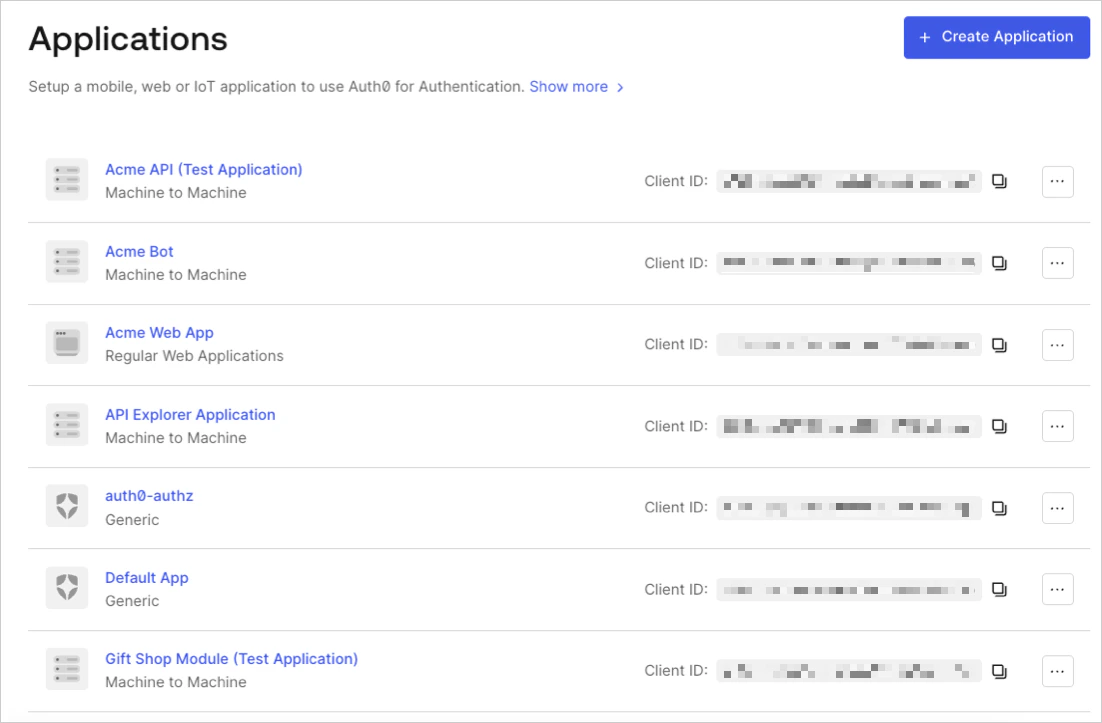
1. [Auth0 Dashboard > Applications > Applications](https://manage.auth0.com/#/applications) に移動し、表示するアプリケーションの名前を選択します。
 2. **Settings** ページの一番下までスクロールし、**Show Advanced Settings** を選択します。
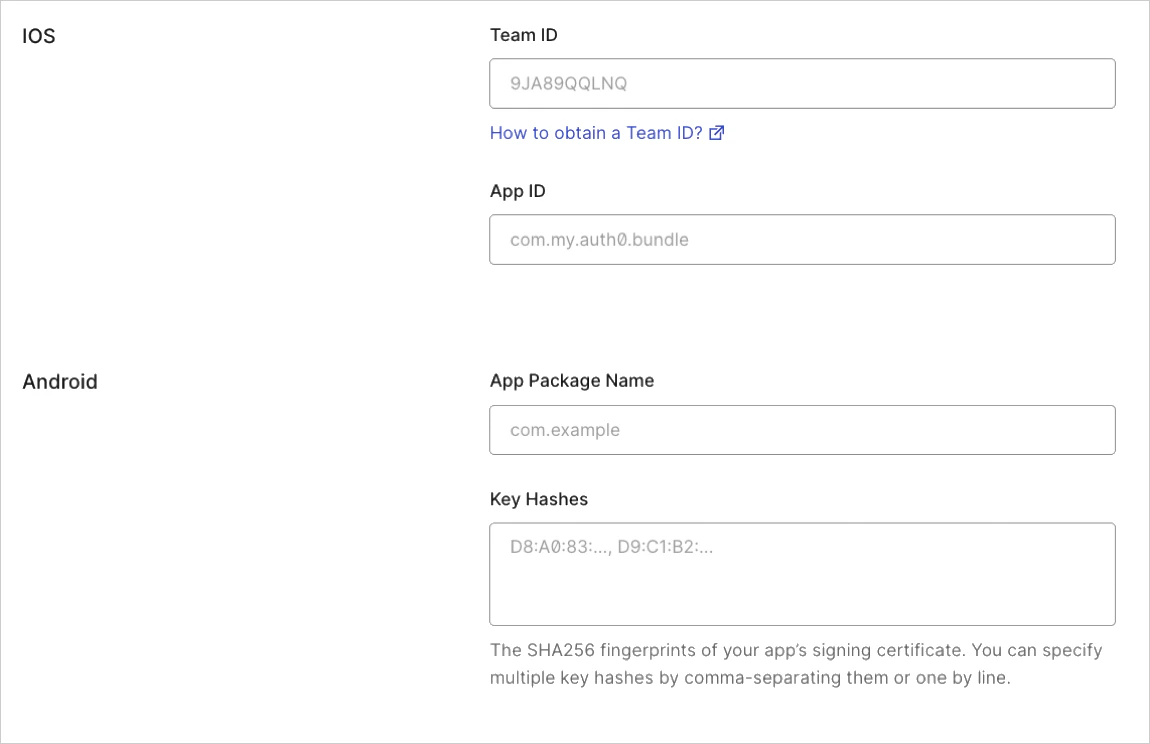
3. **Device Settings** を選択し、Android アプリケーションの [App Package Name](https://developer.android.com/studio/build/application-id) とアプリの署名証明書の SHA256 フィンガープリントを入力して、**Save Changes** を選択します。
2. **Settings** ページの一番下までスクロールし、**Show Advanced Settings** を選択します。
3. **Device Settings** を選択し、Android アプリケーションの [App Package Name](https://developer.android.com/studio/build/application-id) とアプリの署名証明書の SHA256 フィンガープリントを入力して、**Save Changes** を選択します。
 ターミナルで次のコマンドを実行すると、Java の keytool を使用してフィンガープリントを生成できます。
`keytool -list -v -keystore my-release-key.keystore`
署名証明書の詳細については、Android の開発者向けドキュメント [Sign Your App](https://developer.android.com/studio/publish/app-signing.html) を参照してください。
ターミナルで次のコマンドを実行すると、Java の keytool を使用してフィンガープリントを生成できます。
`keytool -list -v -keystore my-release-key.keystore`
署名証明書の詳細については、Android の開発者向けドキュメント [Sign Your App](https://developer.android.com/studio/publish/app-signing.html) を参照してください。
## リンクをテストする
1. ブラウザで次の URL にアクセスします: `https://{yourDomain}/.well-known/assetlinks.json`
2. リンクが正しく設定されていれば、次の JSON が返されます (読みやすいように整形しています) 。
```json lines theme={null}
[{
"relation": ["delegate_permission/common.handle_all_urls"],
"target": {
"namespace": "android_app",
"package_name": "com.mycompany.app1",
"sha256_cert_fingerprints":
["14:6D:E9:83:C5:73:06:50:D8:EE:B9:95:2F:34:FC:64:16:A0:83:42:E6:1D:BE:A8:8A:04:96:B2:3F:CF:44:E5"]
}
}]
```
アプリリンクのテストの詳細については、[https://developer.android.com](https://developer.android.com) の [Verify Android App Links](https://developer.android.com/training/app-links/verify-applinks) を参照してください。