> ## Documentation Index
> Fetch the complete documentation index at: https://translations.mintlify.site/llms.txt
> Use this file to discover all available pages before exploring further.
> Auth0 Dashboard を使用して、Apple Xcode で Auth0 アプリのユニバーサルリンクサポートを有効にする方法を説明します。
# Apple Xcode でユニバーサルリンクサポートを有効にする
ユニバーサルリンクでは、ドメインとアプリケーションの間に検証済みの関連付けが確立されるため、Auth0 Application の設定と iOS アプリケーションの設定を一致させる必要があります。そのためには、Apple Team ID と Bundle Identifier を Auth0 に提供する必要があります。Auth0 Dashboard を使用して、Auth0 に登録されたアプリケーションでユニバーサルリンクサポートを有効にできます。
## Apple Team ID と Bundle Identifier を取得する
1. Apple **Team ID** を確認するには、[Apple Developer アカウントの概要ページ](https://developer.apple.com/membercenter/index.action#accountSummary)に移動します。
2. iOS アプリケーションの **Bundle Identifier** を確認するには、[Xcode プロジェクト設定](https://developer.apple.com/library/content/documentation/IDEs/Conceptual/AppDistributionGuide/ConfiguringYourApp/ConfiguringYourApp.html) ページに移動します。
## Apple Team ID とバンドル識別子を Auth0 に設定する
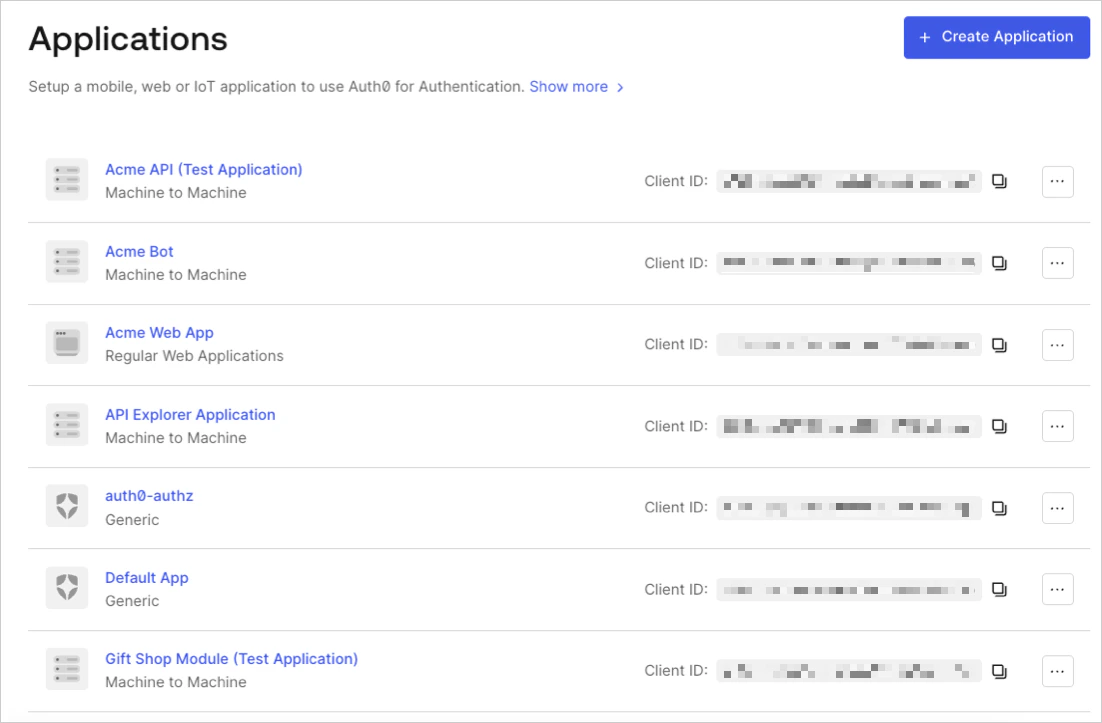
1. [Dashboard > Applications > Applications](https://manage.auth0.com/#/clients) に移動し、対象のアプリケーション名を選択します。
 2. **Settings** ページの一番下までスクロールし、**Show Advanced Settings** を選択します。
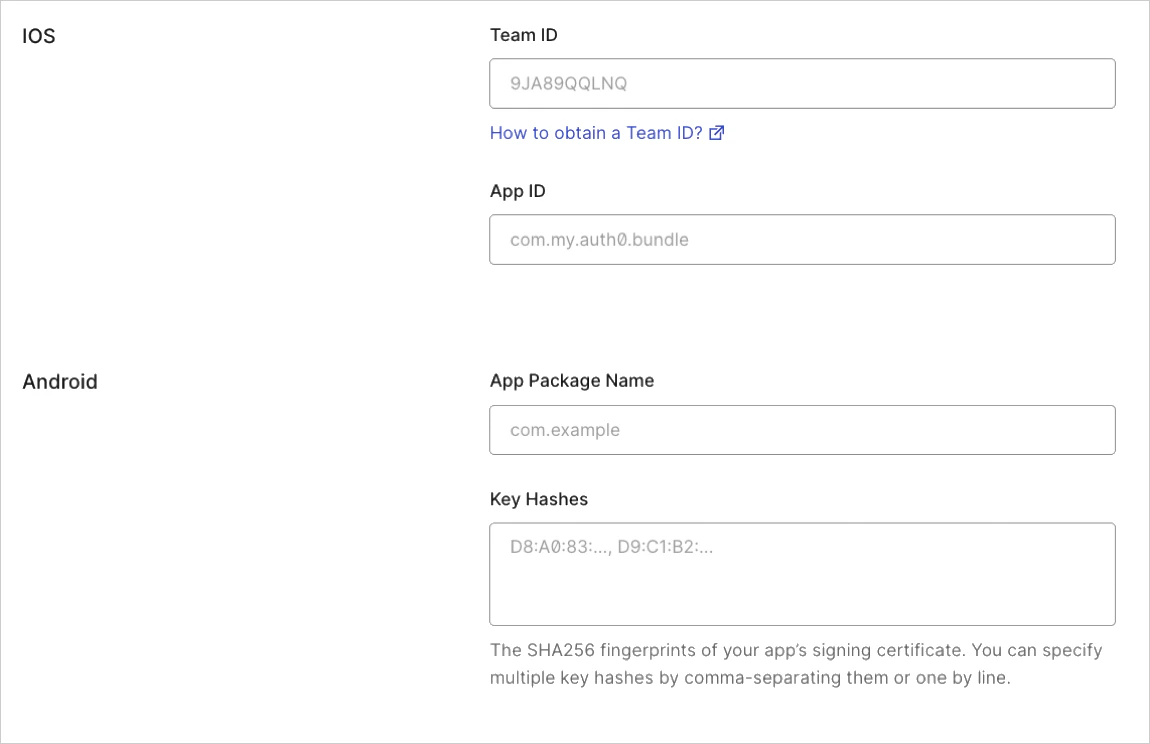
3. **Device Settings** を選択し、iOS アプリケーションの **Team ID** と **App bundler identifier** の値を入力して、**Save Changes** を選択します。
2. **Settings** ページの一番下までスクロールし、**Show Advanced Settings** を選択します。
3. **Device Settings** を選択し、iOS アプリケーションの **Team ID** と **App bundler identifier** の値を入力して、**Save Changes** を選択します。
## リンクをテスト
ブラウザーで次の URL にアクセスし、アプリケーションでユニバーサルリンク用の `apple-app-site-association` ファイルを利用できることを確認します: `{yourDomain}/apple-app-site-association`
リンクが正しく機能していれば、次の JSON が表示されます (読みやすくするために整形しています) :
```json lines theme={null}
{
"applinks": {
"apps": [],
"details": [{
"appID": "86WQXF56BC.com.auth0.Passwordless-Email",
"paths": ["/ios/com.auth0.Passwordless-Email/*"]
}]
}
}
```