> ## Documentation Index
> Fetch the complete documentation index at: https://translations.mintlify.site/llms.txt
> Use this file to discover all available pages before exploring further.
> Auth0 Dashboard を使用して、アプリケーションで有効な接続を更新する方法を説明します。
# アプリケーションの接続を更新
Auth0 Dashboard を使用して、アプリケーションで有効な接続を変更できます。
1. [Dashboard > Applications](https://manage.auth0.com/#/applications) に移動し、表示するアプリケーションの名前をクリックします。
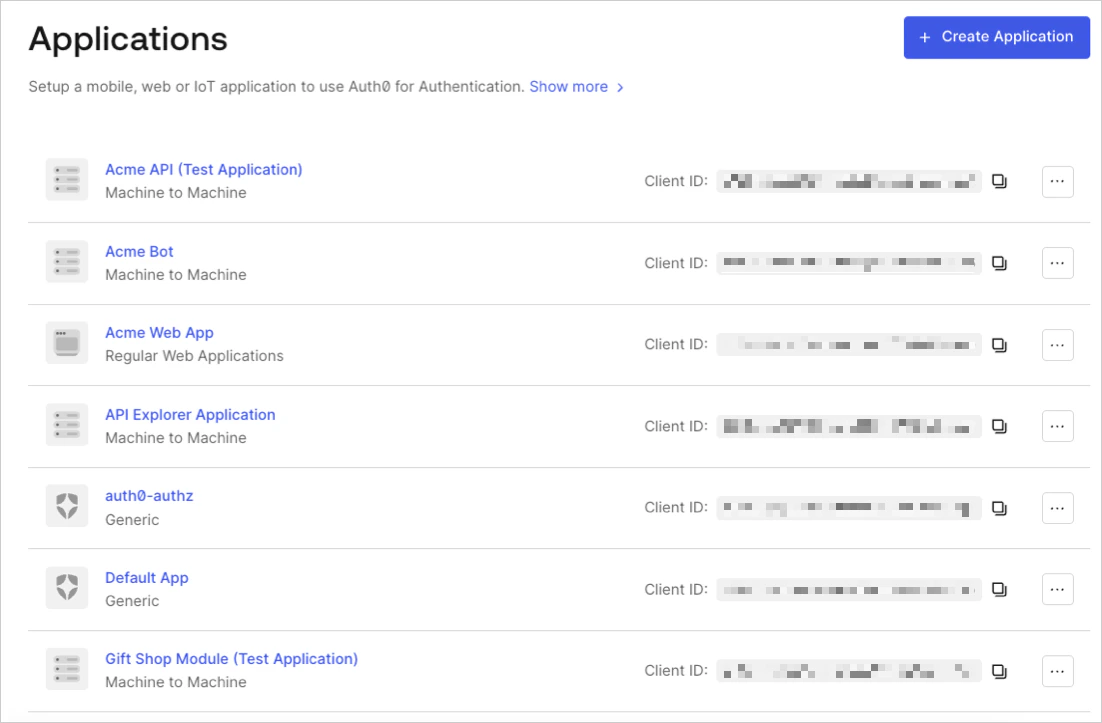 2. **接続** タブをクリックし、アプリケーションの該当する接続を有効または無効にします。
[サードパーティアプリケーション](/ja/docs/get-started/applications/third-party-applications) では、ドメインレベルに昇格した接続、またはアプリケーションに明示的にマッピングされた接続を通じてユーザーを認証できます。詳しくは、[接続をドメインレベルに昇格](/ja/docs/authenticate/identity-providers/promote-connections-to-domain-level) をご覧ください。
2. **接続** タブをクリックし、アプリケーションの該当する接続を有効または無効にします。
[サードパーティアプリケーション](/ja/docs/get-started/applications/third-party-applications) では、ドメインレベルに昇格した接続、またはアプリケーションに明示的にマッピングされた接続を通じてユーザーを認証できます。詳しくは、[接続をドメインレベルに昇格](/ja/docs/authenticate/identity-providers/promote-connections-to-domain-level) をご覧ください。
## 詳細情報
* [接続を表示する](/ja/docs/authenticate/identity-providers/view-connections)
* [接続をドメインレベルに昇格する](/ja/docs/authenticate/identity-providers/promote-connections-to-domain-level)