> ## Documentation Index
> Fetch the complete documentation index at: https://translations.mintlify.site/llms.txt
> Use this file to discover all available pages before exploring further.
> Auth0 のリスク評価と総合信頼度スコアに基づいて、信頼度の低いログインに対して Adaptive MFA を有効にする方法を説明します。
# Adaptive MFA を有効にする
* Adaptive MFA アドオンを含む Enterprise Plan に登録します。詳細については、[Auth0 Pricing](https://auth0.com/pricing/) を参照してください。
* Database または Active Directory 接続を設定して有効にします。
* 少なくとも 1 つの MFA 要素を設定して有効にします。
Adaptive MFA を使用すると、Auth0 がログイン試行を高リスクと判断した場合に MFA を要求し、すべてのログイン トランザクションのリスク評価をテナントログに記録できます。
## Adaptive MFA を有効にする
Auth0 Dashboard または Auth0 の Management API で Adaptive MFA を有効にできます。
1. [**Dashboard > Security > Multi-factor Auth**](https://manage.auth0.com/#/security/mfa) に移動します。
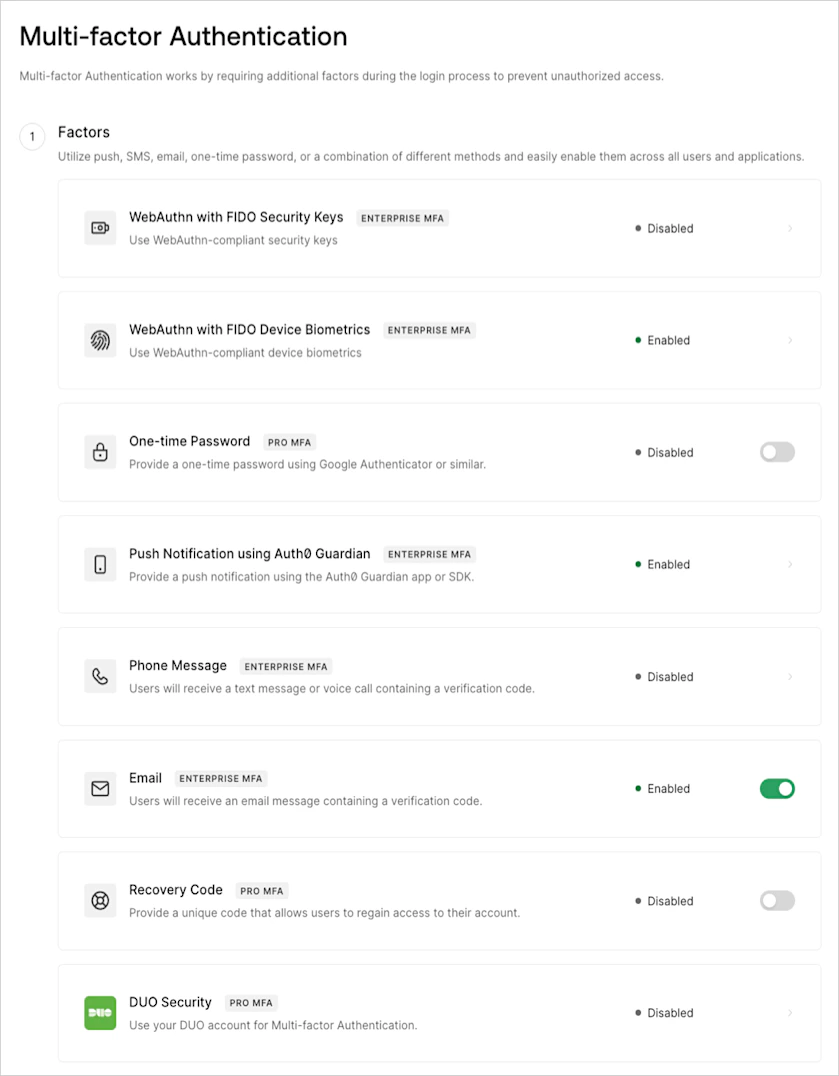 2. **Factors** セクションで、少なくとも 1 つの MFA 要素を有効にして設定します。詳細については、[多要素認証の認証要素](/ja/docs/secure/multi-factor-authentication/multi-factor-authentication-factors) を参照してください。
3. **Define policies** セクションで **Require Multi-factor Auth** を見つけて、**Use Adaptive MFA** を選択します。リスク評価は自動的に有効になり、テナントログに記録されます。
4. **Device Trust Duration** フィールドで、ユーザーが再度 MFA で認証する必要が生じるまで、デバイスを信頼済みとして保持する日数を設定します。デフォルトの期間は 30 日ですが、ユーザーに求めるチャレンジの回数は増減できます。
デバイスの記憶期間を Okta の標準推奨設定より長く変更したことで生じるセキュリティ体制の低下については、Auth0 のお客様が責任を負います。
* 信頼済みデバイスの有効期間は 1 日から 365 日の範囲で設定できます。
* 期間を変更すると、新しい期間の値はユーザーが次回ログインしたときにそのユーザーのデバイスに適用されます。
5. **Save** を選択します。
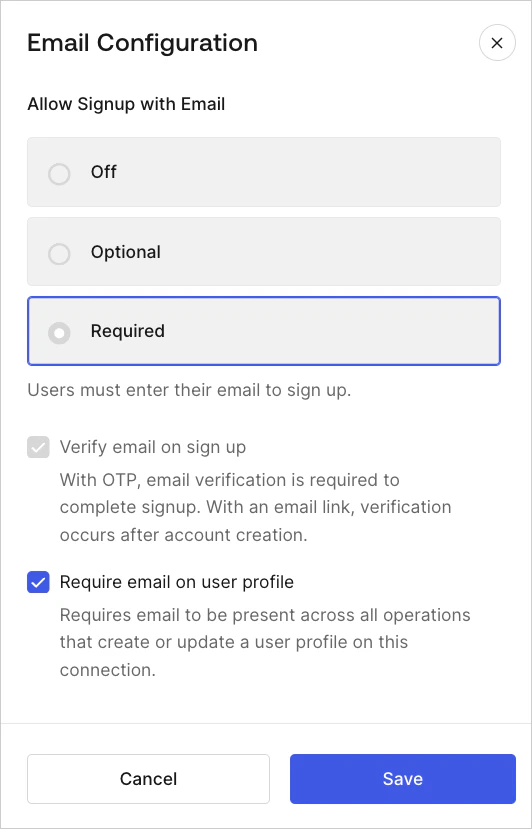
[Identifier First Authentication](/ja/docs/authenticate/login/auth0-universal-login/identifier-first) の要素 `email` を使用している場合は、[Dashboard > Database Connections > Authentication Methods](https://manage.auth0.com/#/connections/database) でメールアドレス属性を更新する必要があります。Email Configuration タブで、メールアドレス属性が有効になっていることを確認します。次に、**Allow Signup** を **Required** に設定し、ユーザープロフィールで **Require** email を有効にします。
2. **Factors** セクションで、少なくとも 1 つの MFA 要素を有効にして設定します。詳細については、[多要素認証の認証要素](/ja/docs/secure/multi-factor-authentication/multi-factor-authentication-factors) を参照してください。
3. **Define policies** セクションで **Require Multi-factor Auth** を見つけて、**Use Adaptive MFA** を選択します。リスク評価は自動的に有効になり、テナントログに記録されます。
4. **Device Trust Duration** フィールドで、ユーザーが再度 MFA で認証する必要が生じるまで、デバイスを信頼済みとして保持する日数を設定します。デフォルトの期間は 30 日ですが、ユーザーに求めるチャレンジの回数は増減できます。
デバイスの記憶期間を Okta の標準推奨設定より長く変更したことで生じるセキュリティ体制の低下については、Auth0 のお客様が責任を負います。
* 信頼済みデバイスの有効期間は 1 日から 365 日の範囲で設定できます。
* 期間を変更すると、新しい期間の値はユーザーが次回ログインしたときにそのユーザーのデバイスに適用されます。
5. **Save** を選択します。
[Identifier First Authentication](/ja/docs/authenticate/login/auth0-universal-login/identifier-first) の要素 `email` を使用している場合は、[Dashboard > Database Connections > Authentication Methods](https://manage.auth0.com/#/connections/database) でメールアドレス属性を更新する必要があります。Email Configuration タブで、メールアドレス属性が有効になっていることを確認します。次に、**Allow Signup** を **Required** に設定し、ユーザープロフィールで **Require** email を有効にします。
 1. `update:mfa_policies` スコープを持つ [Management API アクセストークン](/ja/docs/secure/tokens/access-tokens/management-api-access-tokens/get-management-api-access-tokens-for-production) を取得します。
2. 適切なペイロードを指定して、Management API の [Set the multi-factor authentication policies](https://auth0.com/docs/api/management/v2/guardian/put-policies) エンドポイントを呼び出します。
3. **Device Trust Duration** をデフォルトの 30 日から変更する場合は、[Update New Device Accessor](https://auth0.com/docs/api/management/v2/risk-assessments/patch-new-device) を呼び出します。Management API アクセストークンには、次のスコープを追加する必要があります。
* `read:attack_protection`
* `update:attack_protection`
デバイスの記憶期間を Okta の標準推奨設定より長く変更したことで生じるセキュリティ体制の低下については、Auth0 のお客様が責任を負います。
1. `update:mfa_policies` スコープを持つ [Management API アクセストークン](/ja/docs/secure/tokens/access-tokens/management-api-access-tokens/get-management-api-access-tokens-for-production) を取得します。
2. 適切なペイロードを指定して、Management API の [Set the multi-factor authentication policies](https://auth0.com/docs/api/management/v2/guardian/put-policies) エンドポイントを呼び出します。
3. **Device Trust Duration** をデフォルトの 30 日から変更する場合は、[Update New Device Accessor](https://auth0.com/docs/api/management/v2/risk-assessments/patch-new-device) を呼び出します。Management API アクセストークンには、次のスコープを追加する必要があります。
* `read:attack_protection`
* `update:attack_protection`
デバイスの記憶期間を Okta の標準推奨設定より長く変更したことで生じるセキュリティ体制の低下については、Auth0 のお客様が責任を負います。
## Adaptive MFA リスク評価を有効にする
Adaptive MFA を有効にする準備がまだできていなくても、ログイン動作の分析に向けた学習を開始したい場合は、Adaptive MFA リスク評価だけを個別に有効化できます。
1. [Dashboard > Security > Multi-factor Auth](https://manage.auth0.com/#/security/mfa) に移動します。
2. **Define policies** セクションを探します。
3. **MFA Risk Assessors** で、**Enable Adaptive MFA Risk Assessment** を選択します。
4. **Save** を選択します。
## Adaptive MFA をカスタマイズする
Adaptive MFA の動作は、セキュリティを確保しながら、ユーザーに最適な体験を提供できるようカスタマイズできます。詳しくは、[Adaptive MFA をカスタマイズする](/ja/docs/secure/multi-factor-authentication/adaptive-mfa/customize-adaptive-mfa)を参照してください。
MFA をトリガーする Actions は、Adaptive MFA の既定の動作より優先されます。
## 制限事項
テナントログの評価情報は、インタラクティブなフローでのみ利用できます。Auth0 では、Adaptive MFA が有効になっていない リソース所有者 パスワードグラント (ROPG) フローの評価情報の記録はサポートされていません。認証フローの制限事項の詳細については、[Adaptive MFA](/ja/docs/secure/multi-factor-authentication/adaptive-mfa) を参照してください。
## 詳細
* [Adaptive MFA をカスタマイズする](/ja/docs/secure/multi-factor-authentication/adaptive-mfa/customize-adaptive-mfa)
* [Adaptive MFA のログイベント](/ja/docs/secure/multi-factor-authentication/adaptive-mfa/adaptive-mfa-log-events)
* [多要素認証の認証要素](/ja/docs/secure/multi-factor-authentication/multi-factor-authentication-factors)