> ## Documentation Index
> Fetch the complete documentation index at: https://translations.mintlify.site/llms.txt
> Use this file to discover all available pages before exploring further.
> Auth0 Dashboard で多要素認証(MFA)を有効にする方法について説明します。
# 多要素認証を有効にする
多要素認証 (MFA) は、Auth0 Dashboard でテナントに対して有効にできます。
MFA を有効にする際は、ユーザーが利用できる認証要素 (プッシュ通知や電話メッセージなど) を選択し、それらによる認証をいつ要求するかを決めるポリシーを定義します。
## 認証要素を選択
Auth0 では、ユーザーが認証を完了するために有効化できるさまざまな認証要素を利用できます。
### 独立した認証要素
テナントでユーザーにMFAを必須にするには、少なくとも1つの独立した認証要素を有効にして設定する必要があります。必要に応じて、複数の独立した認証要素を同時に有効にできます。
利用可能な独立した認証要素は次のとおりです。
* [FIDO Security Keys を使用する WebAuthn](/ja/docs/secure/multi-factor-authentication/fido-authentication-with-webauthn/configure-webauthn-security-keys-for-mfa)
* [ワンタイムパスワード (OTP)](/ja/docs/secure/multi-factor-authentication/multi-factor-authentication-factors/configure-otp-notifications-for-mfa)
* [Auth0 Guardian を使用するプッシュ通知](/ja/docs/secure/multi-factor-authentication/multi-factor-authentication-factors/configure-push-notifications-for-mfa)
* [電話メッセージ](/ja/docs/secure/multi-factor-authentication/multi-factor-authentication-factors/configure-sms-voice-notifications-mfa)
* [Cisco Duo Security](/ja/docs/secure/multi-factor-authentication/configure-cisco-duo-for-mfa)
### 従属認証要素
テナントのユーザーに対して、少なくとも 1 つの独立認証要素をすでに有効化して設定している場合は、1 つ以上の従属認証要素を有効にできます。
利用可能な従属認証要素は次のとおりです。
* [FIDO 生体認証を使用する WebAuthn](/ja/docs/secure/multi-factor-authentication/fido-authentication-with-webauthn/configure-webauthn-device-biometrics-for-mfa)
* [メール](/ja/docs/secure/multi-factor-authentication/multi-factor-authentication-factors/configure-email-notifications-for-mfa)
* [リカバリーコード](/ja/docs/secure/multi-factor-authentication/configure-recovery-codes-for-mfa)
## Auth0 Dashboard で MFA を有効にする
1. [Dashboard > Security > Multi-factor Auth](https://manage.auth0.com/#/security/mfa) に移動します。
2. **Factors** セクションで、ユーザーが利用できるようにする認証要素を有効にし、設定します。
3. **Define policies** セクションで、ユーザーに MFA を求めるタイミングを決めるポリシーを選択します。
* **Never**: どのログインでも MFA は不要です。
* **Use Adaptive MFA**: Auth0 のリスク判定に基づいて MFA が必要になります。詳しくは、[Enable Adaptive MFA](/ja/docs/secure/multi-factor-authentication/adaptive-mfa) を参照してください。
* **Always**: すべてのログインで MFA が必要です。
4. **Never** または **Always** ポリシーを選択すると、**MFA Risk Assessors** セクションが表示されます。既定では、**Enable Adaptive MFA Risk Assessment** 設定は無効になっています。トグルを有効にすると、テナントログ内のすべてのログイン トランザクションのリスクを評価して記録できます。
5. **Additional Settings** セクションで、必要に応じて次のオプションを設定します。
* **Show Multi-factor Authentication options:** このトグルを有効にすると、登録時にユーザーが認証要素を選択できるようになります。無効にすると、Auth0 は登録時に最も安全な認証要素を自動的にユーザーに提示します。
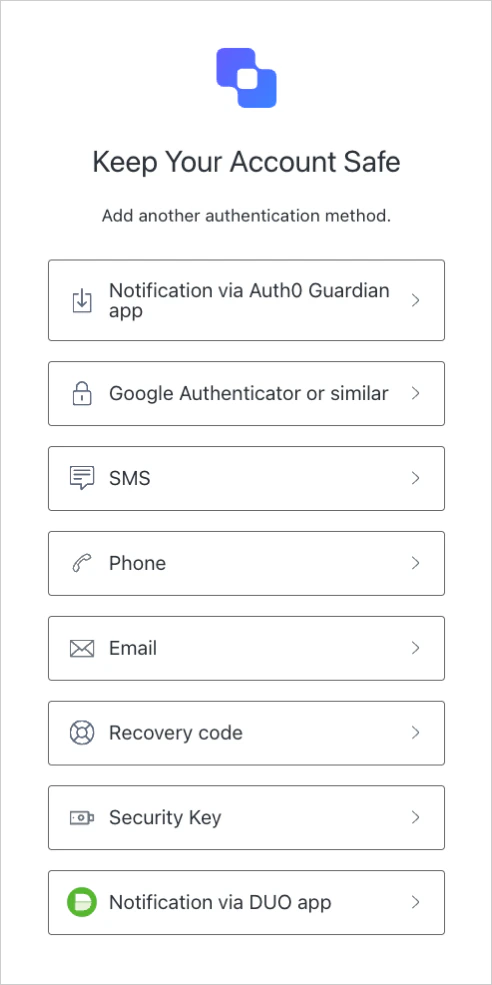 * **Customize MFA Factors using Actions**: このトグルを有効にすると、`post-login` の [Actions](/ja/docs/customize/actions) を使用して MFA フローをカスタマイズできます。これにより、特定の認証要素または一連の認証要素でユーザーに認証を求めたり、コンテキスト情報を使用して、より個別化された体験を提供したりできます。詳しくは、[Customize MFA Selection for Universal Login](/ja/docs/secure/multi-factor-authentication/customize-mfa/customize-mfa-selection-universal-login) を参照してください。
6. **Save** をクリックします。
* **Customize MFA Factors using Actions**: このトグルを有効にすると、`post-login` の [Actions](/ja/docs/customize/actions) を使用して MFA フローをカスタマイズできます。これにより、特定の認証要素または一連の認証要素でユーザーに認証を求めたり、コンテキスト情報を使用して、より個別化された体験を提供したりできます。詳しくは、[Customize MFA Selection for Universal Login](/ja/docs/secure/multi-factor-authentication/customize-mfa/customize-mfa-selection-universal-login) を参照してください。
6. **Save** をクリックします。
## MFAフローをカスタマイズする
Auth0 Actionsを使用すると、テナント内のユーザー向けのMFAフローをカスタマイズできます。たとえば、特定の状況でMFAを必須にしたり、特定の認証要素の使用を強制したりするActionを作成できます。
詳細については、[Adaptive MFAをカスタマイズする](/ja/docs/secure/multi-factor-authentication/adaptive-mfa/customize-adaptive-mfa)を参照してください。
## 詳細はこちら
* [MFA のプッシュ通知を設定する](/ja/docs/secure/multi-factor-authentication/multi-factor-authentication-factors/configure-push-notifications-for-mfa)
* [MFA の OTP 通知を設定する](/ja/docs/secure/multi-factor-authentication/multi-factor-authentication-factors/configure-otp-notifications-for-mfa)
* [MFA の SMS 通知と音声通知を設定する](/ja/docs/secure/multi-factor-authentication/multi-factor-authentication-factors/configure-sms-voice-notifications-mfa)
* [MFA のメール通知を設定する](/ja/docs/secure/multi-factor-authentication/multi-factor-authentication-factors/configure-email-notifications-for-mfa)
* [MFA 向けに Cisco Duo Security を設定する](/ja/docs/secure/multi-factor-authentication/configure-cisco-duo-for-mfa)
* [多要素認証ページをカスタマイズする](/ja/docs/secure/multi-factor-authentication/customize-mfa)