

 Platform
 W&B Models
 W&B Weave
 W&B Inference
 W&B Training
 Release Notes
Documentation Index
Fetch the complete documentation index at: https://translations.mintlify.app/llms.txt
Use this file to discover all available pages before exploring further.
W&B recommends fully managed deployment options such as W&B Multi-tenant Cloud or W&B Dedicated Cloud deployment types. W&B fully managed services are simple and secure to use, with minimum to no configuration required.
mandatory components:
- Load Balancer
- AWS Identity & Access Management (IAM)
- AWS Key Management System (KMS)
- Amazon Aurora MySQL
- Amazon VPC
- Amazon S3
- Amazon Route53
- Amazon Certificate Manager (ACM)
- Amazon Elastic Load Balancing (ALB)
- Amazon Secrets Manager
- Elastic Cache for Redis
- SQS
Pre-requisite permissions
The account that runs Terraform needs to be able to create all components described in the Introduction and permission to create IAM Policies and IAM Roles and assign roles to resources.General steps
The steps on this topic are common for any deployment option covered by this documentation.-
Prepare the development environment.
- Install Terraform
- W&B recommend creating a Git repository for version control.
-
Create the
terraform.tfvarsfile. Thetvfarsfile content can be customized according to the installation type, but the minimum recommended will look like the example below.Ensure to define variables in yourtvfarsfile before you deploy because thenamespacevariable is a string that prefixes all resources created by Terraform. The combination ofsubdomainanddomainwill form the FQDN that W&B will be configured. In the example above, the W&B FQDN will bewandb-aws.wandb.mland the DNSzone_idwhere the FQDN record will be created. Bothallowed_inbound_cidrandallowed_inbound_ipv6_cidralso require setting. In the module, this is a mandatory input. The proceeding example permits access from any source to the W&B installation. -
Create the file
versions.tfThis file will contain the Terraform and Terraform provider versions required to deploy W&B in AWSRefer to the Terraform Official Documentation to configure the AWS provider. Optionally, but highly recommended, add the remote backend configuration mentioned at the beginning of this documentation. -
Create the file
variables.tfFor every option configured in theterraform.tfvarsTerraform requires a correspondent variable declaration.
Recommended deployment option
This is the most straightforward deployment option configuration that creates allMandatory components and installs in the Kubernetes Cluster the latest version of W&B.
-
Create the
main.tfIn the same directory where you created the files in theGeneral Steps, create a filemain.tfwith the following content: -
Deploy W&B
To deploy W&B, execute the following commands:
Enable REDIS
Another deployment option usesRedis to cache the SQL queries and speed up the application response when loading the metrics for the experiments.
You need to add the option create_elasticache_subnet = true to the same main.tf file described in the Recommended deployment section to enable the cache.
Enable message broker (queue)
Deployment option 3 consists of enabling the externalmessage broker. This is optional because the W&B brings embedded a broker. This option doesn’t bring a performance improvement.
The AWS resource that provides the message broker is the SQS, and to enable it, you will need to add the option use_internal_queue = false to the same main.tf described in the Recommended deployment section.
Other deployment options
You can combine all three deployment options adding all configurations to the same file. The Terraform Module provides several options that can be combined along with the standard options and the minimal configuration found inDeployment - Recommended
Manual configuration
To use an Amazon S3 bucket as a file storage backend for W&B, you will need to:- Create an Amazon S3 Bucket and Bucket Notifications
- Create SQS Queue
- Grant Permissions to Node Running W&B
Create an S3 Bucket and Bucket Notifications
Follow the procedure bellow to create an Amazon S3 bucket and enable bucket notifications.- Navigate to Amazon S3 in the AWS Console.
- Select Create bucket.
- Within the Advanced settings, select Add notification within the Events section.
- Configure all object creation events to be sent to the SQS Queue you configured earlier.
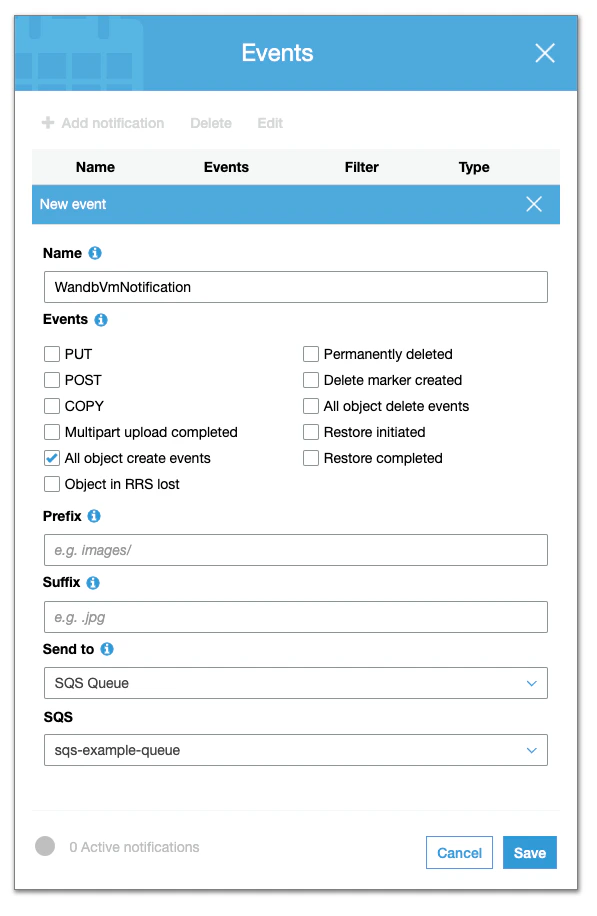
Create an SQS Queue
Follow the procedure below to create an SQS Queue:- Navigate to Amazon SQS in the AWS Console.
- Select Create queue.
- From the Details section, select a Standard queue type.
- Within the Access policy section, add permission to the following principals:
SendMessageReceiveMessageChangeMessageVisibilityDeleteMessageGetQueueUrl
Grant permissions to node that runs W&B
The node where W&B server is running must be configured to permit access to Amazon S3 and Amazon SQS. Depending on the type of server deployment you have opted for, you may need to add the following policy statements to your node role:Configure W&B server
Finally, configure your W&B Server.- Navigate to the W&B settings page at
http(s)://YOUR-W&B-SERVER-HOST/system-admin. - Enable the **Use an external file storage backend option
- Provide information about your Amazon S3 bucket, region, and Amazon SQS queue in the following format:
- File Storage Bucket:
s3://<bucket-name> - File Storage Region (AWS only):
<region> - Notification Subscription:
sqs://<queue-name>
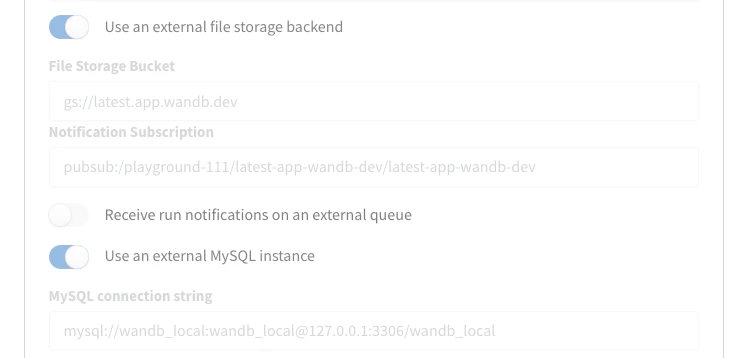
- Select Update settings to apply the new settings.
Upgrade your W&B version
Follow the steps outlined here to update W&B:- Add
wandb_versionto your configuration in yourwandb_appmodule. Provide the version of W&B you want to upgrade to. For example, the following line specifies W&B version0.48.1:
Alternatively, you can add the
wandb_version to the terraform.tfvars and create a variable with the same name and instead of using the literal value, use the var.wandb_version- After you update your configuration, complete the steps described in the Recommended deployment section.
Migrate to operator-based AWS Terraform modules
This section details the steps required to upgrade from pre-operator to post-operator environments using the terraform-aws-wandb module.The transition to a Kubernetes operator pattern is necessary for the W&B architecture. See the architecture shift explanation for a detailed explanation.
Before and after architecture
Previously, the W&B architecture used:

module "wandb_app" in post-operator.tf.

post-operator.tf has a .disabled file extension and pre-operator.tf is active (that does not have a .disabled extension). Those files can be found here.
Prerequisites
Before initiating the migration process, ensure the following prerequisites are met:- Egress: The deployment can’t be airgapped. It needs access to deploy.wandb.ai to get the latest spec for the Release Channel.
- AWS Credentials: Proper AWS credentials configured to interact with your AWS resources.
- Terraform Installed: The latest version of Terraform should be installed on your system.
- Route53 Hosted Zone: An existing Route53 hosted zone corresponding to the domain under which the application will be served.
- Pre-Operator Terraform Files: Ensure
pre-operator.tfand associated variable files likepre-operator.tfvarsare correctly set up.
Pre-Operator set up
Execute the following Terraform commands to initialize and apply the configuration for the Pre-Operator setup:pre-operator.tf should look something like this:
pre-operator.tf configuration calls two modules:
Post-Operator Setup
Make sure thatpre-operator.tf has a .disabled extension, and post-operator.tf is active.
The post-operator.tfvars includes additional variables:

post-operator.tf, there is a single:
Changes in the post-operator configuration:
- Update Required Providers: Change
required_providers.aws.versionfrom3.6to4.0for provider compatibility. - DNS and Load Balancer Configuration: Integrate
enable_dummy_dnsandenable_operator_albto manage DNS records and AWS Load Balancer setup through an Ingress. - License and Size Configuration: Transfer the
licenseandsizeparameters directly to thewandb_inframodule to match new operational requirements. - Custom Domain Handling: If necessary, use
custom_domain_filterto troubleshoot DNS issues by checking the External DNS pod logs within thekube-systemnamespace. - Helm Provider Configuration: Enable and configure the Helm provider to manage Kubernetes resources effectively: