メインコンテンツへスキップ
Auth0 を使用すると、SharePoint の認証プロセスを大幅に簡素化できます。このチュートリアルでは、Auth0 を使用して SharePoint に (SSO) を追加する方法を学びます。ユーザーは、ソーシャルIDプロバイダー (Facebook、X、Github など) 、エンタープライズプロバイダー (LDAP、Active Directory、ADFS など) 、またはユーザー名とパスワードを使用してログインできるようになります。
Auth0 は、SharePoint 2010 / 2013 向けの Auth0Claims Provider のサポートを終了しました。このパッケージは既存のテナントでは非推奨であり、新しいテナントでは利用できません。

設定

ステップ 1. アカウントに統合を追加する

まず、Dashboard の SSO Integrations セクションに移動し、アプリ一覧から SharePoint を選択します。

ステップ 2. Live Documentation に従ってください

SharePoint サーバーがインターネットにアクセスできない場合は、インストール ファイルを手動でダウンロードしてください。(オフライン インストールの詳細)。
Settings タブでは、SharePoint Web Application の URL と外部 URL (通常は Alternate Access Mappings のインターネット エンドポイント) を入力する必要があります。 Live Documentation では、まず SharePoint 用の Auth0 CmdLets をインストールします。
SharePoint Management Shell - cmdlets installation
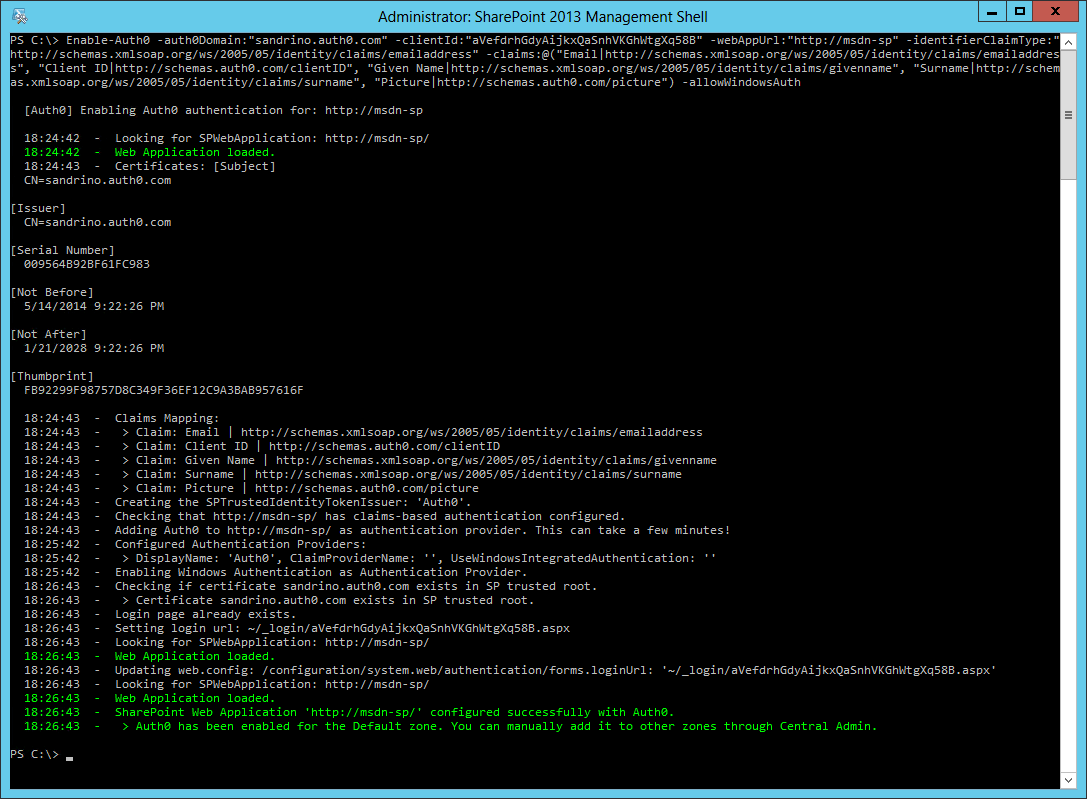
これらをインストールすると、各 Web Application で Auth0 と Claims Provider を有効化または無効化できるようになります。まず、Auth0 による認証を有効にする必要があります。
SharePoint Management Shell - Auth0 install - Enable Authentication
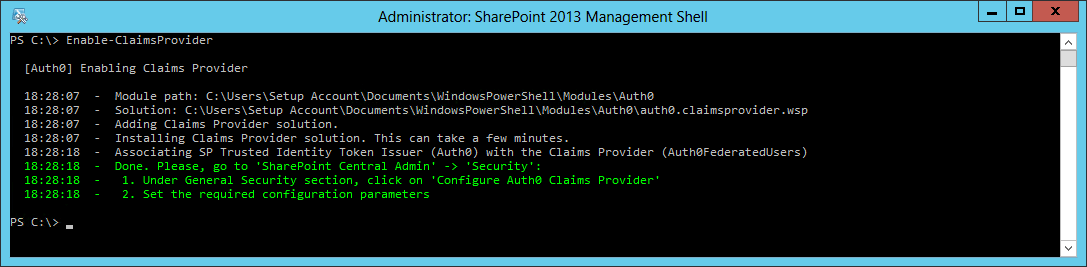
次に、People Picker とアクセス許可が正しく機能するよう、Claims Provider をインストールします。
SharePoint Management Shell - install claims provider
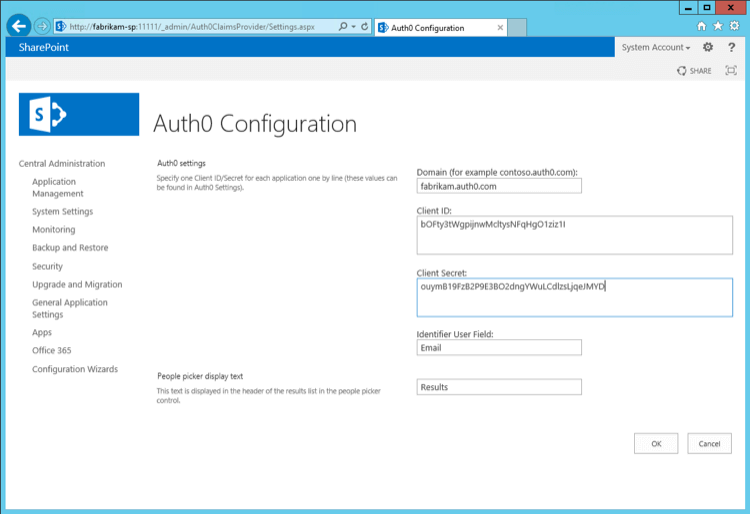
これらのスクリプトを実行したら、Central Administration で構成を完了します。
SharePoint central admin - complete configuration
Enable-Auth0 の呼び出しは、次のように調整できることに注意してください。
  • ユーザーの一意の識別子 (メールアドレスやユーザー id など) を変更する
  • 追加のクレームを SharePoint に渡せるようにする
  • 既定の Windows 認証を有効または無効にする
次の例では、Role クレームもクレーム マッピングに追加し、Windows 認証を許可しています。
Enable-Auth0
  -auth0Domain:"fabrikam.auth0.com"
  -clientId:"bOFty3tWgpijnwMcltysNFqHgO1ziz1I"
  -webAppUrl:"http://fabrikam-sp/"
  -identifierClaimType:"http://schemas.xmlsoap.org/ws/2005/05/identity/claims/emailaddress"
  -claims:@(
    "Email|http://schemas.xmlsoap.org/ws/2005/05/identity/claims/emailaddress",
    "Role|http://schemas.microsoft.com/ws/2008/06/identity/claims/role", "Client ID|http://schemas.auth0.com/clientID",
    "Given Name|http://schemas.xmlsoap.org/ws/2005/05/identity/claims/givenname",
    "Surname|http://schemas.xmlsoap.org/ws/2005/05/identity/claims/surname", "Picture|http://schemas.auth0.com/picture")
  -allowWindowsAuth

ステップ 3. SharePoint の設定が完了しました

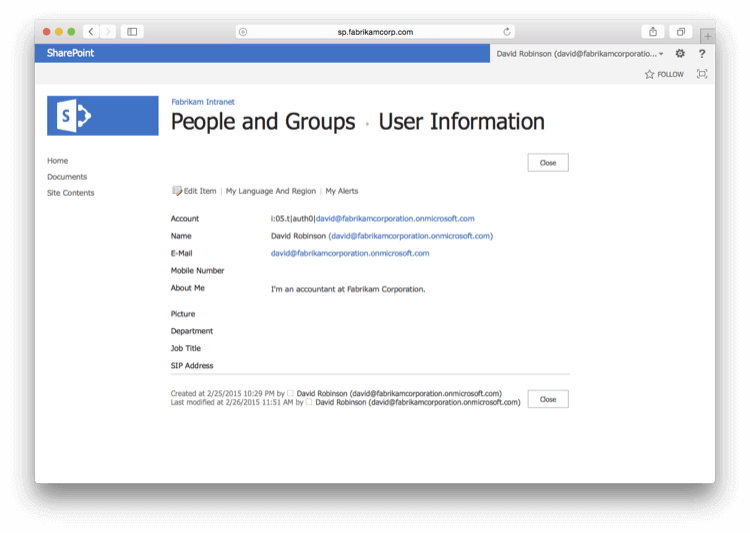
これで、SharePoint は Auth0 を SSO ブローカーとして使用するよう設定されました。ユーザーがサイトにアクセスすると、そのアプリケーションで有効になっているすべての接続が表示されたログインページが表示されます。 Claims Provider のインストール時にマッピングしたクレームに応じて、以下の追加情報もユーザーの個人設定ページで利用できるようになります。
SharePoint - ユーザー情報
SharePoint central admin - 完全な構成
Enable-Auth0 の呼び出しは、次のように調整できます。
  • ユーザーの一意識別子を変更する (メールアドレスやユーザー id など)
  • 追加のクレームを SharePoint に渡せるようにする
  • 既定の Windows 認証 を有効または無効にする
この例では、クレームのマッピングに Role クレームも追加し、Windows 認証 も許可しています。
Enable-Auth0
  -auth0Domain:"fabrikam.auth0.com"
  -clientId:"bOFty3tWgpijnwMcltysNFqHgO1ziz1I"
  -webAppUrl:"http://fabrikam-sp/"
  -identifierClaimType:"http://schemas.xmlsoap.org/ws/2005/05/identity/claims/emailaddress"
  -claims:@(
    "Email|http://schemas.xmlsoap.org/ws/2005/05/identity/claims/emailaddress",
    "Role|http://schemas.microsoft.com/ws/2008/06/identity/claims/role", "Client ID|http://schemas.auth0.com/clientID",
    "Given Name|http://schemas.xmlsoap.org/ws/2005/05/identity/claims/givenname",
    "Surname|http://schemas.xmlsoap.org/ws/2005/05/identity/claims/surname", "Picture|http://schemas.auth0.com/picture")
  -allowWindowsAuth
SharePoint は今後、SSO ブローカーとして Auth0 を使用するようになります。

ログインページのカスタマイズ

Auth0 Universal Login の手順に従って、ログインページをカスタマイズできます。 Auth0 を経由せずに、ユーザーが Windows 認証を使って SharePoint で認証できるようにしたい場合があります。その場合は、ログインページをカスタマイズして、Windows 認証エンドポイントへのリンク (通常は https://yoursharepointserver/_windows/default.aspx?ReturnUrl=/_layouts/15/Authenticate.aspx のような URL) を追加します。 その方法の 1 つは、jQuery を使用して Lock ウィジェットをカスタマイズし、Windows 認証エンドポイントへのリンクを追加することです。 カスタマイズしたログインページの <body> セクションの先頭に、jQuery の参照を追加する必要があります。
<script src="https://code.jquery.com/jquery-3.3.1.slim.min.js"></script>
lock.show() を呼び出す前に、リンクを追加するための HTML DOM の変更コードを追加します。
// Lockを構築する
// var lock = ...
[...]
// Windows認証ボタンを表示したいSharePointのクライアントIDを1つ以上指定する
var sharepointClientIDs = ['your_sharepoint_client_id'];

if (sharepointClientIDs.indexOf(config.clientID) >= 0) {
  lock.on('signin ready', function() { 
    var getParameterByName = function(name) {
      name = name.replace(/[\[]/, "\\\[").replace(/[\]]/, "\\\]");
      var regexS = "[\\?&]" + name + "=([^&#]*)";
      var regex = new RegExp(regexS);
      var results = regex.exec(window.location.search);
      if (results == null) return null;
      else return results[1];
    };
    // コールバックURLからホストを取得する
    var parser = document.createElement('a');
    parser.href = config.callbackURL;
    var host = parser.host;
    var windowsAuthURL = "https://" + host + "/_windows/default.aspx?ReturnUrl=/_layouts/15/Authenticate.aspx";
    var wctx = getParameterByName("wctx");
    if (wctx) {
      windowsAuthURL += "&Source=" + wctx;
    }

    $('.auth0-lock-tabs-container') 
    .after('<div><p class="auth0-lock-alternative" style="padding:5px 0;">' + 
      '<a class="auth0-lock-alternative-link" ' + 
      'href="'+ windowsAuthURL + '">' +
      'Login with Windows Authentication!!!</a>' + 
      '</p><p><span>or</span></p></div>').attr('href','https://nowhere');
  });
}

lock.show();

トラブルシューティング

追加のクレームや認可を扱う際は、現在のユーザーのクレームを確認すると役立つことがあります。Microsoft の専門家 Liam Clearly による記事 Claims Viewer Web Part を使用すると、ユーザーのクレームに関する問題をトラブルシューティングできます。

SP2010 のログ

エラーと警告は SharePoint の Unified Logging Service に記録されます。Claims Provider の使用時に発生する問題をトラブルシューティングするには、ULS Viewer などのツールを使用できます。 ULS Viewer の詳細と入手方法については、Microsoft のドキュメント ULS Viewer を参照してください。

SP2013 のログ

SharePoint 2013 では、ログに Unified Logging Service は使用されなくなり、代わりに Event Tracing for Windows を使用しています。これにより、パフォーマンスが向上し、記録されたすべてのイベントを取得する方法も複数利用できます。 ログをリアルタイムで表示するには、GitHub から Auth0 の Logs Processor をダウンロードできます。このツールを SharePoint Server 上で実行すると、SharePoint が Claims Provider に対して行うすべての呼び出しを確認できます。

次のステップ

認可

Auth0 から渡される クレーム は、SharePoint での認可にも利用できます。たとえば、Role claim に Fabrikam HR が含まれているユーザーには、特定のサイトへのアクセス権を付与したり、そのサイトの共同作成者にしたりできます。 Azure AD を例に見てみましょう。この Cloud Directory では、ユーザーはグループに所属でき、David は Fabrikam HR に所属しています。 David が Azure AD アカウントでログインすると (その接続で Security Groups 属性が有効になっている場合) 、グループ メンバーシップはユーザーのユーザープロファイルの groups 属性に格納されます。 これらのグループを SharePoint で Roles として利用できるようにするには、これを 設定に追加する Rule を作成する必要があります。この Rule は、Fabrikam Intranet (SharePoint) という名前のアプリケーションに対してのみ実行されます。
function (user, context, callback) {
  if (context.clientName === 'Fabrikam Intranet (SharePoint)') {
    context.samlConfiguration.mappings = {
        'http://schemas.xmlsoap.org/ws/2005/05/identity/claims/nameidentifier': 'user_id',
        'http://schemas.xmlsoap.org/ws/2005/05/identity/claims/emailaddress': 'email',
        'http://schemas.xmlsoap.org/ws/2005/05/identity/claims/name': 'name',
        'http://schemas.xmlsoap.org/ws/2005/05/identity/claims/givenname': 'given_name',
        'http://schemas.xmlsoap.org/ws/2005/05/identity/claims/surname': 'family_name',
        'http://schemas.xmlsoap.org/ws/2005/05/identity/claims/upn': 'upn',
        'http://schemas.microsoft.com/ws/2008/06/identity/claims/role': 'groups'
    };
  }

  callback(null, user, context);
}
これにより、groups を含む追加の送信クレーム http://schemas.microsoft.com/ws/2008/06/identity/claims/role が追加され、SharePoint はこれを認可に使用します。 Claims Provider をインストールする際は、Role クレームが SharePoint に渡されるよう、クレーム mapping list に追加する必要があります。
Enable-Auth0
  -auth0Domain:"fabrikam.auth0.com"
  ...
  -claims:@(
    "Email|http://schemas.xmlsoap.org/ws/2005/05/identity/claims/emailaddress",
    "Role|http://schemas.microsoft.com/ws/2008/06/identity/claims/role",
    ...)
  ...
  -Verbose
既定では、ユーザーはサイトにアクセスできません。 ここで、特定のユーザーを SharePoint Group (例: Contributors) に追加する代わりに、Role を SharePoint Group に追加できるようになりました。以下は、“Fabrikam HR” のメンバーを Contributors グループに追加する方法を示す PowerShell スクリプトの例です。
$webName = "http://fabrikam-sp"
$groupName = "Contributors"
$roleClaim = "Fabrikam HR"

$sts = Get-SPTrustedIdentityTokenIssuer "Auth0"
$claimPrincipal = New-SPClaimsPrincipal -ClaimValue $roleClaim -ClaimType "http://schemas.microsoft.com/ws/2008/06/identity/claims/role" -TrustedIdentityTokenIssuer $sts

$web = Get-SPWeb $webName
$user = New-SPUser -UserAlias $claimPrincipal.ToEncodedString() -Web $web

$group = $web.SiteGroups[$groupName]
$group.AddUser($user)
このクレーム値を Contributors グループに追加すると、David はサイトにアクセスして内容を編集できるようになります。

ユーザープロファイルの同期

既定では、SharePoint は Active Directory 由来のユーザープロファイル情報を同期できます。現在は、Auth0 の導入により、ユーザーがさまざまな種類の接続 (ソーシャルからエンタープライズまで) 経由で来る可能性があるため、ユーザープロファイルの同期には別のアプローチが必要になります。 1 つ目のアプローチとしては、数時間おきに実行されるタイマー ジョブを作成し、Auth0 Users Endpoint を照会して、対象ユーザーのユーザープロファイル情報を同期する方法があります。
using System;

using Microsoft.SharePoint;
using Microsoft.SharePoint.Administration;

using Microsoft.Office.Server;
using Microsoft.Office.Server.UserProfiles;

namespace UserProfileSync
{
    class Program
    {
        static void Main(string[] args)
        {
            // Auth0 Management API を呼び出す - https://docs.auth0.com/api/v2

            using (var site = new SPSite("http://servername"))
            {
                var context = SPServiceContext.GetContext(site);
                var profileManager = new UserProfileManager(context);

                var accountName = "i:05.t|auth0|john@example.org";
                var userProfile = profileManager.GetUserProfile(accountName);
                userProfile[PropertyConstants.HomePhone].Value = "+1 594 9392";
                userProfile.Commit();
            }
        }
    }
}
別の方法として、このロジックはユーザーがログインするたびに実行される HttpModule として実装することもできます:
public class PersistUserClaimsHttpModule : IHttpModule
{
    private SPFederationAuthenticationModule FederationModule
    {
        get { return HttpContext.Current.ApplicationInstance.Modules["FederatedAuthentication"] as SPFederationAuthenticationModule; }   
    }

    public void Init(HttpApplication context)
    {
        FederationModule.SecurityTokenValidated += OnFederationSecurityTokenValidated;
    }

    private void OnFederationSecurityTokenValidated(object sender, SecurityTokenValidatedEventArgs e)
    {
        // e.ClaimsPrincipal を使用する
    }
}