

 認証
認証 ユーザー管理
 カスタマイズ
 Auth0 AI
 プラットフォーム
- Dashboard > Applications > Applications に移動し、新しいアプリケーションを作成するか、更新するアプリケーションの名前をクリックします。
- Addons タブに移動し、SAML2 Web App トグルを有効にします。
-
Settings タブで、Application Callback URL を次のように設定します:
https://{FD Domain}.freshdesk.com/login/saml.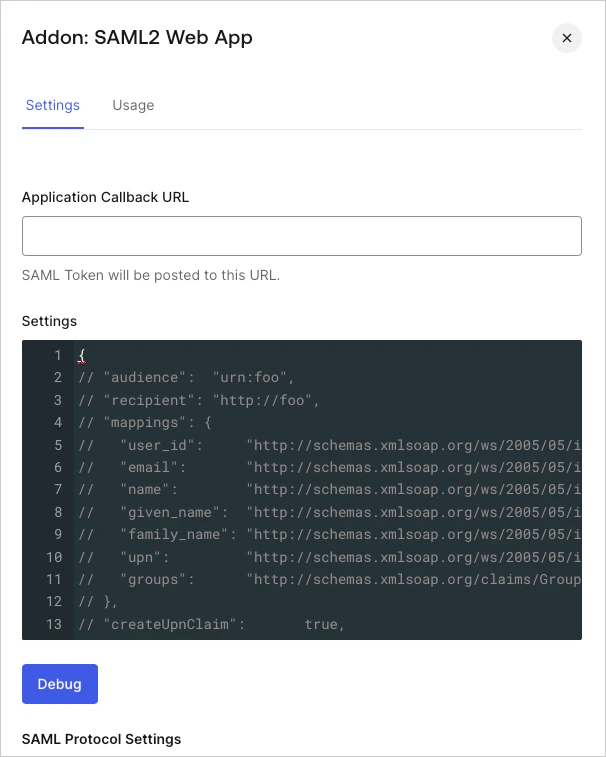
- 次の場所で確認できます: Freshworks Dashboard > Security > SAML SSO > Assertion Consumer Service(ACS) URL
- オーディエンスは次の場所で確認できます: Freshworks Dashboard > Security > SAML SSO > Service Provider(SP) Entity ID URL
-
次のコードを Settings テキストボックスに貼り付け、Debug をクリックします。
- ページの下部までスクロールし、Enable をクリックします。
-
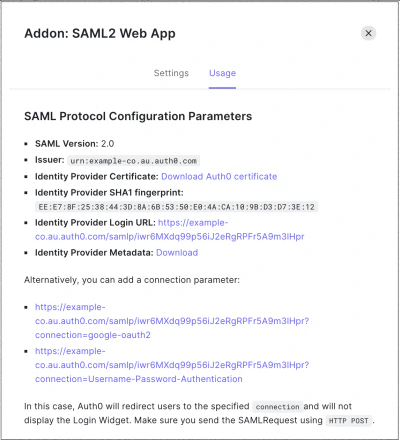
Usage タブで Identity Provider Metadata を見つけ、Download をクリックしてメタデータファイルをダウンロードします。これは、Auth0 を IDプロバイダーとして設定するときに必要です。
Freshdesk を SAML サービスプロバイダーとして設定する
Freshdesk 用の SAML2 Web App アドオンを使用して、Auth0 を IDプロバイダーとして設定する方法を説明します。
Freshdesk では、次の 設定を使用します。