メインコンテンツへスキップ
Workday には、次の 設定を使用します。
  1. Dashboard > Applications > Applications に移動し、新しいアプリケーションを作成するか、更新するアプリケーション名をクリックします。
  2. Addons タブに移動し、SAML2 Web App トグルを有効にします。
  3. Settings タブで、Application Callback URL を次の値に設定します: https://impl.workday.com/<tenant>/login-saml.htmld
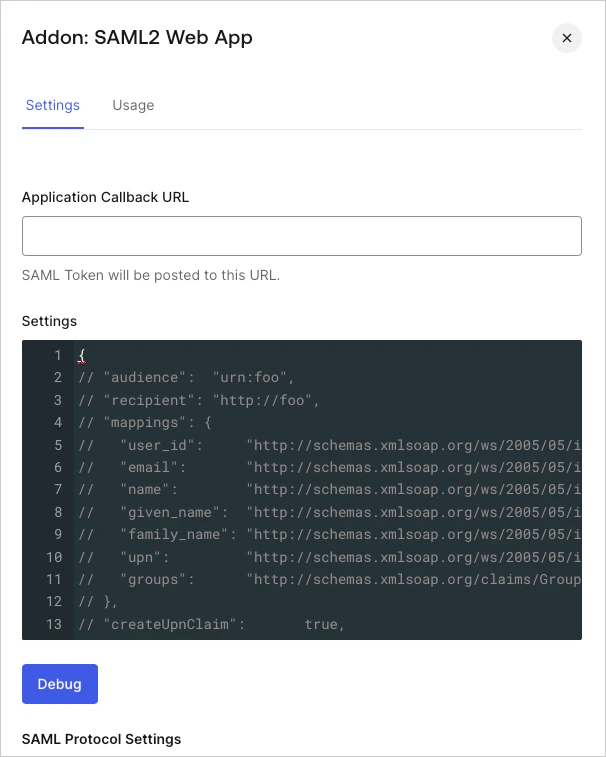
    Dashboard Applications Applications Addons Tab SAML2 Web App Settings Tab
  4. 次のコードを Settings テキストボックスに貼り付け、Debug をクリックします。
    {
          "audience": "http://www.workday.com",
          "recipient": "https://www.myworkday.com/<tenant>/login-saml.htmld",
          "mappings": {
          },
          "createUpnClaim":       false,
          "passthroughClaimsWithNoMapping": false,
          "mapUnknownClaimsAsIs": false,
          "mapIdentities":        false,
          "signResponse":         true,
          "nameIdentifierFormat": "urn:oasis:names:tc:SAML:1.1:nameid-format:X509SubjectName",
          "nameIdentifierProbes": [
        "http://schemas.xmlsoap.org/ws/2005/05/identity/claims/emailaddress",
          ],
          "authnContextClassRef": "urn:oasis:names:tc:SAML:2.0:ac:classes:X509",
        }
    
    使用する Workday データセンターに応じて、サブドメイン impl を変更してください。
  5. ページの一番下までスクロールし、Enable をクリックします。
  6. Usage タブで Identity Provider Metadata を見つけ、Download をクリックしてメタデータファイルをダウンロードします。これは、Auth0 を IDプロバイダーとして設定するときに必要です。
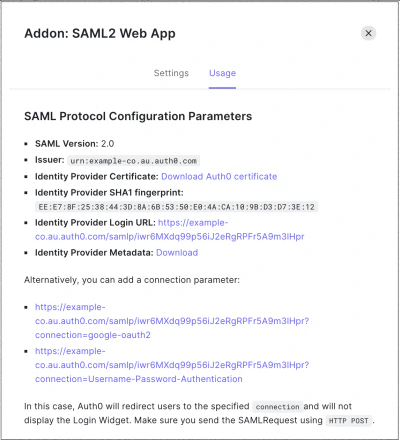
    Dashboard Applications Applications Addons Tab SAML2 Web App Usage Tab