メインコンテンツへスキップ
Tableau Server では、次の 設定を使用します。
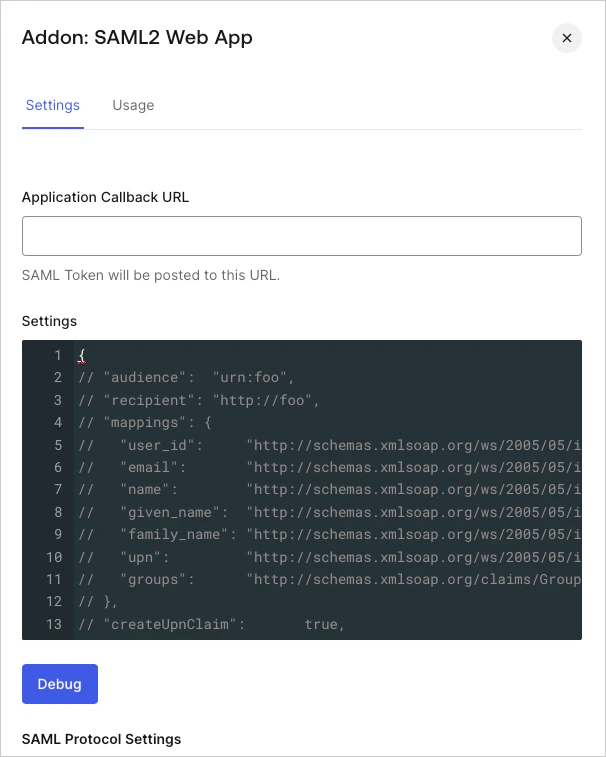
  1. Dashboard > Applications > Applications に移動し、新しいアプリケーションを作成するか、更新するアプリケーションの名前をクリックします。
  2. Addons タブに移動し、SAML2 Web App トグルを有効にします。
  3. Settings タブで、Application Callback URL を次の値に設定します: http://{yourTableauServer}/wg/saml/SSO/index.html
    Dashboard Applications Applications Addons Tab SAML2 Web App Settings Tab
  4. 次のコードを Settings テキストボックスに貼り付け、Debug をクリックします。
    {
         "audience":  "{yourTableauAudience}",
         "recipient": "http://{yourTableauServer}/wg/saml/SSO/index.html",
         "mappings": {
        "email": "username"
         },
         "createUpnClaim":       false,
         "passthroughClaimsWithNoMapping": false,
         "mapUnknownClaimsAsIs": false,
         "mapIdentities":        false,
         "signatureAlgorithm":   "rsa-sha1",
         "digestAlgorithm":      "sha1",
         "destination":          "http://{yourTableauServer}/wg/saml/SSO/index.html",
         "lifetimeInSeconds":    3600,
         "signResponse":         false,
         "nameIdentifierFormat": "urn:oasis:names:tc:SAML:2.0:attrname-format:basic",
         "nameIdentifierProbes": [
           "http://schemas.xmlsoap.org/ws/2005/05/identity/claims/name"
         ]
        }
    
  5. ページの一番下までスクロールし、Enable をクリックします。
  6. Usage タブで Identity Provider Metadata を見つけて、Download をクリックし、メタデータファイルをダウンロードします。このファイルは、Auth0 を IDプロバイダーとして設定する際に必要です。
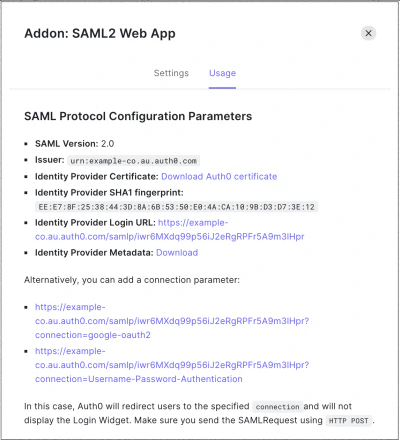
    Dashboard Applications Applications Addons Tab SAML2 Web App Usage Tab